
Multilogin — is the industry standard for managing isolated browser environments. It allows you to create separate profiles for secure surfing and testing.
But Multilogin only provides isolation at the browser level. Your network connection is your responsibility. Using cheap or poorly chosen proxies with this expensive software is like fueling a supercar with low-grade gasoline. The result is always the same — an unstable connection or a threat to data security.
In this guide, we will break down which type of proxy to choose for your tasks (digital marketing, crypto projects, e-commerce) and how to correctly configure the connection in Multilogin.
Part 1. Strategy: Which proxy is needed for Multilogin?
Before creating a profile, you need to choose the right "fuel." A mistake here can lead to failures in the environment's operation.
1. Mobile Proxies (4G/5G)
- Purpose: Social media management, digital marketing campaigns, and software testing.
- Core: Dynamic IPs from mobile carriers.
- In Multilogin: Use them for tasks requiring dynamic IP distribution and flexible connection management. If the proxy is private, ensure the IP changes before launching a new profile via the address change link.
2. Static Residential Proxies (ISP)
- Purpose: Crypto projects, E-commerce (Amazon, eBay, Etsy), corporate payment systems.
- Core: Static IP addresses from home internet service providers.
- In Multilogin: The rule here is “1 Profile = 1 Static IP”. The IP must not change. This is critical for stable work with finances and corporate platforms.
3. Datacenter Proxies
- Purpose: Scraping, technical tasks, testing.
- Note: They are not recommended for marketing tasks in Multilogin. Platforms easily identify them as server IPs, which may not be suitable for tasks requiring a standard user connection.
Part 2. Data Preparation
For working with Multilogin, we recommend using proxies from CyberYozh App.
After purchasing, you will receive data in your personal account. You will need:
- Host: IP address (e.g.,
172.98.60.180) - Port: Port (e.g.,
58763) - Username: Login
- Password: Password
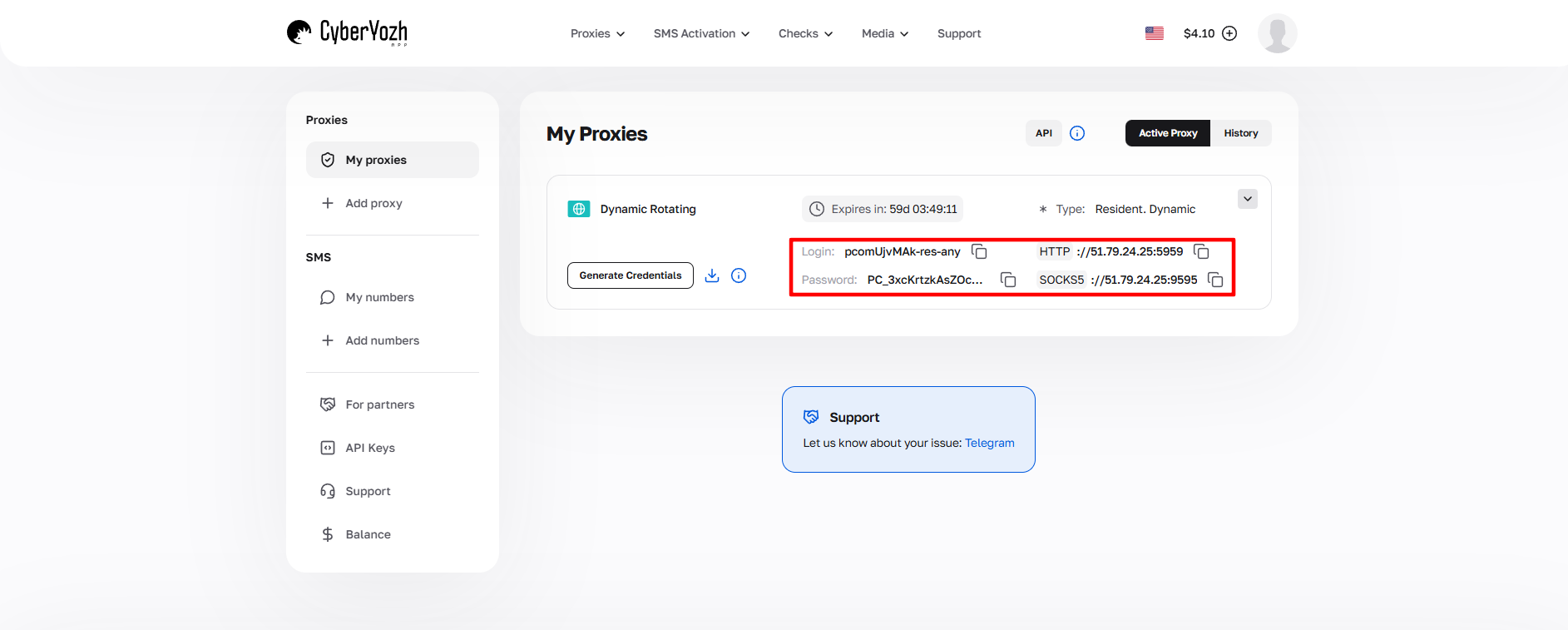 Fig. 1. Screenshot of the CyberYozh platform interface, showing the location of data for connecting a proxy server. The image displays fields for IP address (Host), port (Port), username (Proxy Username), and password (Proxy Password).
Part 3. Profile Creation and Connection
Step 1. Profile Creation
Launch Multilogin. Click the green “New profile” button.
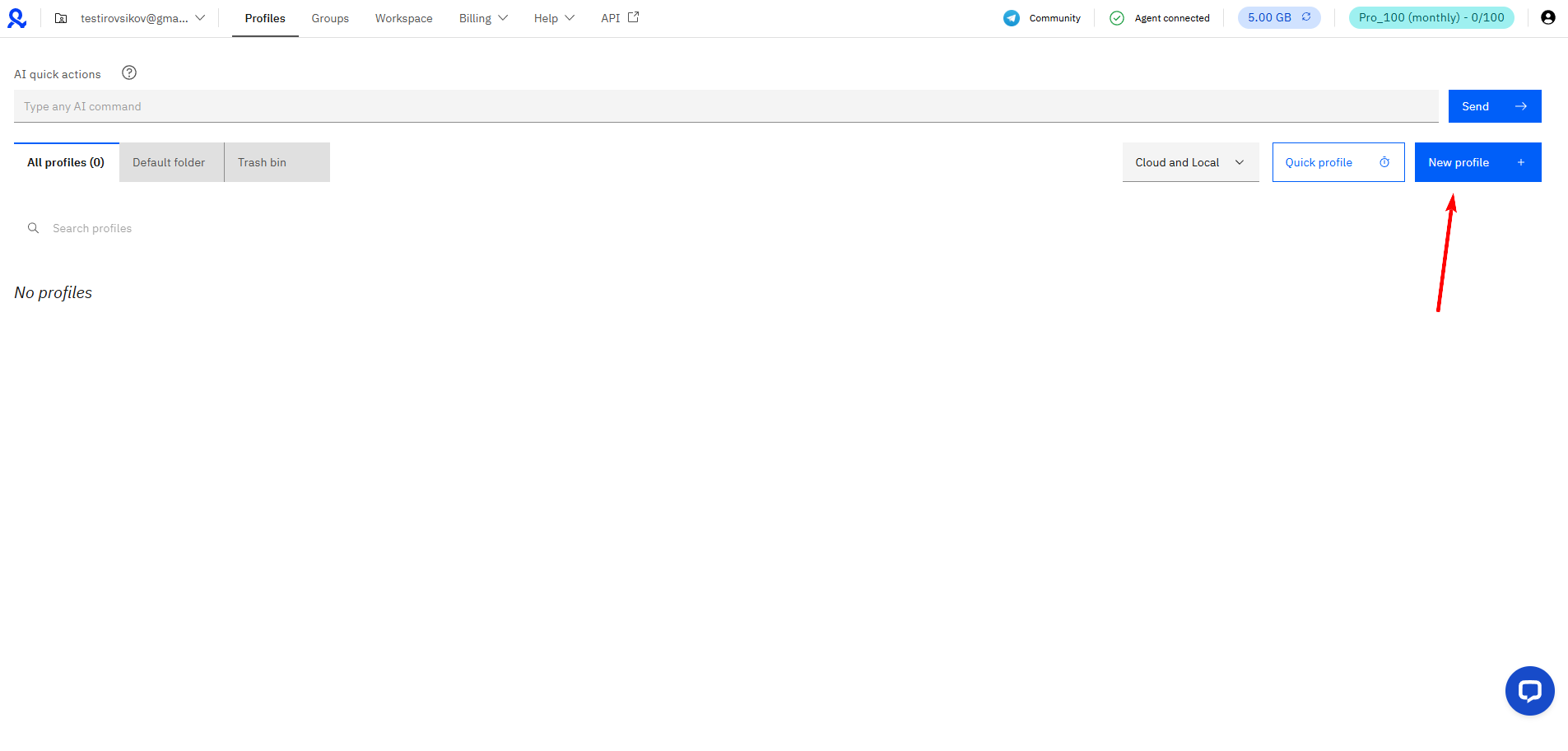 Fig. 2. Multilogin user interface showing the new profile creation window. The image shows the "New profile" button, which is the starting point for setting up a new browser profile.
Step 2. Basic Settings
- Name: Set a profile name.
- Browser: Choose the engine:
- Mimic: Chrome-based browser. Ideal for Google products and most tasks.
- Stealthfox: Firefox-based browser.
- OS: Select the operating system. Important: For optimal performance and compatibility, choose the OS that is installed on your PC (Windows to Windows, macOS to macOS).
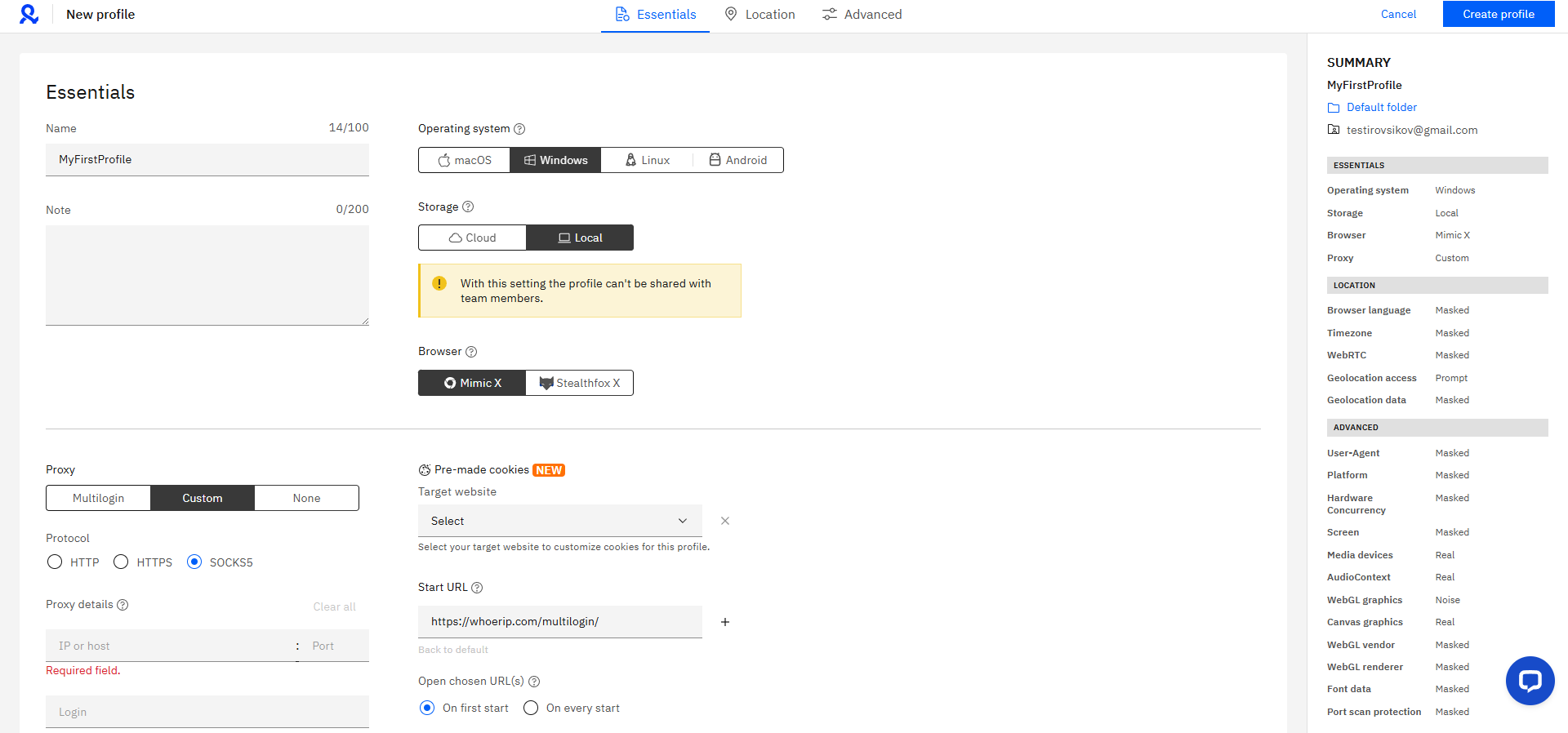 Fig. 3. Multilogin software interface during the browser profile setup process. The image presents the main fields for profile configuration, including settings for selecting the browser, operating system, and user agent.
Step 3. Proxy Setup
Click on the Edit proxy settings section.
- Connection type: Select the protocol. We recommend SOCKS5. It is faster and more reliable than HTTP when working with media and complex scripts.
- Fill in the fields with data from your personal account:
- New address (Host): IP address.
- Port: Port.
- Username / Password: Your authorization data.
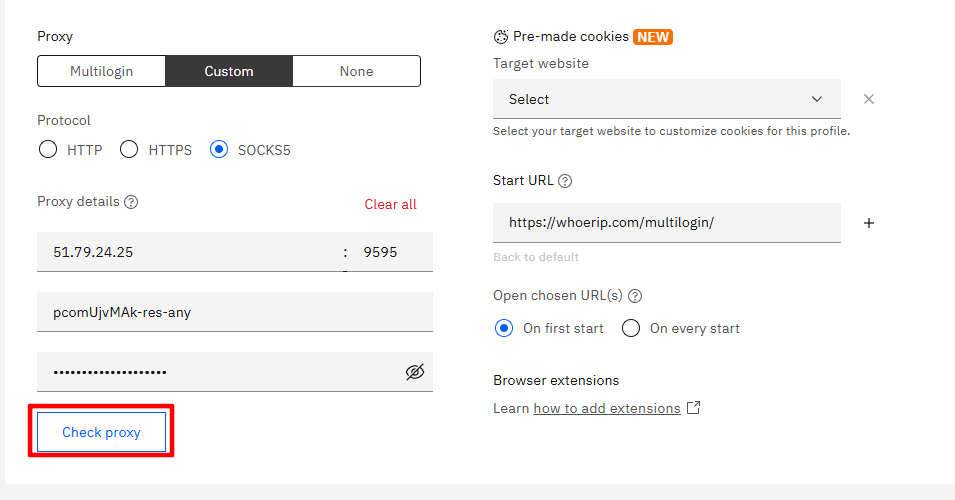 Fig. 4. Proxy configuration window in Multilogin, showing fields for entering proxy server parameters: host (Host), port (Port), proxy type (Proxy type), as well as authentication fields — username (Username) and password (Password).
Step 4. Connection Check
Never create a profile without checking. Click the “Check Proxy” button.
Multilogin will check the server availability and determine its parameters.
- If the check is successful (“Proxy connected”), you will see the proxy's country, city, and time zone.
- Important: Multilogin will automatically adjust the profile's Timezone and geolocation (WebRTC) to match your proxy data.
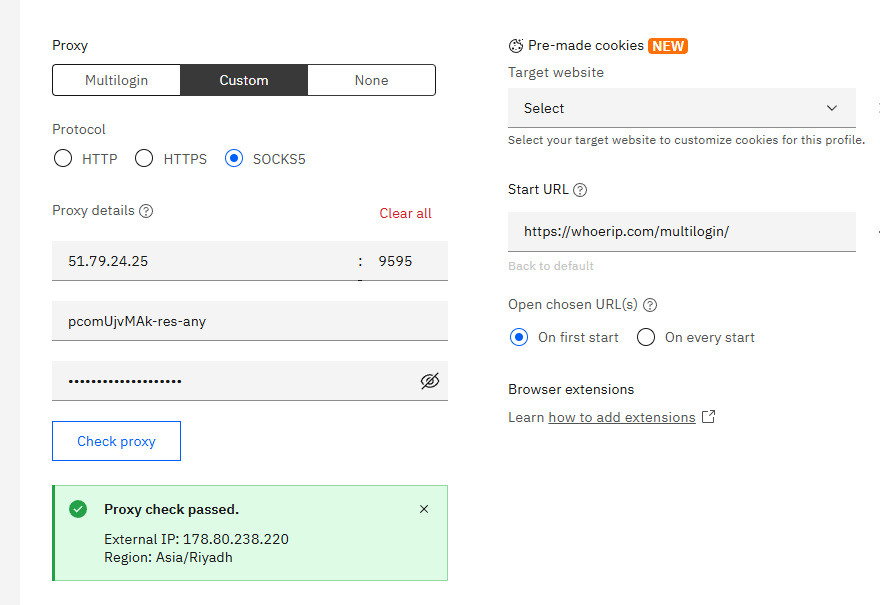 Fig. 5. Proxy connection check dialog box in the Multilogin interface. The image shows the "Check Proxy" button and the check status indicator, allowing the user to verify the correctness of the entered proxy server settings.
Click “Create profile” at the bottom of the screen.
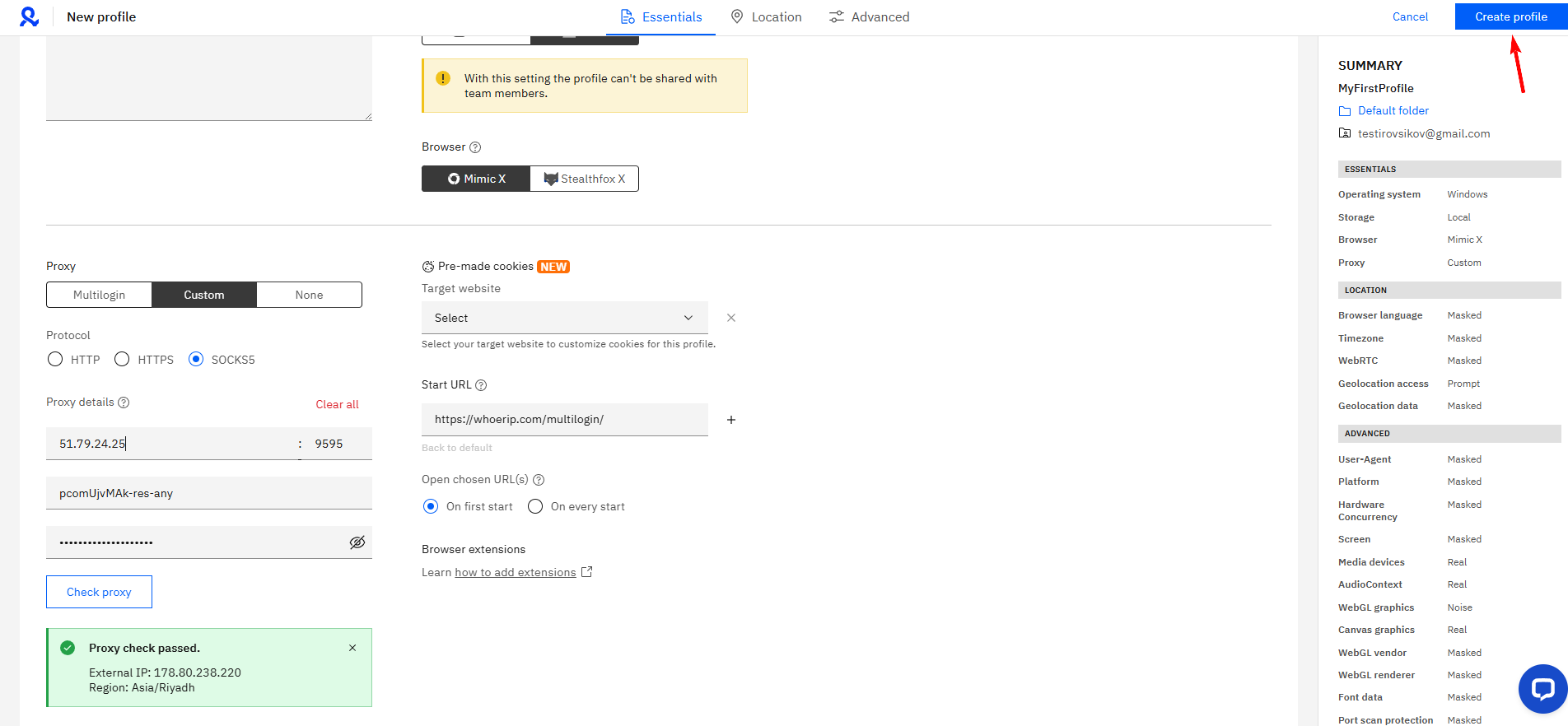 Fig. 6. Multilogin interface at the final profile creation stage. The image shows the "Create profile" button, completing the setup and creation process of a new browser profile with the established proxy server parameters.
Part 4. Launch and Final Check
Your profile is ready. Click the Start button next to its name.
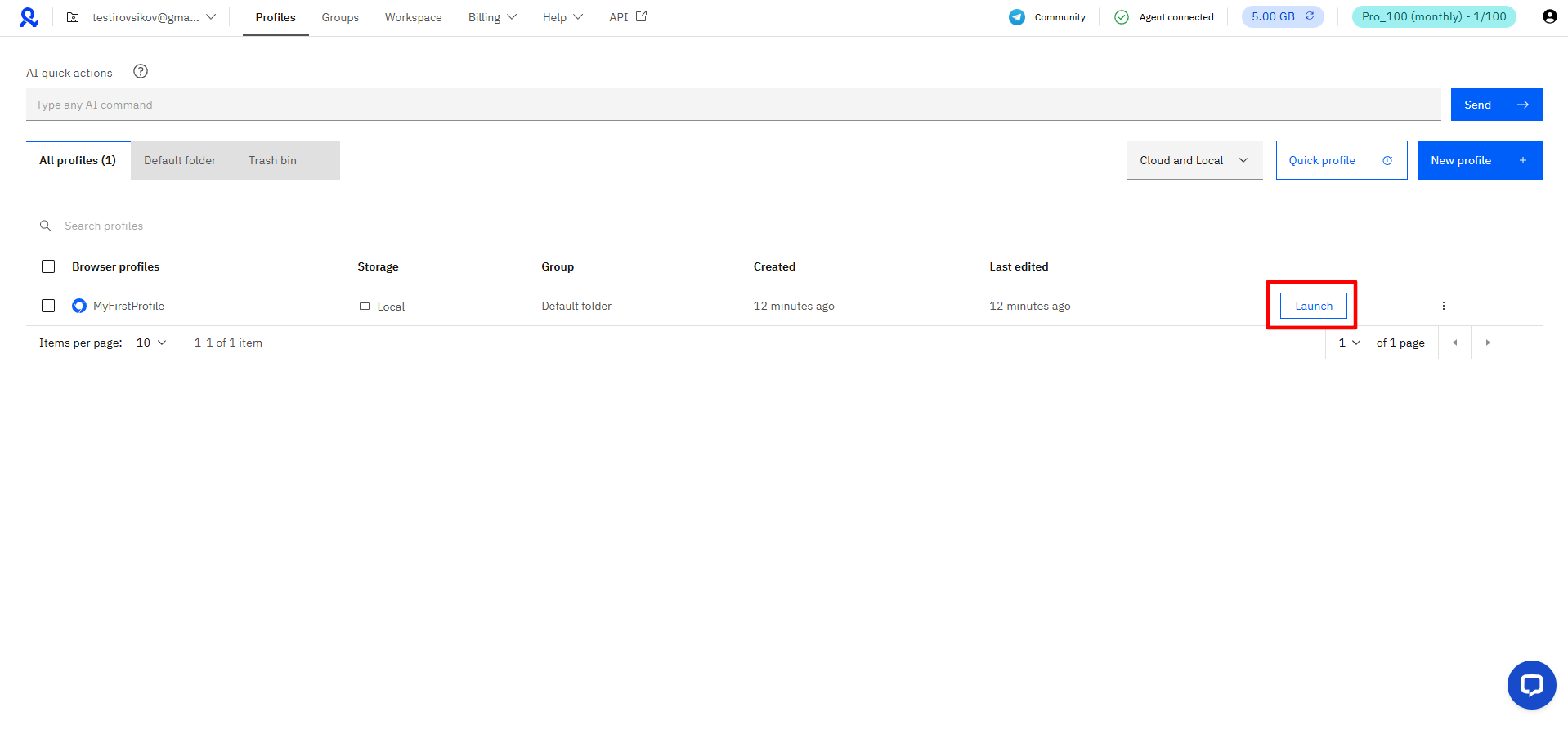 Fig. 7: Launching the profile after setting up the proxy. The image shows the list of created profiles with controls for their activation.
A browser window (Mimic or Stealthfox) will open. Before starting work, ensure that the connection settings are applied correctly and are secure. Go to browserleaks.com/ip or whoer.net.
Network Settings Checklist:
- IP: Does it match the purchased one?
- DNS: Is it leaking? (It should be from the same country as the proxy).
- WebRTC: Does it reveal your local IP?
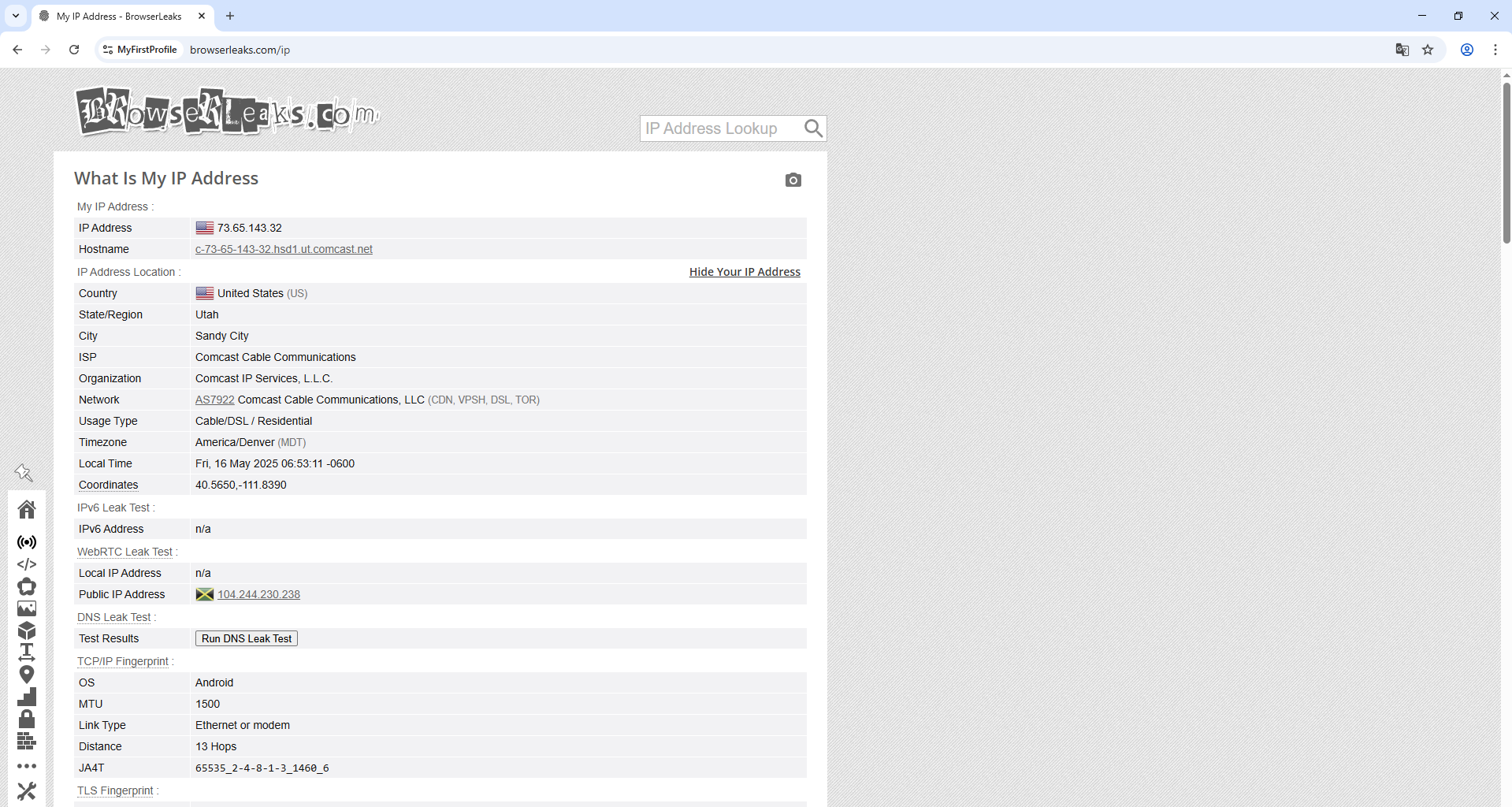 Fig. 8. IP address check service webpage, showing the results of testing the configured proxy connection in a Multilogin profile. The interface displays information about the current IP address and related network parameters, allowing verification of the correct operation of the installed proxy server.
If all indicators are normal — your isolated environment is successfully configured and ready for work.
Conclusion
Multilogin is a tool for professionals, and it requires a corresponding approach to choosing an IP.
- For secure management of social media profiles, use Mobile proxies.
- For protecting financial assets, use Residential proxies.
You can find the most reliable private proxies for high Multilogin standards in the CyberYozh App catalog. Good luck with your work!
