
GenLogin is an antidetect browser designed for multi-account management, automation, and staying undetectable online. It's built on a custom Chromium core called Titan Browser and uses real-device fingerprinting technology to simulate authentic human behavior. The application updates fingerprints regularly based on device usage to reinforce this.
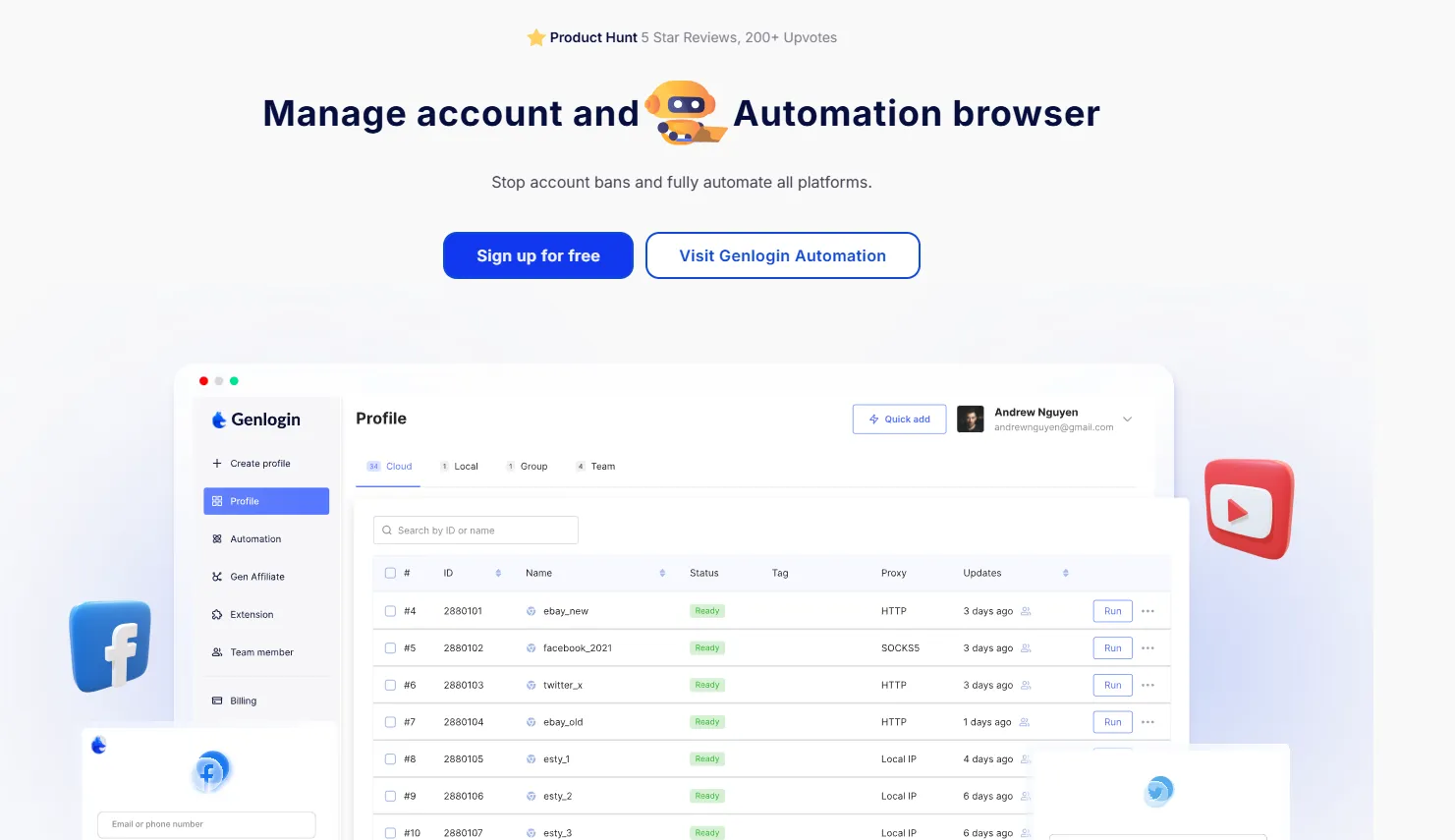
Each GenLogin profile can be paired with a CyberYozh proxy to finalize the antidetection and make the session indistinguishable from an ordinary web user.
Proxy types for GenLogin profiles: Select the best one
Which proxy type is right for your specific task? Here's a breakdown.
Mobile proxies: Social apps and essential work
Mobile proxies use IP addresses from the mobile carrier range, with customizable rotation and fingerprints. They carry the highest trust score of any proxy type and are strongly recommended for high-requirement platforms, like social networks, and for high-importance tasks, such as social data scraping.
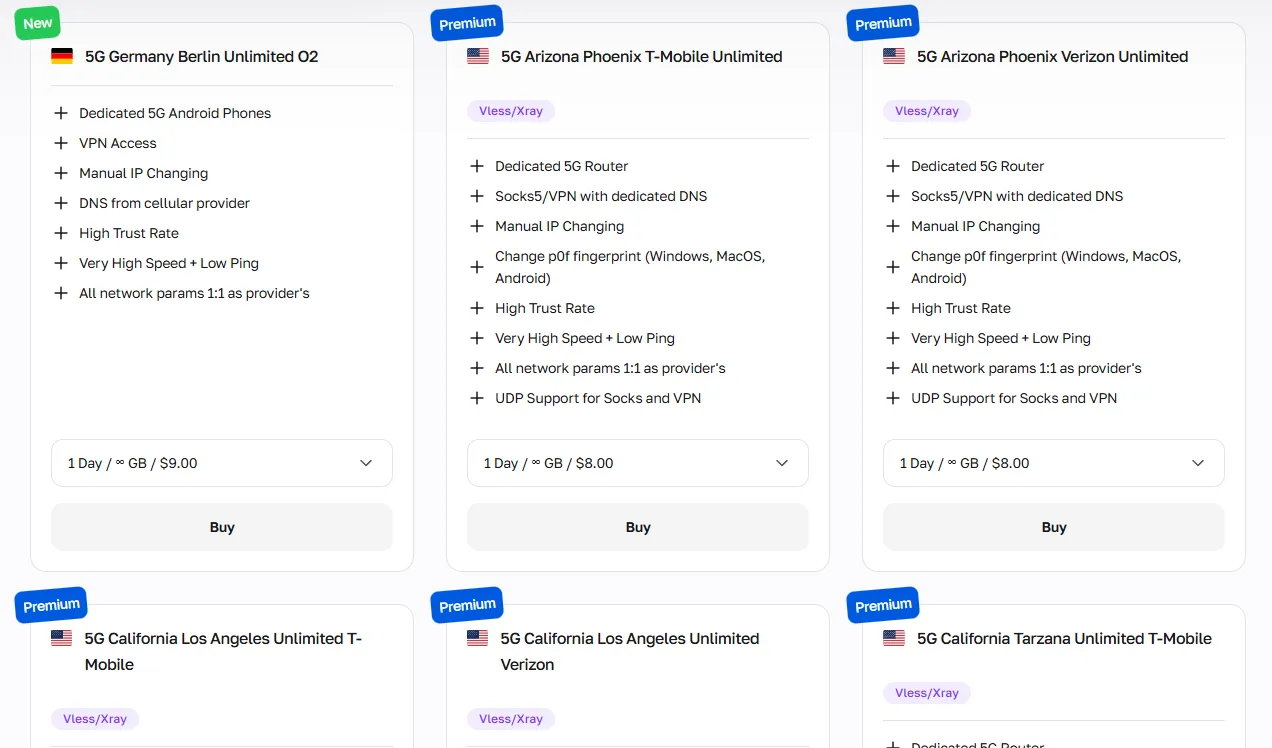
They are the top choice for:
Social media multi-account management and automation
Influencer campaign scheduling and ad monitoring
Social data scraping and audience research
Bypassing CAPTCHA and bot-detection triggers on strict platforms
Mobile ad verification across multiple regions
CyberYozh mobile proxies can also be used alongside CyberYozh's SMS service for account verification on platforms that require it.
Residential static: Single account management
Residential static proxies assign a fixed IP address that resembles a real home Internet provider, available in 100+ countries. They are best suited for account management on the principle of 1 IP per account, and for general web activity, where appearing as an ordinary user is the priority.
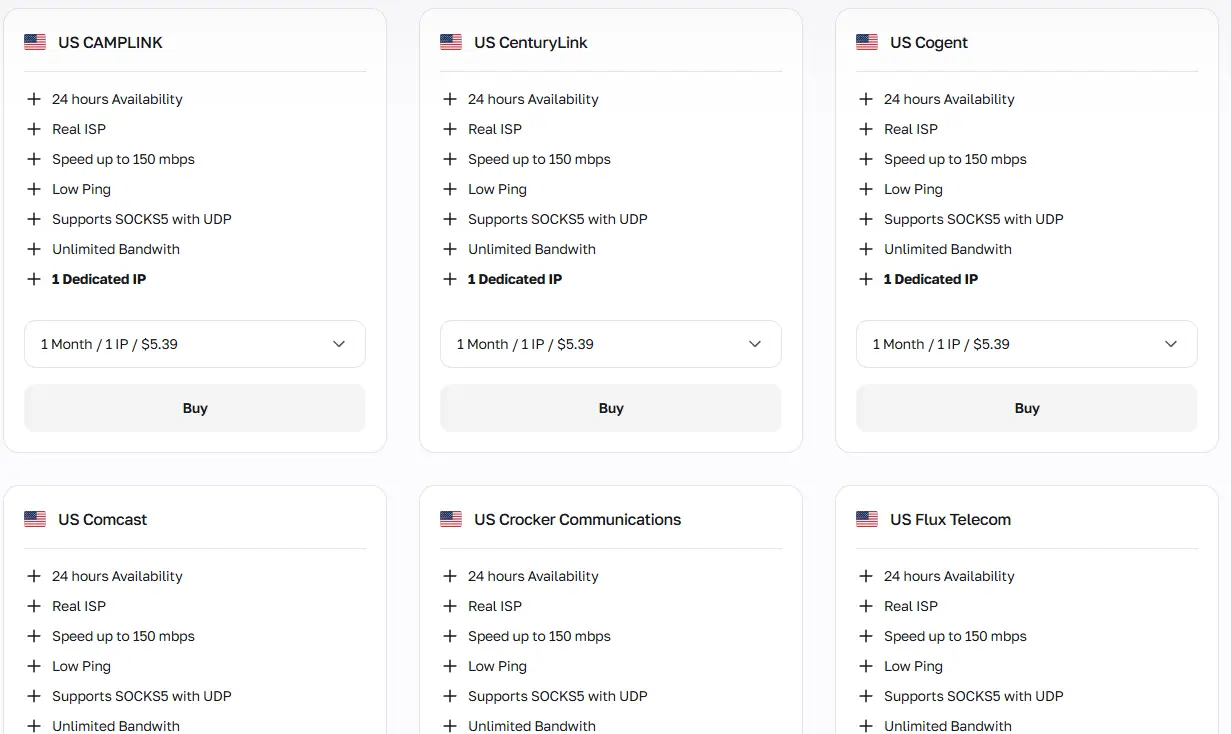
They work well for:
Long-term brand identity and account maintenance across platforms
Stable SEO rank tracking from a fixed geographic location
E-commerce account management on Amazon, eBay, Etsy, and Shopee
Persistent authenticated sessions with consistent login behavior
B2B LinkedIn profile management and outreach automation
IP reputation can be checked at any time using the CyberYozh IP Checker.
Residential rotating: Bulk online activities
Residential rotating proxies cycle through a pool of 50M+ real residential IP addresses across 100+ countries, with extensive customization over rotation intervals and geolocation targeting. They are ideal for reducing the request load from any single IP when running bulk workflows.
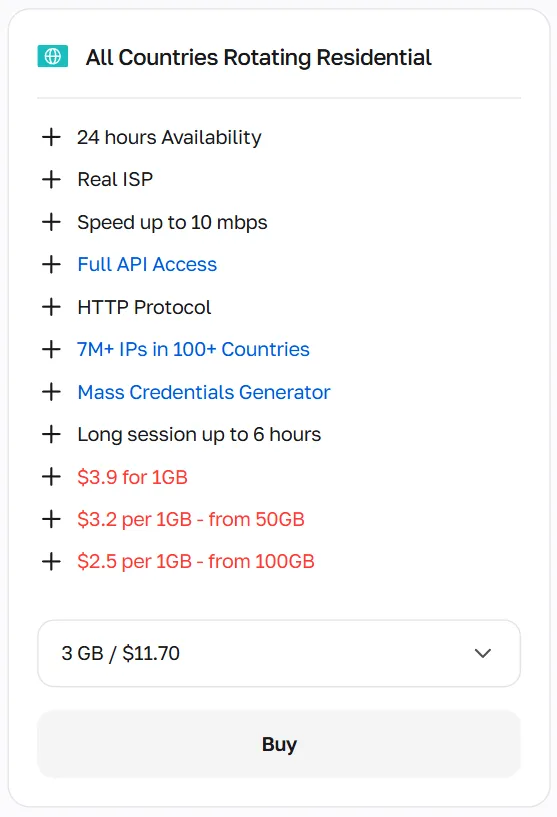
They are best suited for:
Large-scale web scraping and price monitoring
Bulk keyword tracking and SERP analysis
Mass lead generation and contact collection
Ad verification across multiple geos
High-volume multi-account automation via GenLogin's API
Since GenLogin supports no-code automation and script integration, rotating proxies pair naturally with scripted workflows running across many profiles.
Datacenter proxies: Best speed, lower safety
Datacenter proxies offer large IP ranges and high connection speeds at the lowest cost per IP, but they originate from data center infrastructure rather than real ISPs, making them easier for anti-bot systems to flag. They are best reserved for open database scraping and non-critical tasks where speed is the priority over stealth.
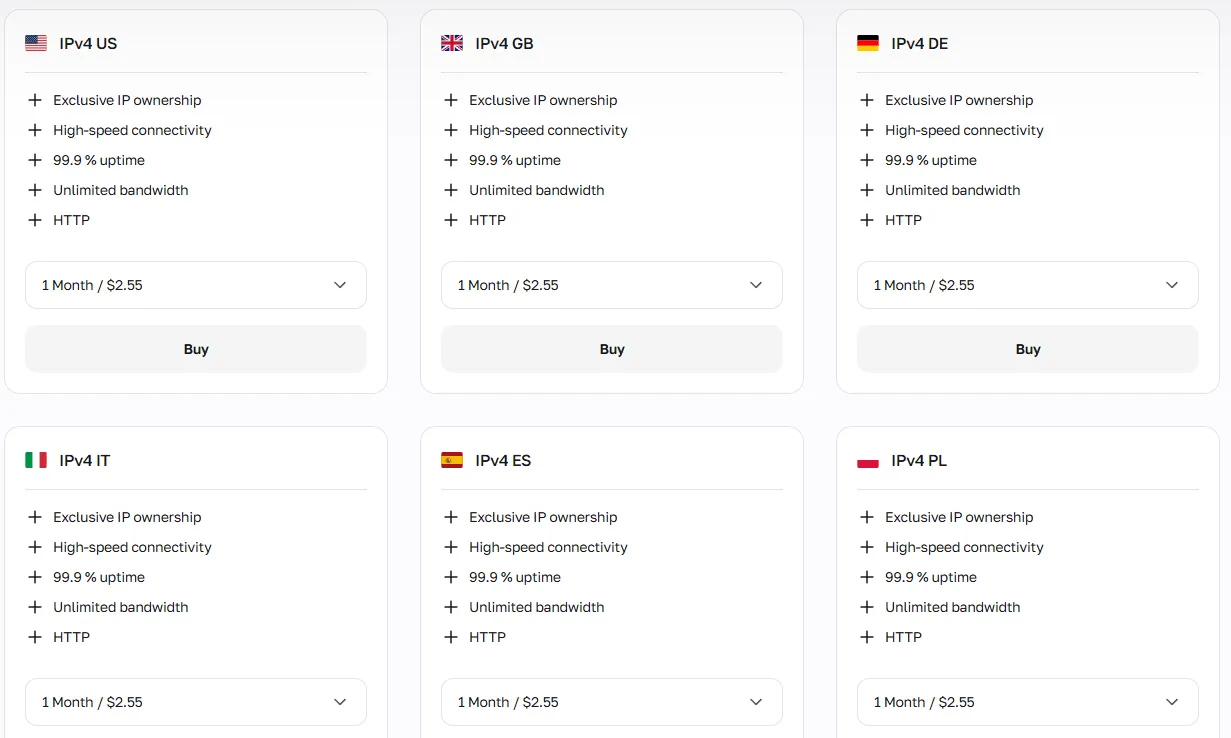
Use them for:
Public database and open directory scraping
API endpoint testing and load simulation
Large-scale news and content aggregation
Retail price comparison across public storefronts
Development environment testing and QA automation
Before you begin with GenLogin setup
As a quick rule, select:
mobile proxies for social media and high-trust tasks
residential static for stable single-account management
residential rotating for bulk automation and scraping
datacenter proxies for open, non-restricted data tasks
Before configuring any proxy, you'll need an active GenLogin account. Head to genlogin.com and register with your email, phone number, and a password. The free plan supports up to 5 profiles, which is enough to get started. Upgrading unlocks more simultaneous profiles for team and enterprise operations.
Creating a GenLogin profile and adding a CyberYozh selected proxy
Once your account is ready, follow the steps below to complete the full proxy setup.
1. Sign up on GenLogin and download it on Windows or Mac
After registration, go to the GenLogin download page and install the desktop application, available for both Windows and macOS. Run the installer, launch the GenLogin antidetect browser, and sign in with your credentials to access the main dashboard.
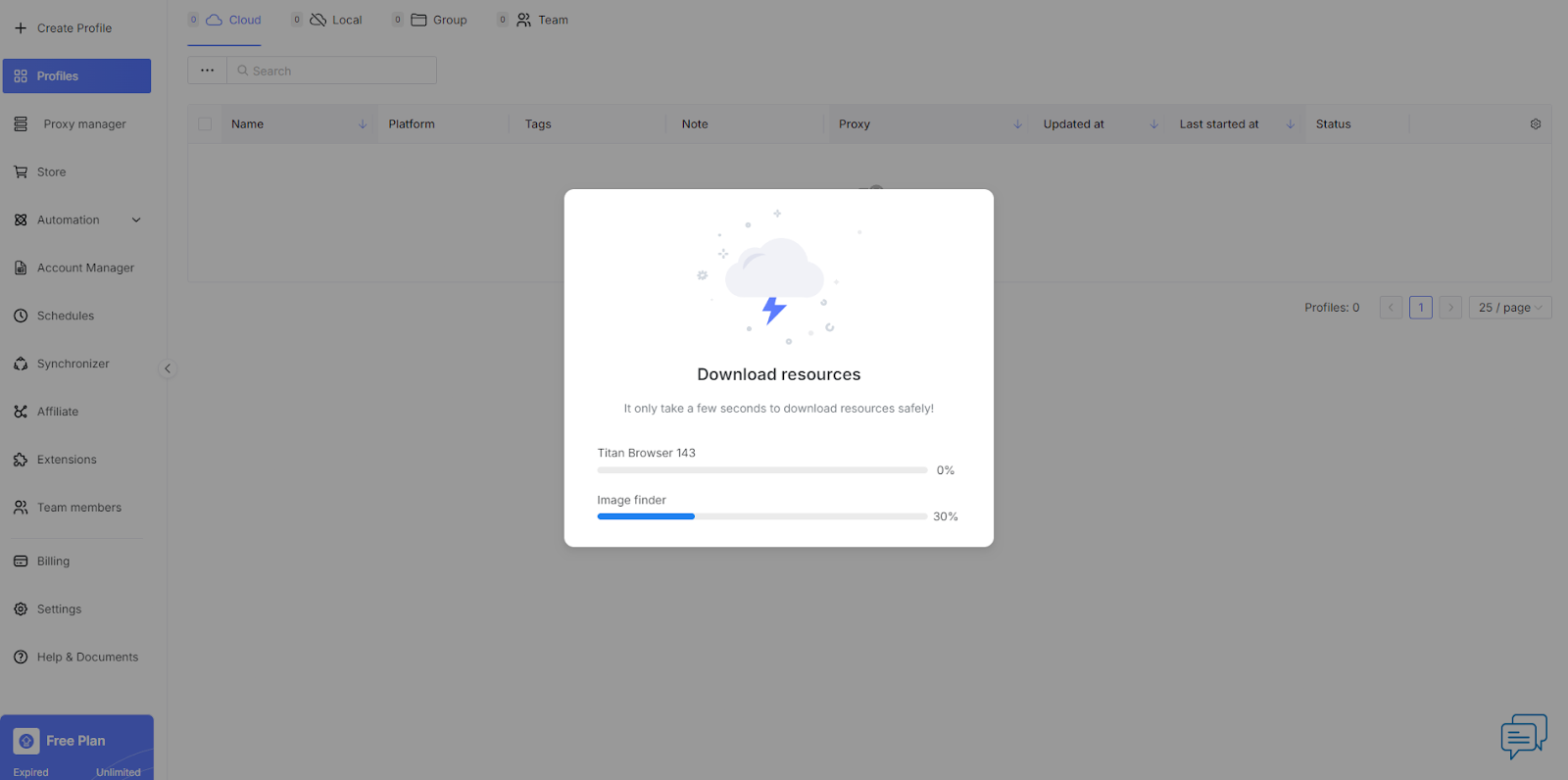
2. Select and purchase a proxy in your CyberYozh dashboard
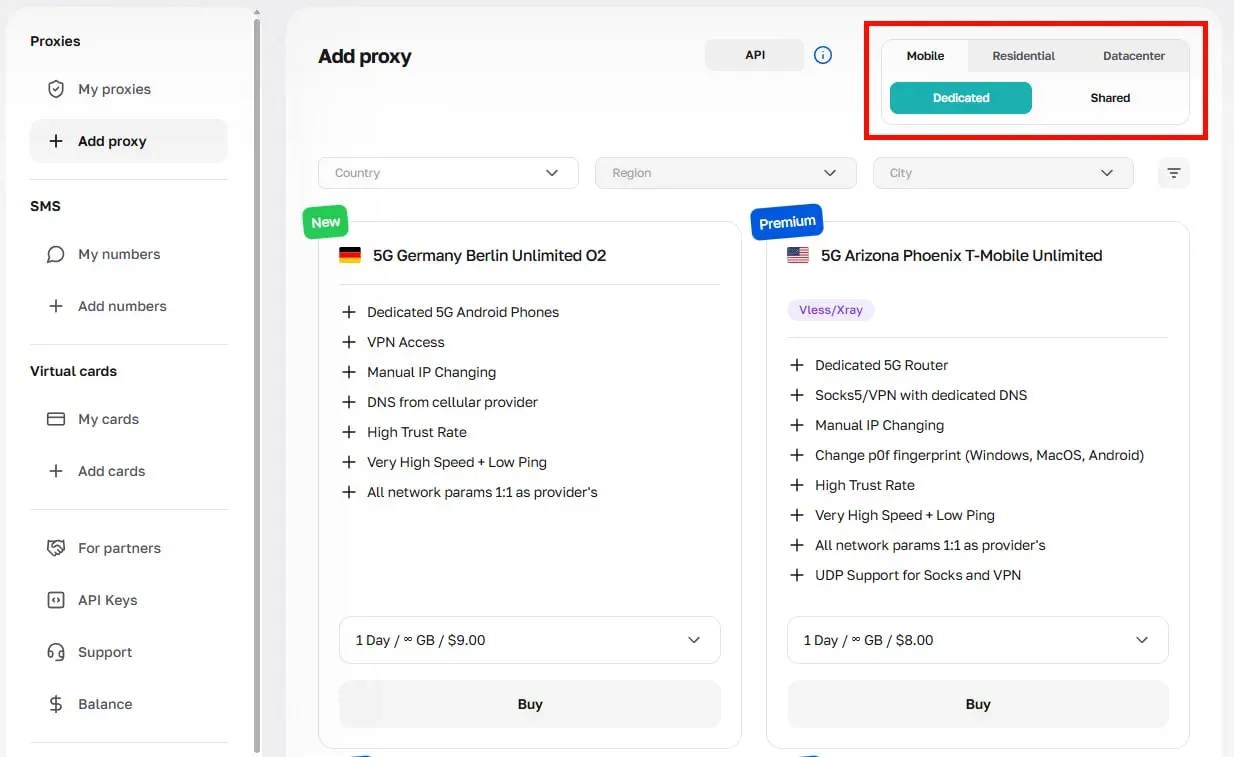
Log in to your CyberYozh account, click Add Proxy, and choose the proxy type that fits your intended use case: mobile, residential static, residential rotating, or datacenter.
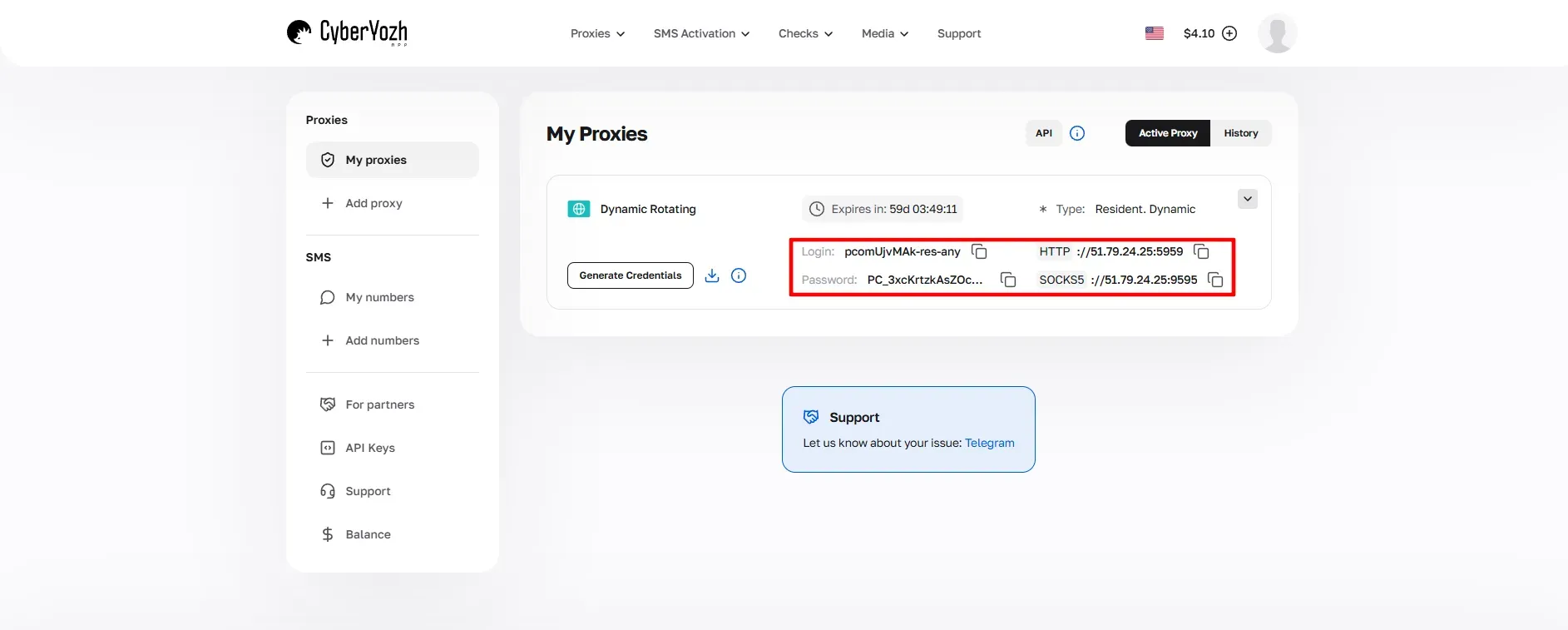
Once your proxy is provisioned, navigate to My Proxies to retrieve your access credentials:
Field | Example value |
Host (IP address or domain) | 51.79.24.25 |
Port (HTTP or SOCKS5) | 5959 |
Username | your_cyberyozh_login |
Password | your_proxy_password |
Click Generate Credentials to export these in the format you need. Always copy credentials directly from the dashboard — manual entry is a common source of connectivity errors.
Before proceeding, run your IP through the CyberYozh IP Checker to confirm it's clean and carries a good reputation.
3. Create a GenLogin profile and set up the fingerprints
In the GenLogin dashboard, click the Create Profile button at the top-left corner of the homepage. Give your profile a clear, descriptive name (for example, social_US_mobile or scrape_EU_rotating) to keep things organized as your profile list grows.
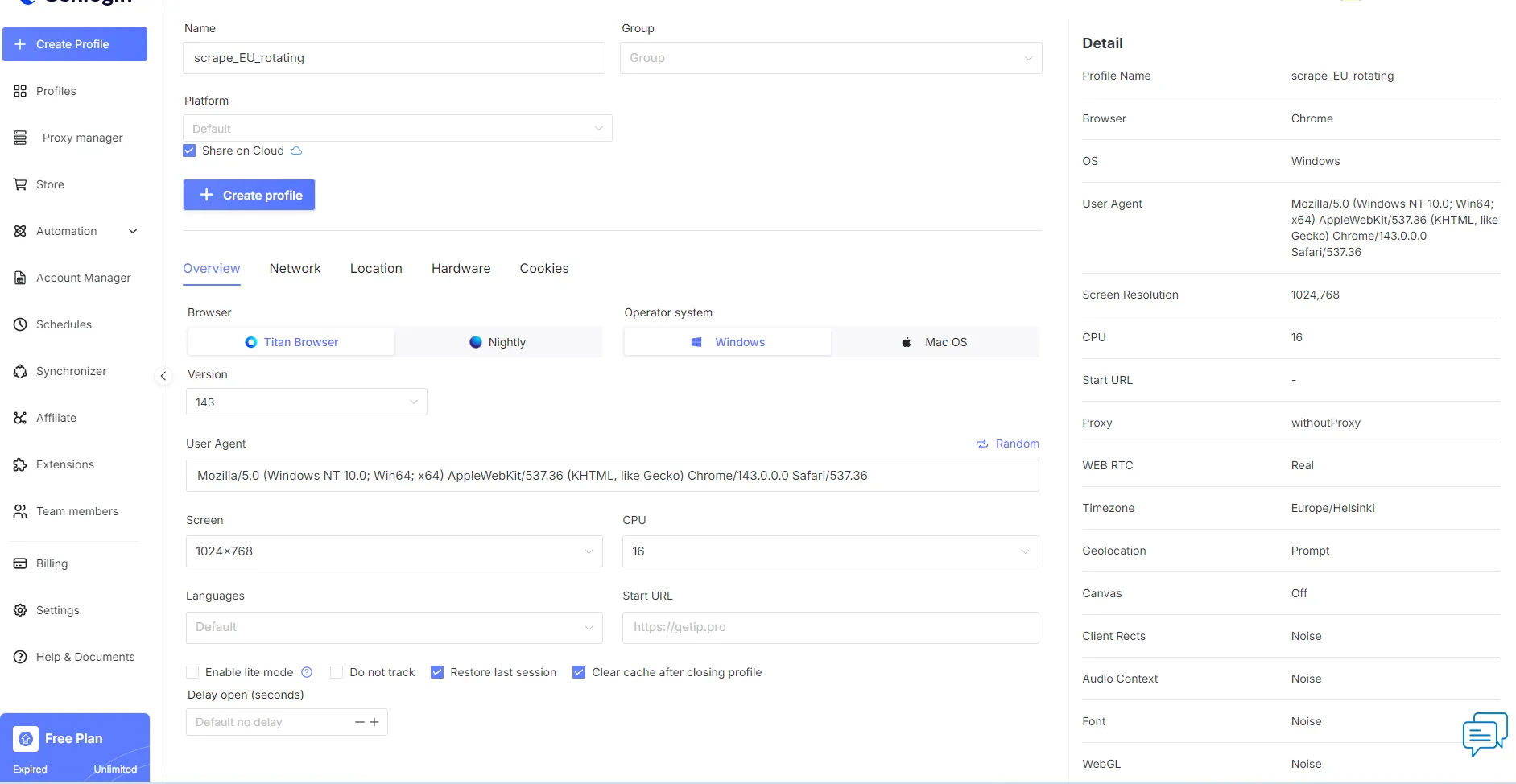
Next, choose your browser engine:
Titan Browser — the Chromium-based engine, recommended for most use cases, including multi-account management and ad automation
Nightly Browser — uses the Firefox engine, suitable for platforms that may apply Chrome-specific fingerprint checks
Then configure the fingerprint parameters to build a convincing device identity:
Operating system, browser version, and user agent string
Timezone, language, and screen resolution
Canvas, WebGL, and WebGPU randomization
AudioContext, ClientRects, and SpeechVoices spoofing
Hardware parameters: CPU core count, RAM, and GPU model
Geolocation settings aligned with your proxy's country and city
GenLogin's Titan Core regenerates fingerprints using real-device datasets, so the defaults are already realistic, and you don't need to fill every field manually. Align the geographic parameters (timezone, language, geolocation) with the location of the CyberYozh proxy you plan to assign, as mismatches between these signals are a frequent detection trigger.
4. Add a CyberYozh proxy to your GenLogin profile
Still inside the profile editor, navigate to the Network tab.
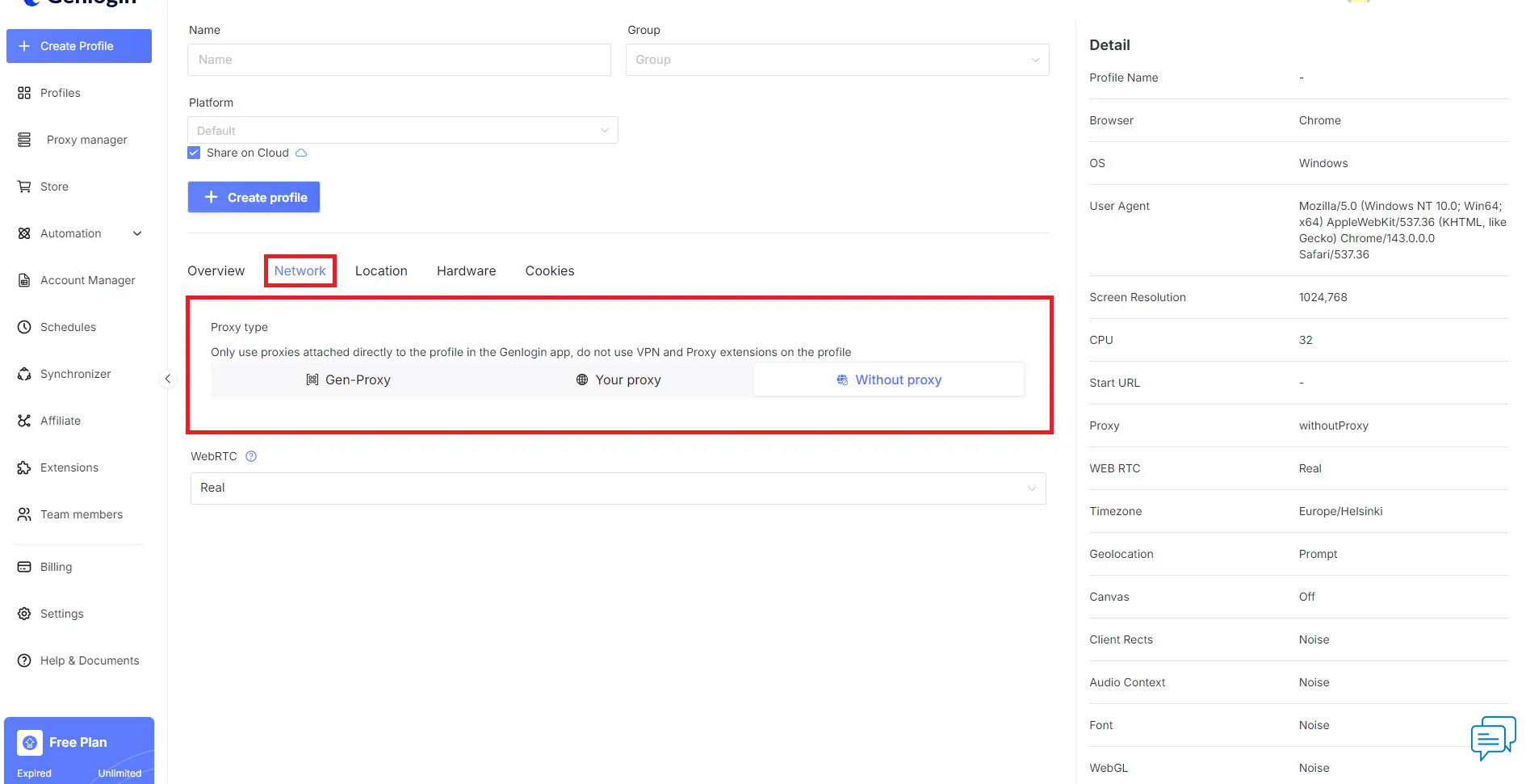
By default, no proxy is assigned. Click on Your Proxy to reveal the proxy configuration fields.
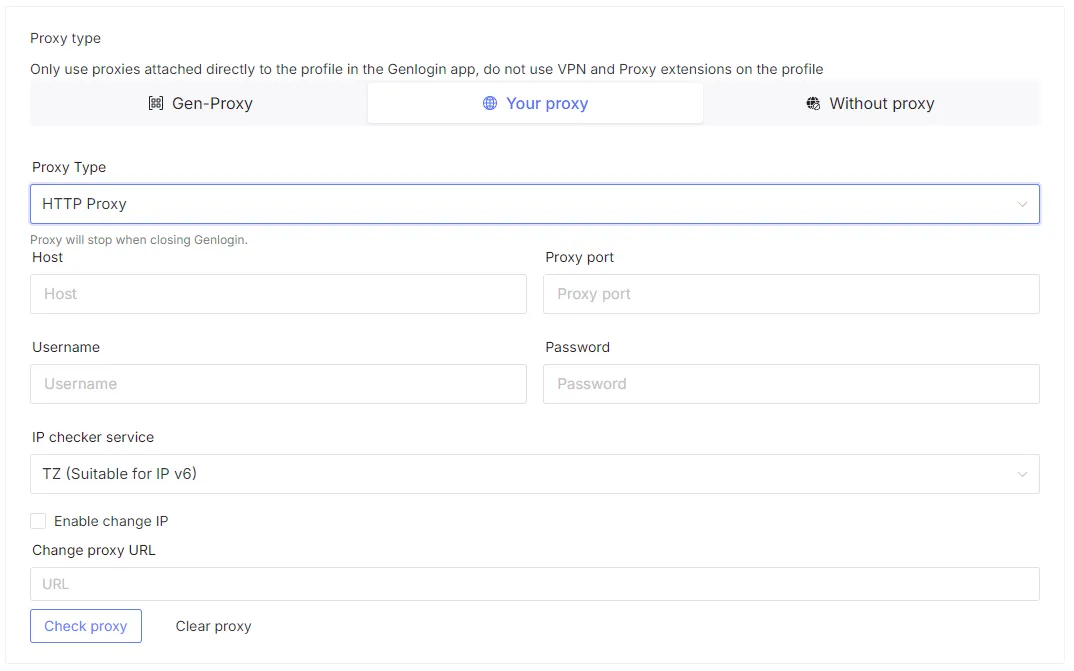
Select your connection protocol:
HTTP / HTTPS — suitable for standard browsing, account management, and most web activity
SOCKS5 — preferred for automation workflows and when full traffic-type support is required
Enter your CyberYozh credentials in the corresponding fields:
Host — the IP address or domain from your CyberYozh dashboard
Port — the port number paired with your selected protocol
Username — your CyberYozh proxy login
Password — your CyberYozh proxy password
Once all fields are filled, click the Check Proxy button. GenLogin will test the connection and return the detected IP address, geographic location, and connection status. If the check fails, verify that each credential is copied exactly from your CyberYozh dashboard, confirm the correct protocol is selected, and re-run the check.
If you're configuring multiple GenLogin profiles at scale, go to Proxy Manager in the left sidebar and click Add Proxy.
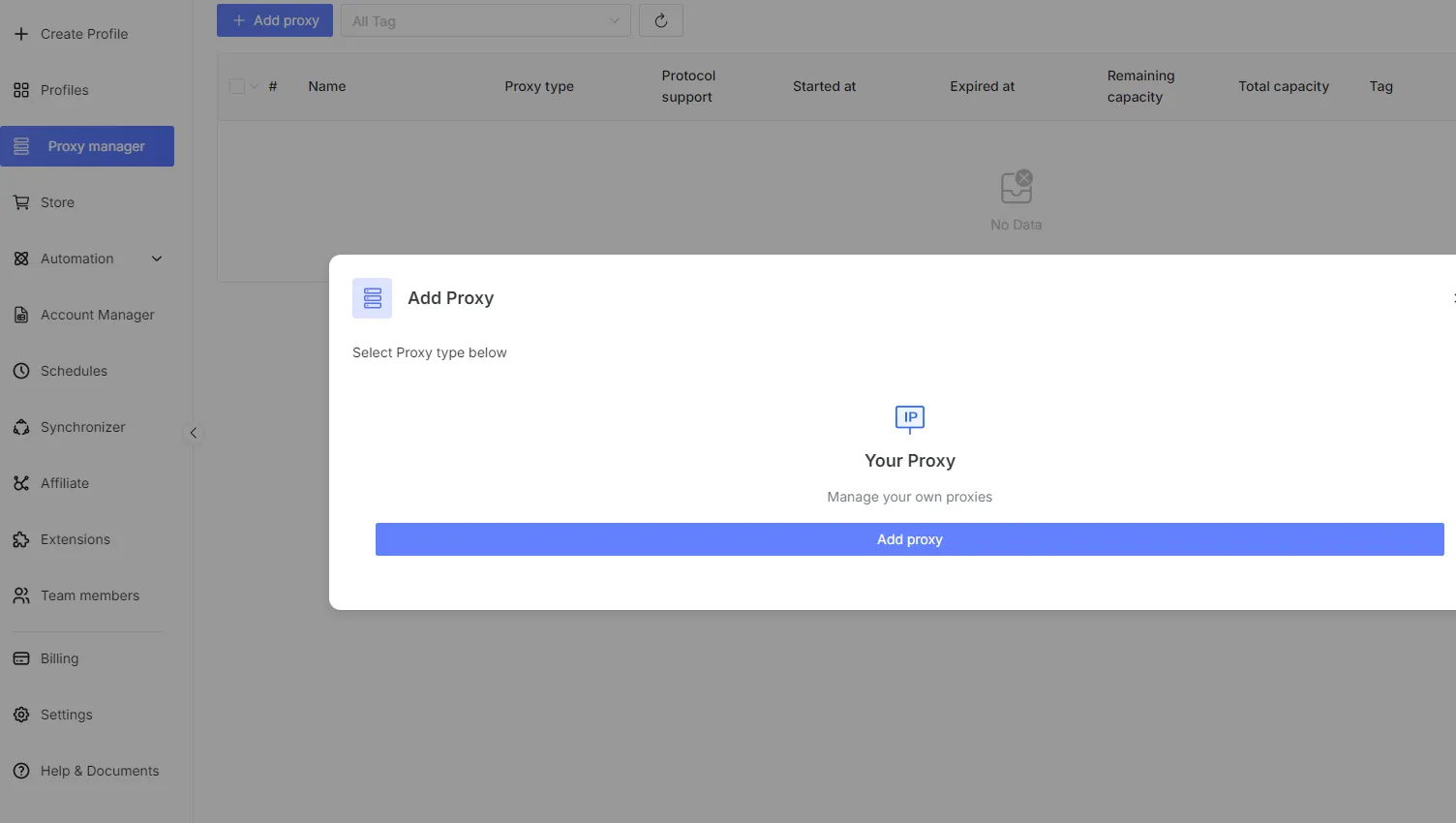
Paste up to 100 proxies at a time, one per line, in the format //http:host:port:username:password or //socks5:host:port:username:password.
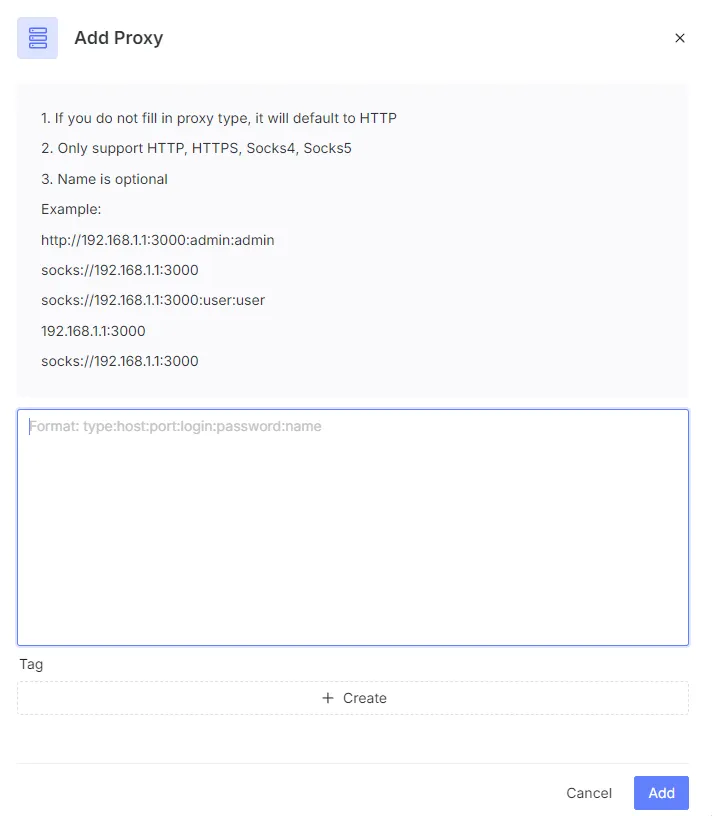
GenLogin will parse, test, and store them all, and you can then assign saved proxies to any profile without re-entering credentials each time.
5. Run an antidetect browsing session
After the proxy check passes, click Create Profile to save your configuration. Your new profile will appear in the Profiles tab (usually, under the Local subtab) with its assigned proxy and fingerprint details visible. Click Start next to the profile to launch an isolated TitanBrowser session.
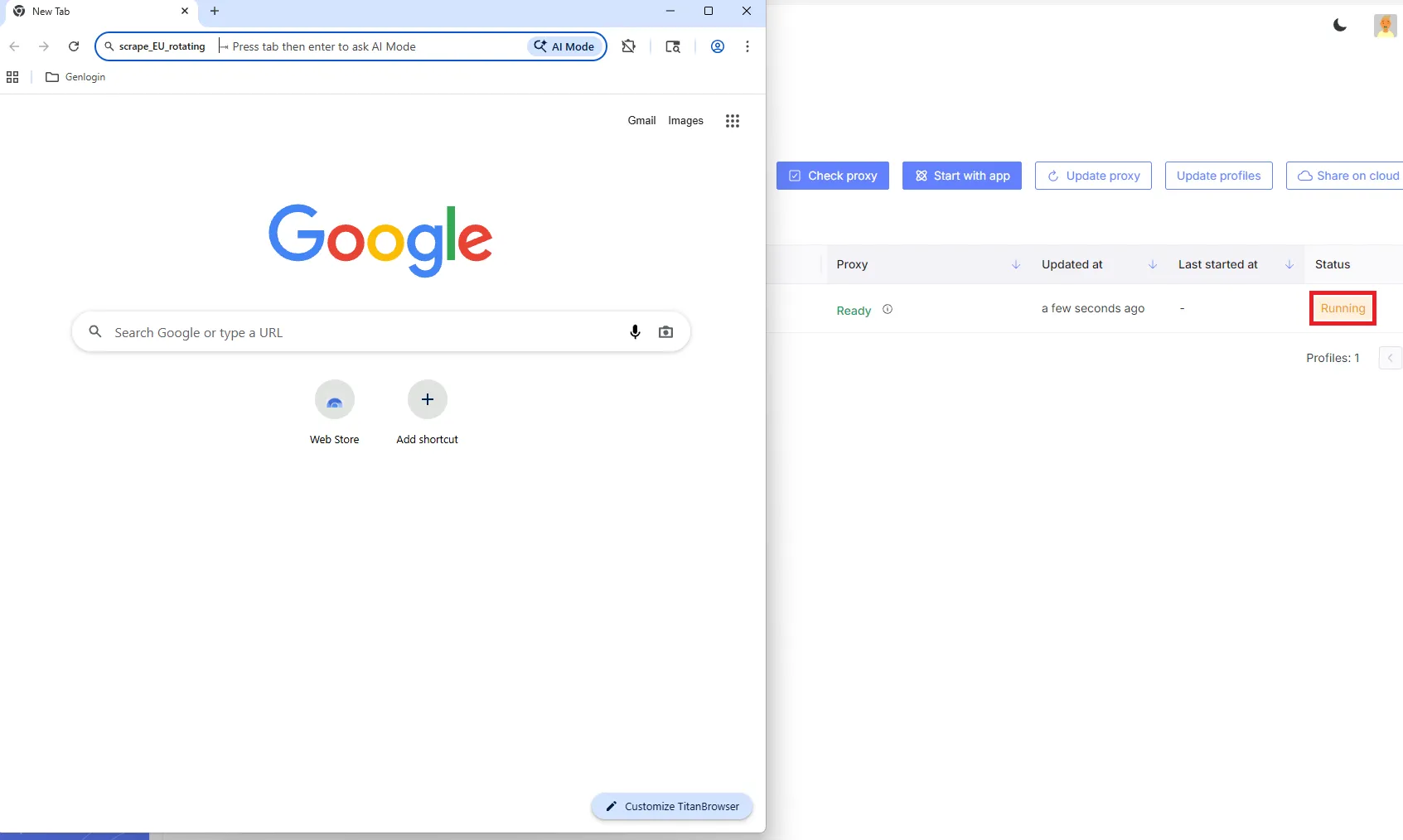
To verify the setup, open an IP lookup tool in the new session and confirm that the displayed IP address, country, and time zone match the proxy credentials in your CyberYozh dashboard. If all values align, your GenLogin antidetect browser profile is fully operational and ready for deployment.
Best proxy practices for GenLogin
When CyberYozh proxies are paired with GenLogin's isolated profiles, each session presents a distinct IP and fingerprint, making it effectively invisible to anti-fraud and multi-accounting detection systems. The following practices will help you maintain clean, long-running profiles:
Assign one unique proxy per GenLogin profile. Sharing a single IP across multiple profiles is the fastest way to trigger cross-account linking. GenLogin's Profiles tab makes it easy to review proxy assignments before each launch.
Match proxy type to the platform's trust requirements. Use mobile or residential static proxies for social media and e-commerce accounts. Reserve rotating residential proxies for scraping and bulk automation. Use datacenter proxies only for open, non-restricted data tasks.
Always run the Check Proxy test before starting a new session. If the check fails, confirm that the host, port, username, and password are copied exactly from your CyberYozh dashboard. If issues persist, verify the proxy outside GenLogin using a separate browser.
Align the proxy geo with the profile's fingerprint settings. The proxy's country, city, and timezone should match the language and location parameters configured in the GenLogin profile editor. Inconsistencies across these signals are one of the most common detection triggers.
Keep sessions warm and avoid mid-session proxy switches. On established accounts, rotate a proxy only at the start of a new session, especially on platforms that track session-level IP consistency.
Use the Proxy Manager for team operations. If multiple team members share GenLogin profiles, centralize proxy management in the Proxy Manager rather than storing credentials per profile. This reduces duplication and makes it easier to rotate or replace proxies.
Explore the CyberYozh proxy catalog to find the right plan and proxy type for your GenLogin workflow.
FAQ about the GenLogin antidetect browser
What is an antidetect browser and how does it work?
It replaces your real browser fingerprint — OS, fonts, canvas, WebGL, screen resolution — with a spoofed identity per profile, while keeping cookies, cache, and IPs fully isolated between sessions.
What is GenLogin and what makes it different from other antidetect browsers?
GenLogin is an antidetect browser and automation platform built on Titan Browser (Chromium) and Nightly Browser (Firefox), with no-code automation, team collaboration tools, and real-device fingerprint regeneration.
Is the GenLogin antidetect browser free to use?
Yes. The free plan supports up to 5 browser profiles. Switching between accounts is possible, but you must close one session before launching another; paid plans remove this restriction.
How do I download GenLogin on Windows or Mac?
Visit genlogin.com, register an account, and download the GenLogin installer for your OS. Windows requires Windows 10 or later, a 4-core processor, and at least 8 GB of RAM.
Can websites detect that I'm using GenLogin?
Advanced anti-fraud systems may flag profiles if fingerprint presets are reused across sessions or if proxies carry poor reputations. Always verify IPs with CyberYozh's IP Checker and use fresh fingerprints per profile.
What proxy protocols does GenLogin support?
GenLogin supports HTTP, HTTPS, and SOCKS5 protocols, covering all major proxy types including mobile, residential, rotating, and datacenter proxies.
How do I add a proxy to a GenLogin profile?
In the profile editor, go to the Network tab, click Your Proxy, choose HTTP or SOCKS5, and enter your CyberYozh host, port, username, and password. Click Check Proxy to verify the connection.
What is the difference between mobile and residential proxies for GenLogin?
Mobile proxies route traffic through real carrier networks and carry the highest platform trust — ideal for social media accounts. Residential static proxies provide a fixed home IP, cheaper and better suited for stable, long-term profile management.
Can I import multiple proxies into GenLogin at once?
Yes. Use the Proxy Manager in the left sidebar, select Batch Add, and paste up to 100 proxies per import in host:port:username:password format. Saved proxies can then be assigned to any profile.
Is using an antidetect browser like GenLogin legal?
Antidetect browsers are legal tools used for social media management, web scraping, ad verification, and cybersecurity research. Whether a specific use is permitted depends on your jurisdiction and each platform's Terms of Service.
