
You can manage proxies, switch IPs, and handle virtual numbers for secure communications without leaving your current browser tab. The official CyberYozh App extension turns your browser into a powerful tool for enhancing privacy and safe surfing.
In this guide, we will walk through how to install, log in, and use the full functionality of the extension in just a couple of minutes.
Step 1. Installation and Pinning
- Go to the direct link in the Chrome Web Store or type "CyberYozh App" into the store search bar.
- Click the "Add to Chrome" button.
- Important tip: Immediately after installation, click the "puzzle" icon in the upper right corner of the browser and click the "Pin" icon next to our extension. This way, the CyberYozh App icon will always be at your fingertips.
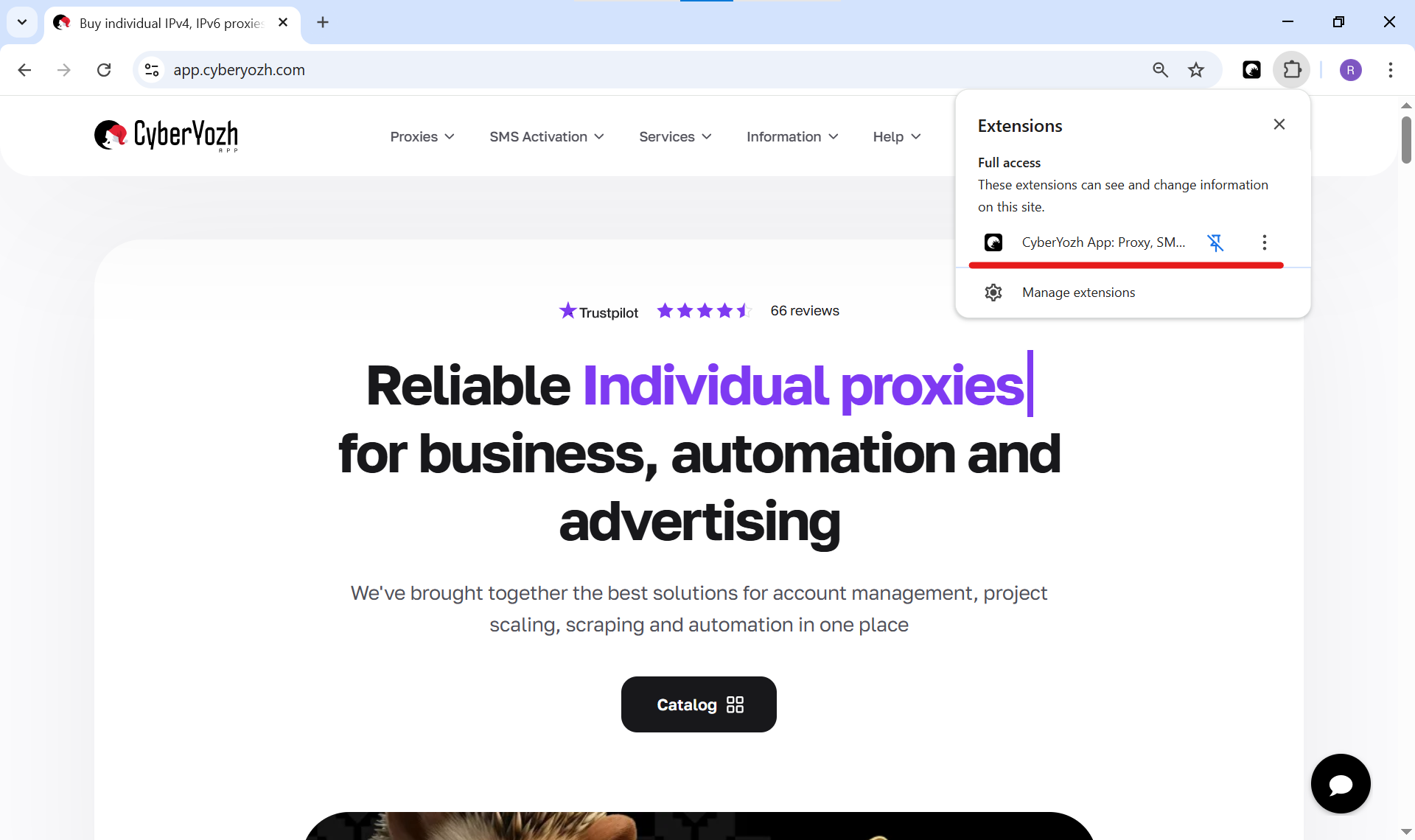
Fig. 1. Chrome browser screenshot showing the extensions menu and pinning the CyberYozh App icon.
Step 2. Authorization (Automatic and Manual)
We have made the login process as seamless as possible.
- Scenario A (Automatic): If you are already logged into your personal account on the app.cyberyozh.com website in the same browser, the extension will automatically pick up your session. Just open it, and you will immediately see your balance and proxies.
- Scenario B (Manual): If you are not logged in on the website, the extension will prompt you with a login form. Enter your Email and password for your CyberYozh App account.
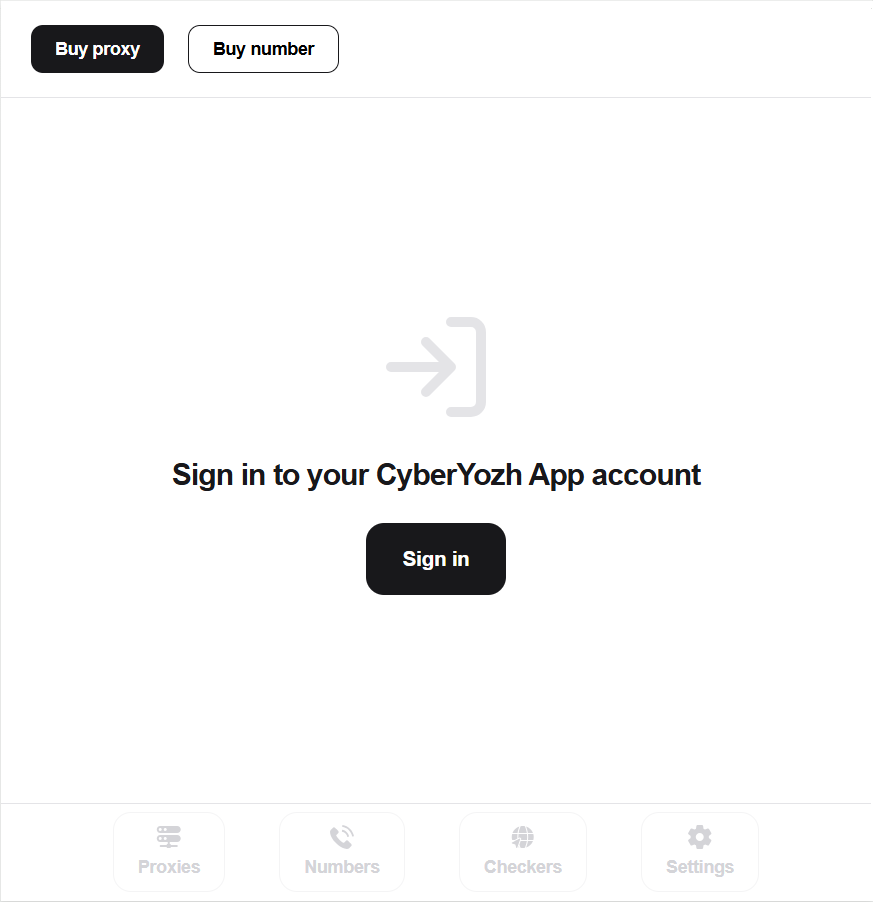
Fig. 2. Extension window: login button.
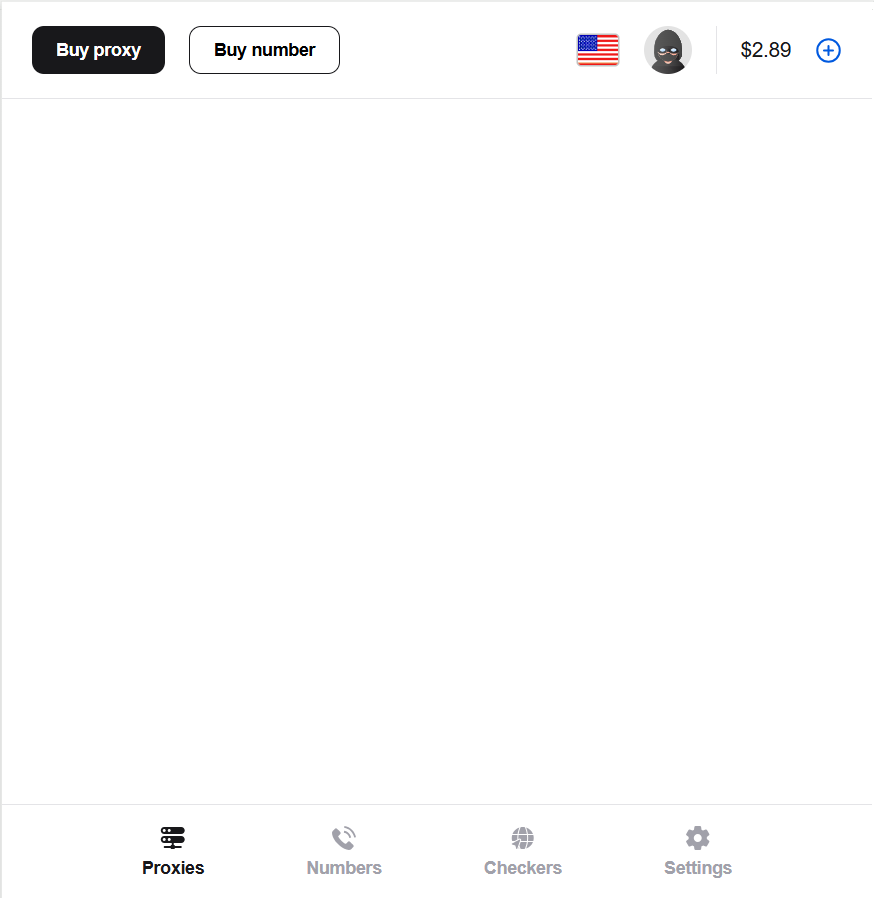
Fig. 3. Extension window: authorized interface showing balance.
Step 3. Proxy Management
You no longer need to manually copy IPs and ports into system settings.
Buying and adding: Open the Proxy tab directly in the extension. You can select the desired plan and click "Buy". After purchase, the proxy will instantly appear in the list.
One-click connection: In the "Proxies" list, select the desired proxy and click the Connect button. The extension will automatically configure the browser to work through this IP address. The extension icon will change color, signaling an active connection.
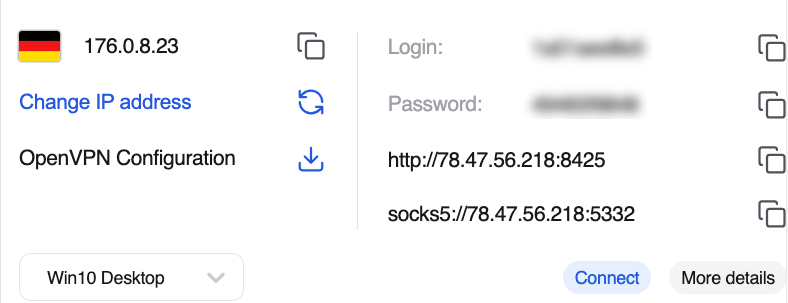
Fig. 4. Proxy list in the extension with a Connect button next to the proxy.
Connection status: Immediately after connecting, you will see the changed IP address at the top of the extension. You can also click the "More details" button to see additional information about the selected proxy.
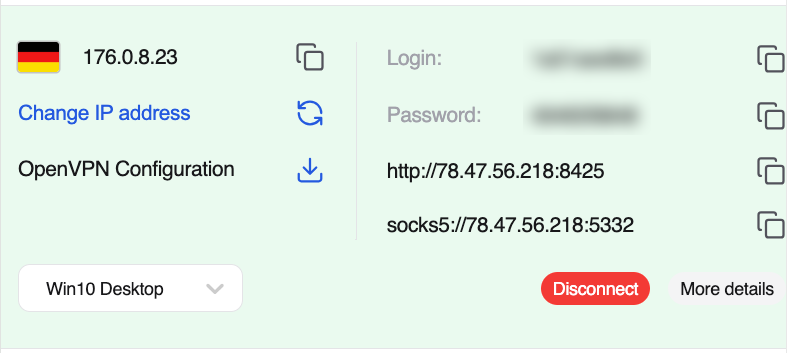
Fig. 5. Extension interface demonstrating the current connected IP address and proxy country.
Tip: If your plan supports configuring OS environment parameters for testing purposes, you can choose the appropriate OS via the dropdown list in the settings of a specific proxy directly inside the extension. Contact technical support to find out which proxies provide this feature.
Step 4. Working with Virtual Numbers and Checkers
The extension allows you to conveniently manage additional communication channels without switching tabs.
- Go to the Numbers tab.
- Select the service (e.g., Telegram, WhatsApp) and the country for the number.
- Click "Buy". The assigned number will appear on the screen.
- Use your assigned virtual number for secure routing. As soon as an incoming message arrives, it will be displayed directly in the extension.
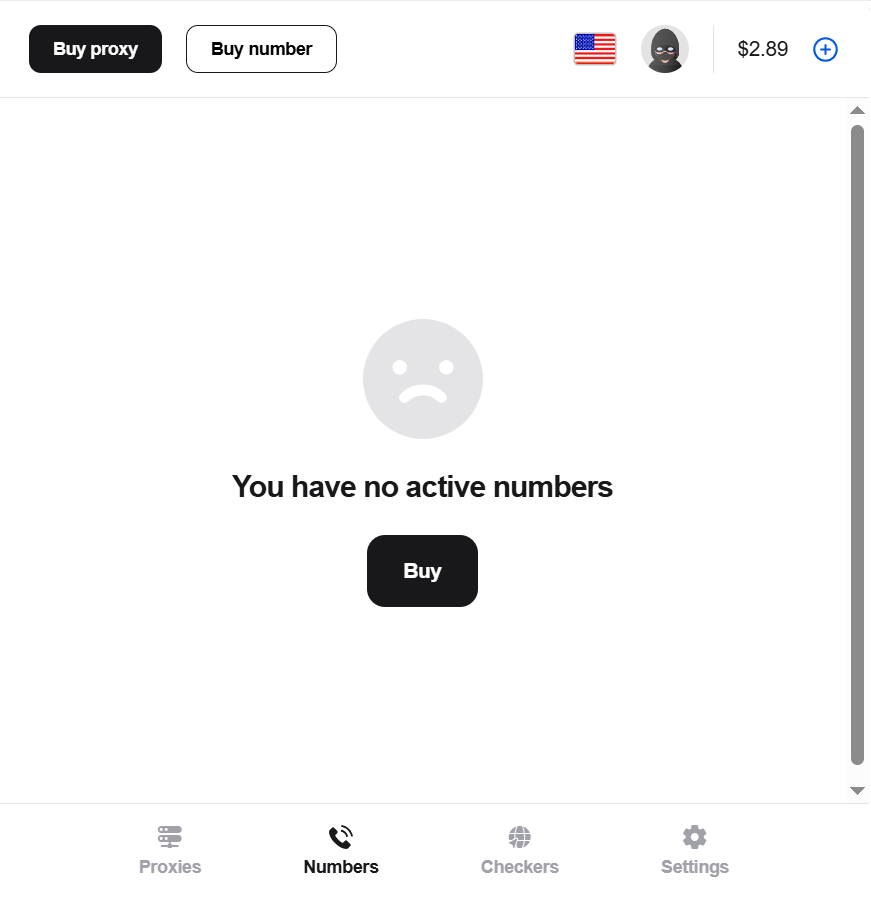
Fig. 6. Numbers tab in the extension showing the button to buy a number.
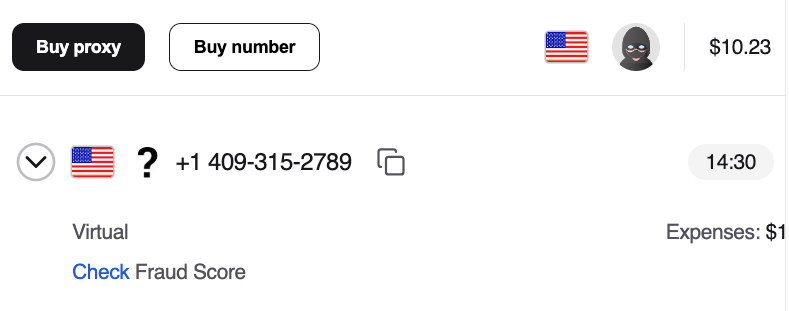
Fig. 7. Numbers tab in the extension showing a rented number.
Analytical Tools (Checkers): In the Checkers tab, professional tools are available to you:
- IP address Fraud Score check.
- Phone number risk check.
- BIN lookup tool for developers and payment analytics.
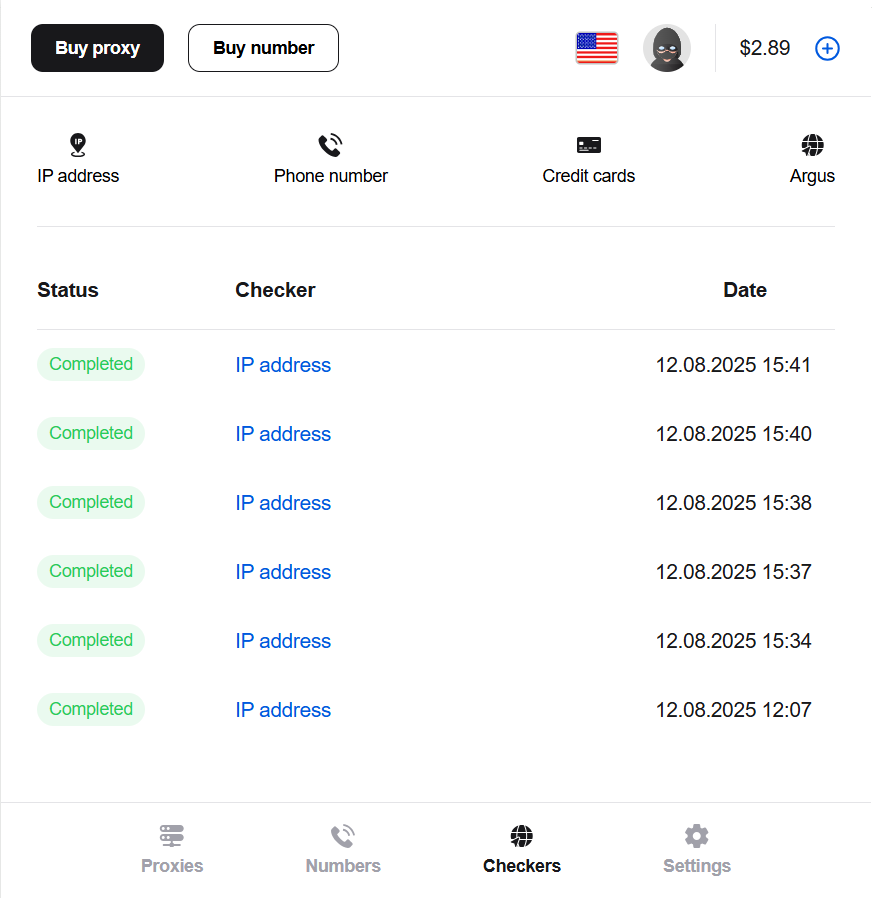
Fig. 8. Checkers tab with a selection of data verification tools.
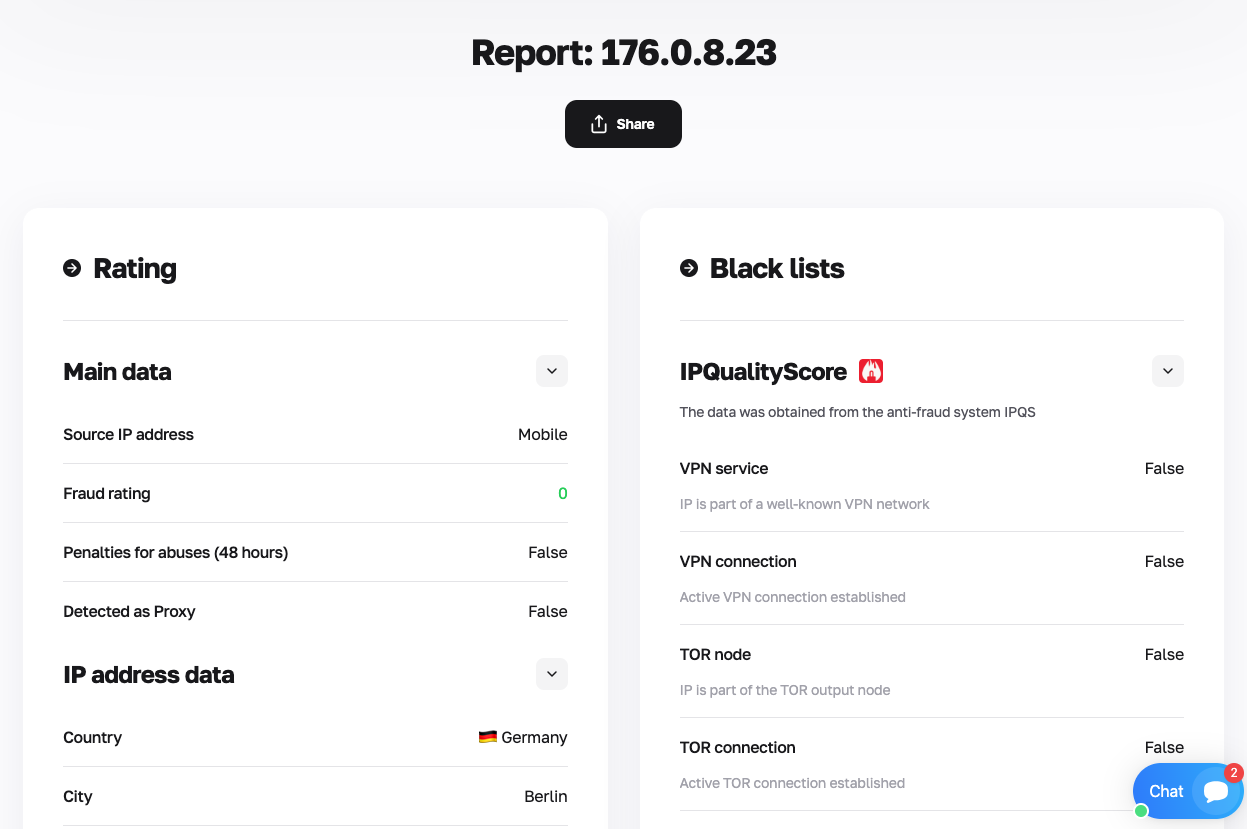
Fig. 9. Fraud Score check result.
Summary
The CyberYozh App extension is a control panel for your privacy and security online. Install it, log in (or enter automatically), click "Connect"—and you are ready to go. No complex Windows or macOS settings required.
If you have any questions about how the extension works, our support team is always ready to help. You can write to us in the online chat in the bottom right corner of the site or contact us via our Telegram bot.