
Microsoft Edge — is a fast and modern browser that comes pre-installed on every Windows PC. It is excellent for work, streaming, and surfing. However, if you want to hide your location or securely manage your online privacy, you will need a proxy.
The main feature of Edge is that it uses Windows system settings. This is a double-edged sword:
- Pro: Once you configure the proxy, it will work in Edge, Chrome, and other system applications.
- Con: You cannot (without third-party extensions) enable the proxy only for Edge.
In this guide, we will break down which type of proxy to choose for your tasks and how to configure it through the system parameters.
Part 1. Strategy: Which proxy do you need for Edge?
The choice of proxy depends on why you are enabling it.
1. Datacenter proxies — For fast surfing and stable connection
- What they are: High-speed IP addresses from hosting providers.
- What for: Ideal if you need to ensure reliable access to web resources or increase connection speed for everyday tasks.
- Why: They are the cheapest and fastest. For regular surfing in Edge, they are the best choice.
2. Residential proxies (ISP) — For shopping and finance
- What they are: IP addresses of home internet providers (just like your neighbor's).
- What for: Purchases on foreign websites (eBay, Amazon), paying for services, and registering on sites that require high trust.
- Why: Stores see you as a regular shopper from the US or Europe, rather than a VPN/server user.
3. Mobile proxies (4G/5G) — For social media
- What they are: Dynamic IPs from cellular operators.
- What for: Professional social media management, market research, and app testing.
- Why: If you work with SMM via Edge, mobile proxies will provide a highly reliable connection for legitimate marketing tasks.
- 👉 You can read more about mobile proxies here
Part 2. Data Preparation
To configure the settings, we will need data from a reliable provider. We recommend CyberYozh App.
After purchase, you will receive:
- IP (Host):
172.98.60.180 - Port:
58763 - Login / Password: Authorization data.
Important: For configuration via Windows, it is best to use the HTTP/HTTPS protocol. System SOCKS5 support in Windows is limited and often works incorrectly with browsers. Make sure your provider supports HTTP (we support both protocols).
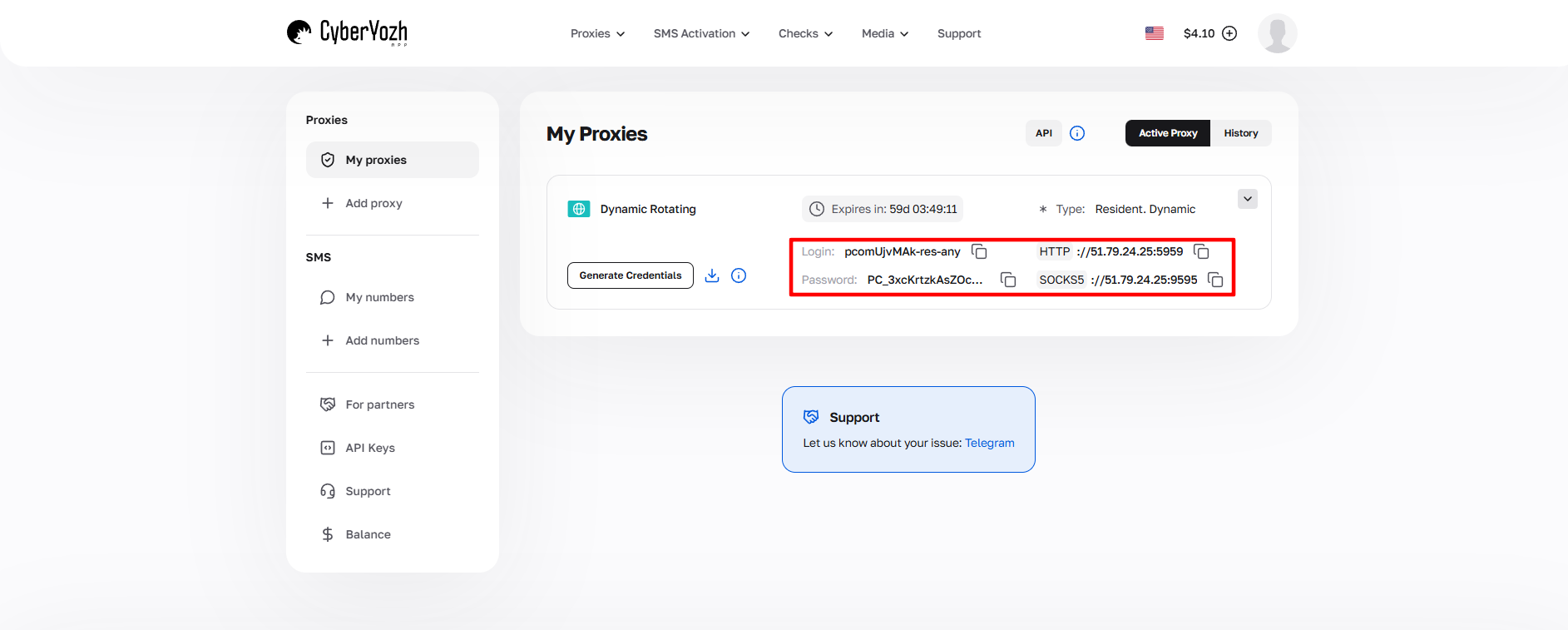 Fig. 1. Screenshot of the CyberYozh platform interface, showing the location of the data for connecting the proxy server. The image displays fields for IP address (Host), port (Port), username (Proxy Username), and password (Proxy Password).
Part 3. Proxy Configuration (System Method)
Remember: this setting will change the IP address for your entire Windows system.
Step 1. Navigate to Settings
- Open Microsoft Edge.
Click on the "three dots" icon in the upper right corner and select "Settings".
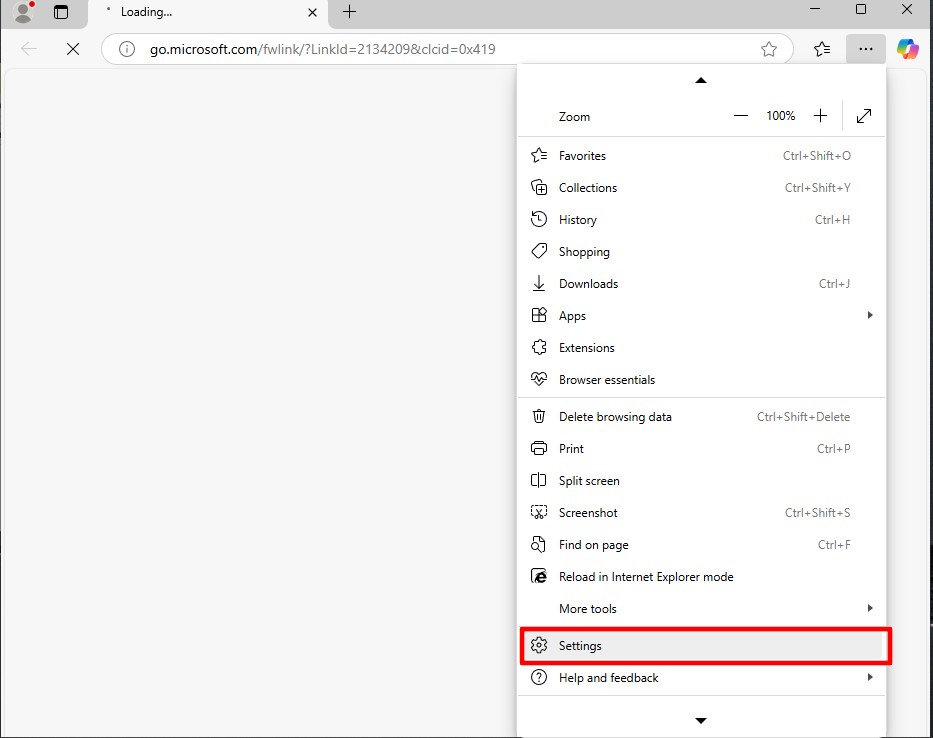 Fig. 2. Edge settings menu
In the left menu, select the "System and performance" section.
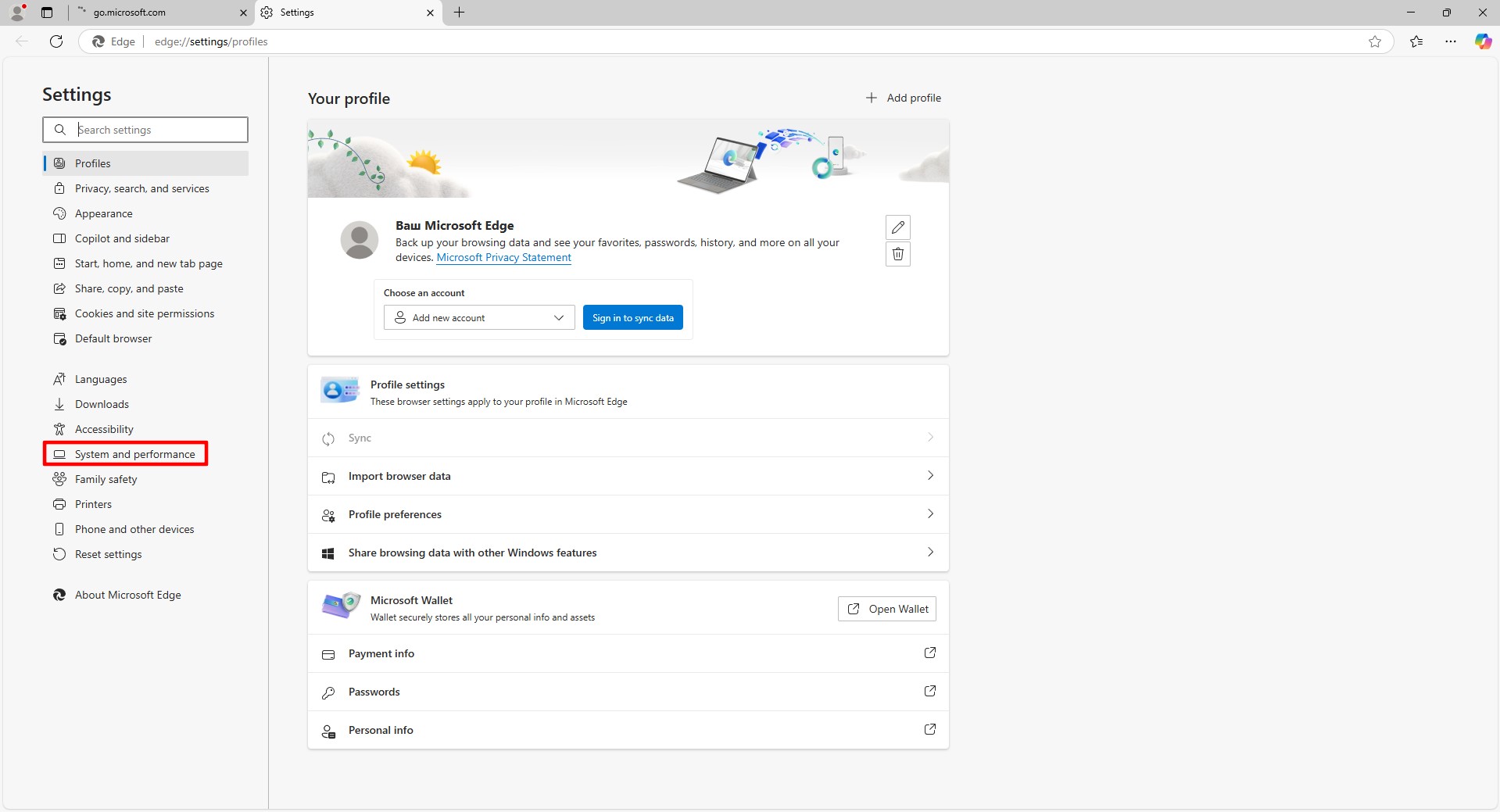 Fig. 3. System settings section
Step 2. Opening Windows Parameters
- In the "System" block, find the item "Open your computer's proxy settings".
- Click the "Open" button.
 Fig. 4. Button to go to proxy settings
This will redirect you to the Windows system menu "Network & Internet" -> "Proxy".
Step 3. Entering Data
- Find the "Manual proxy setup" section.
- Toggle the "Use a proxy server" switch to On.
- Fill in the fields:
- Address: Your IP (e.g.,
172.98.60.180). - Port: Your port (e.g.,
58763). - In the "Do not use the proxy server for addresses beginning with..." field, you can leave the default values or add exception sites.
- Click "Save".
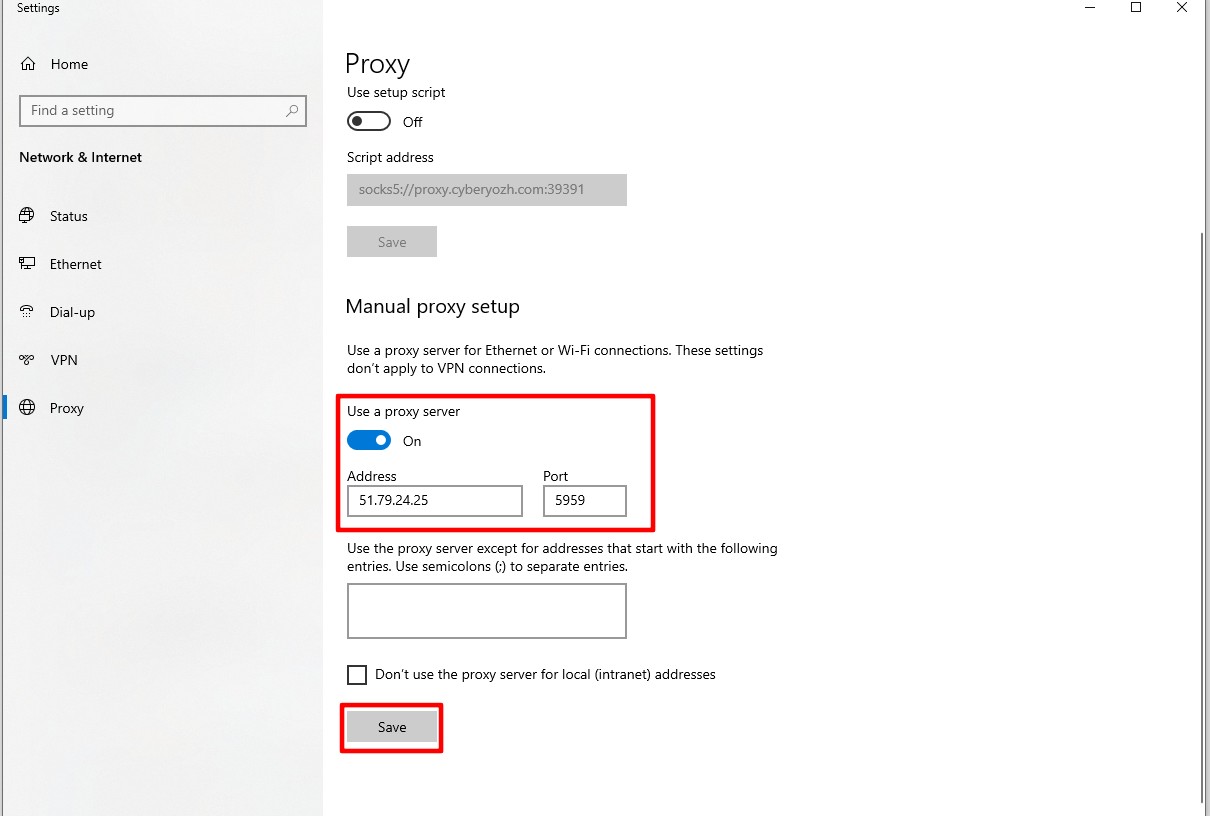 Fig. 5. Windows system settings window
Step 4. Authorization
Go back to the Edge browser and try to open any website (e.g., google.com). The browser will show a system window for entering your login and password.
- Enter the Username and Password from your provider's personal account.
- Click Sign in.
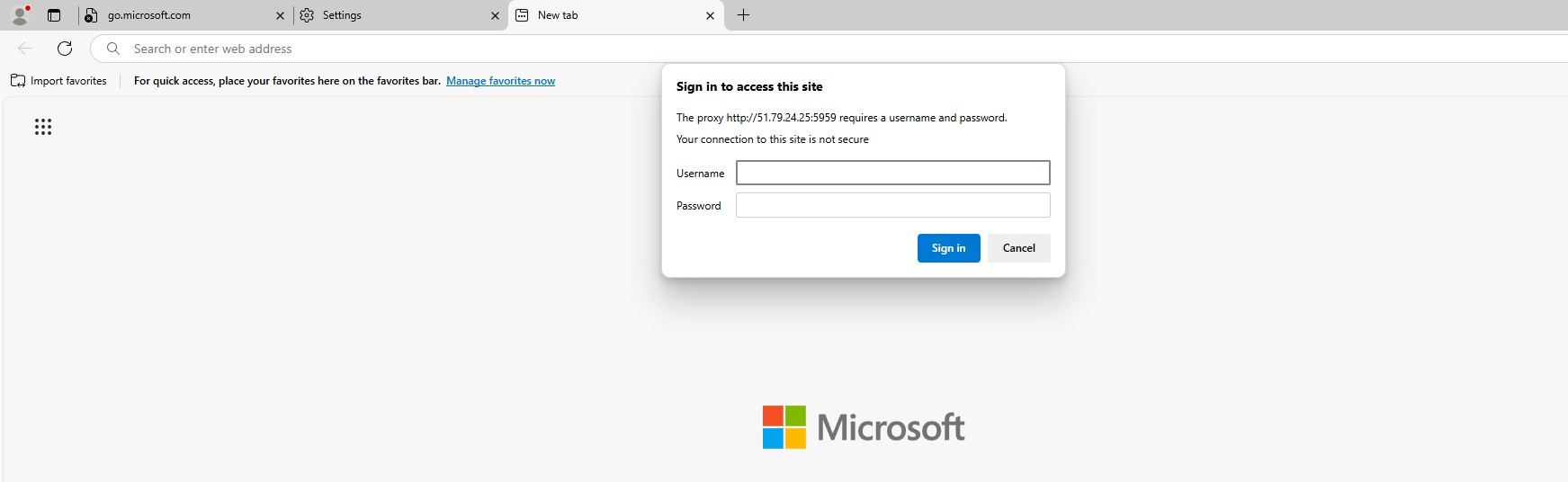 Fig. 6. Authorization dialog box
Part 4. Checking IP Address Status
Now your browser is working through a proxy. Be sure to check it. Go to whoer.net or browserleaks.com/ip.
What to look for:
- Has the IP address changed to the purchased one?
- Does the geolocation match the proxy country?
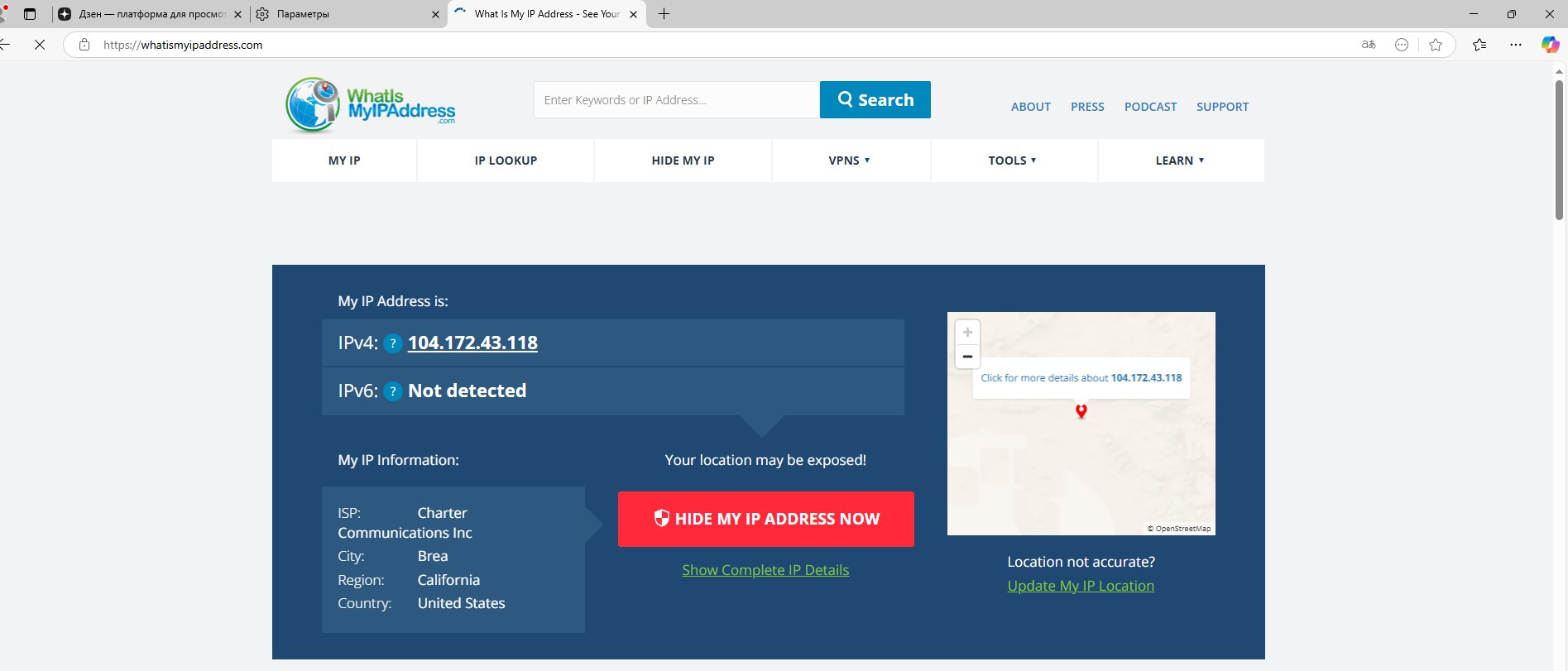 Fig. 7. Checking the proxy server connection
If the check passes — you are protected.
Tip: When the proxy is no longer needed, don't forget to go back to the Windows settings and turn off the "Use a proxy server" toggle; otherwise, the internet may stop working if the proxy expires.
Conclusion
Edge is a great browser, but its privacy depends on Windows settings.
- For fast surfing and routing, use Datacenter proxies.
- For shopping, use Residential proxies.
You can find high-quality and fast proxies for any task in the CyberYozh App catalog. Work safely!