
Telegram is not just a messenger, but a powerful platform for communication, news, and work. However, due to its popularity and privacy principles, users regularly encounter access issues: from general connection problems to restrictions in corporate or public Wi-Fi networks.
To solve this problem, Telegram features a built-in, powerful, and flexible "Proxy" function. It allows you to route all application traffic through an intermediary server (upstream proxy), increasing connection stability and everyday online privacy.
In this guide, we will break down step-by-step how to set up a proxy in Telegram on any device and which proxy type to choose for maximum speed and security.
Why do you need a proxy for Telegram?
Using a proxy is a fundamental tool for ensuring stability, privacy, and secure operation, especially for professional use.
- Reliable connection: If you face access or routing issues to Telegram servers, a proxy acts as a secure "tunnel," efficiently directing traffic to maintain communication.
- Business profile management: Using separate proxies for multiple business accounts helps securely organize SMM or customer support tasks, maintaining distinct and independent sessions for each profile based on the "1 account = 1 proxy" principle.
- Increased anonymity and security: A proxy hides your real IP address from Telegram servers (if necessary) and, more importantly, from your Internet Service Provider (ISP). The provider only sees a connection to the proxy server but cannot track your activity within Telegram.
- Connection acceleration (in some cases): Although a proxy is an additional "node" in the traffic path, it can speed up performance in certain situations. If your ISP has poor routing to Telegram servers, you can choose a proxy server located close to Telegram's data centers, which will reduce ping and speed up media loading.
Which proxy type to choose: SOCKS5 vs. MTProto
In the Telegram settings, you will see two main protocols. It is important to understand their differences:
- SOCKS5: This is a universal, reliable, and very common protocol. It provides high speed and privacy. SOCKS5 proxies can be used not only for Telegram but also for browsers or other applications. It is the "gold standard" for many tasks.
- MTProto: This is a proprietary (native) protocol developed by the Telegram team specifically for the messenger. Its main advantage is that it is designed for secure encryption and traffic optimization, providing a stable connection even in difficult network conditions.
Verdict: Both options work perfectly. If your main goal is simplicity and versatility, choose SOCKS5. If you encounter network instability or strict routing policies, MTProto may be a more resilient solution, though it is less flexible.
Step-by-Step Proxy Setup in Telegram
The setup process takes no more than two minutes. You will need your proxy server data: host (IP address or domain), port, username, and password.
Setup on PC (Windows, macOS, Linux)
- Launch the desktop version of Telegram.
- In the upper left corner, click on the "burger menu" icon (three lines) and select "Settings".
- Go to the "Advanced" tab.
- Find the "Data and Storage" section and click on "Connection type".
- Activate the "Use custom proxy" option.
- Select your proxy type: SOCKS5 or MTProto.
- Fill in the fields:
- Hostname: Enter the IP address or domain name of the proxy.
- Port: Specify the server port.
- Username and Password: Enter the authorization data if required.
- Click the "Save" button.
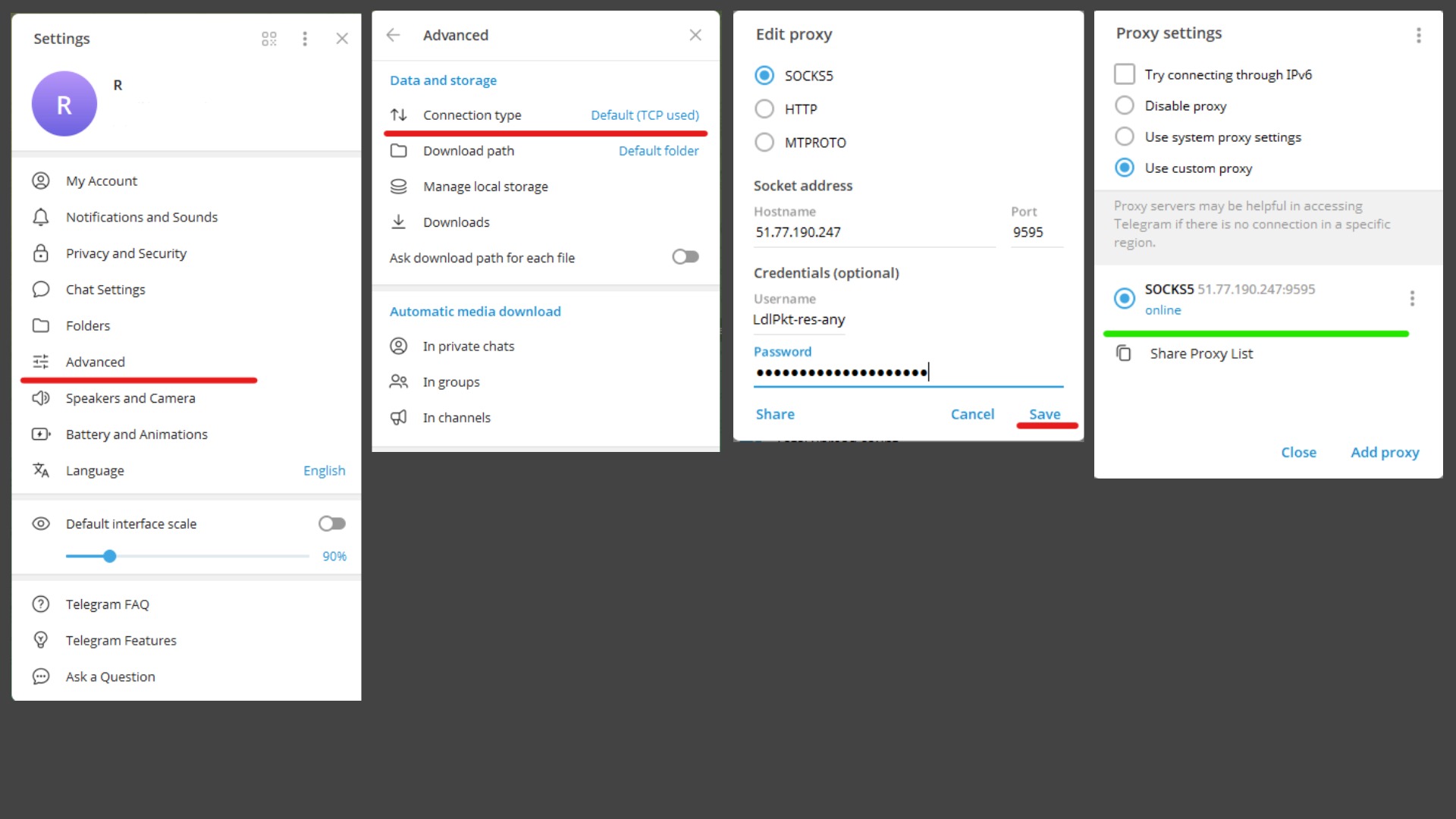 Fig.1. Step-by-step proxy setup in Telegram on PC
Setup on Mobile Devices (Android/iOS)
- Open the Telegram app and go to "Settings".
- Select the "Data and Storage" section.
- Scroll to the bottom and tap on "Proxy Settings".
- Activate the "Use Proxy" switch.
- Tap "Add Proxy".
- Select the type: SOCKS5 or MTProto.
- Enter the server data: Server (Host), Port, Username, and Password.
- Tap the "Checkmark" to save.
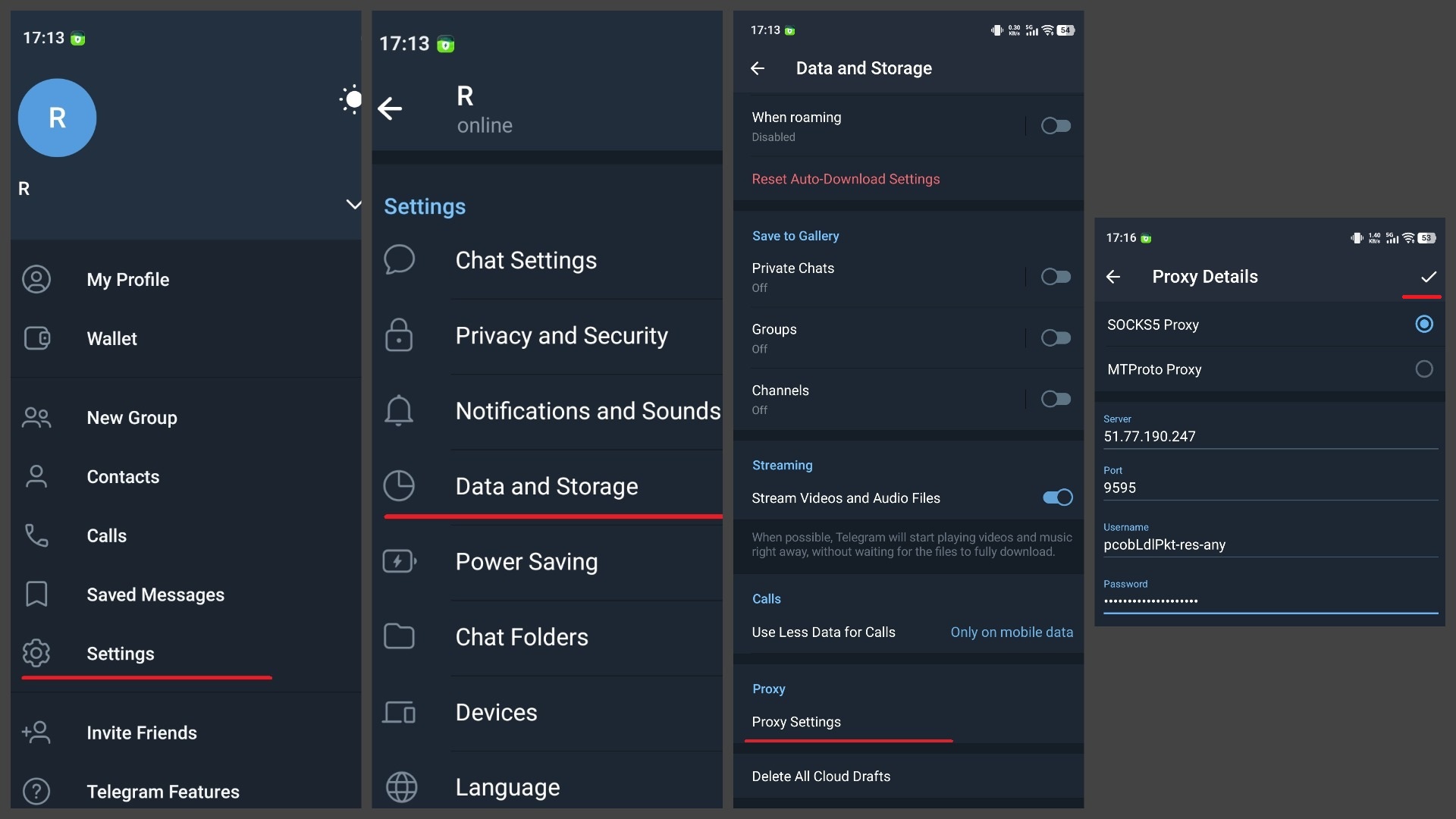 Fig.2. Step-by-step proxy setup in Telegram on mobile devices
After setup, Telegram will automatically check the connection. If everything is entered correctly and the proxy is working, you will see the "connected" status and a shield icon at the top of the interface.
Where to get reliable proxies: Paid vs. Free
- Free proxies: We strongly recommend against using them. Free proxies found in the public domain are often unstable, have extremely low speeds, and most dangerously, can intercept your data. They are often "blacklisted" and can be "toxic."
- Paid proxies: This is the only reliable option. Paid providers guarantee stable operation, high speeds, and clean IP addresses. For Telegram, mobile proxies are the "gold standard". Social networks and messengers are "mobile-first" platforms, so traffic from real cellular operator IP addresses looks like standard mobile usage, ensuring high reliability and connection authenticity.
Conclusion
Setting up a proxy in Telegram is not a complex technical trick, but a basic skill for any user who values stable access and privacy. This makes the messenger a fault-tolerant tool that works reliably in various network conditions.
Investing in a high-quality paid proxy is a guarantee of your privacy and uninterrupted access to information in any situation.
👉 Looking for reliable proxies for Telegram? High-speed mobile SOCKS5 proxies are ideal for this task. They provide maximum trust from networks and a stable connection. In the CyberYozh App catalog, you will find clean and reliable proxies that will provide you with uninterrupted access to Telegram.
