
In classic scraping, developers spend hours writing rotation managers: they need to load a list of 1000 IPs, check them for validity, exclude banned ones, and ensure IPs do not repeat.
In CyberYozh App, we have changed the game. You don't need a proxy list. You need one address that changes the IP for you. All the setup magic happens not in the code, but in our Credential Generator (available for residential rotating proxies).
In this guide, we will break down how to set up automatic rotation and Sticky sessions in Python in 3 minutes using our Residential proxies.
🛠 Part 1. Preparation in CyberYozh App
Before opening PyCharm, let's go to the dashboard. We need to get the correct access credentials. In the “My Proxies” section, click the “Generate Credentials” button.
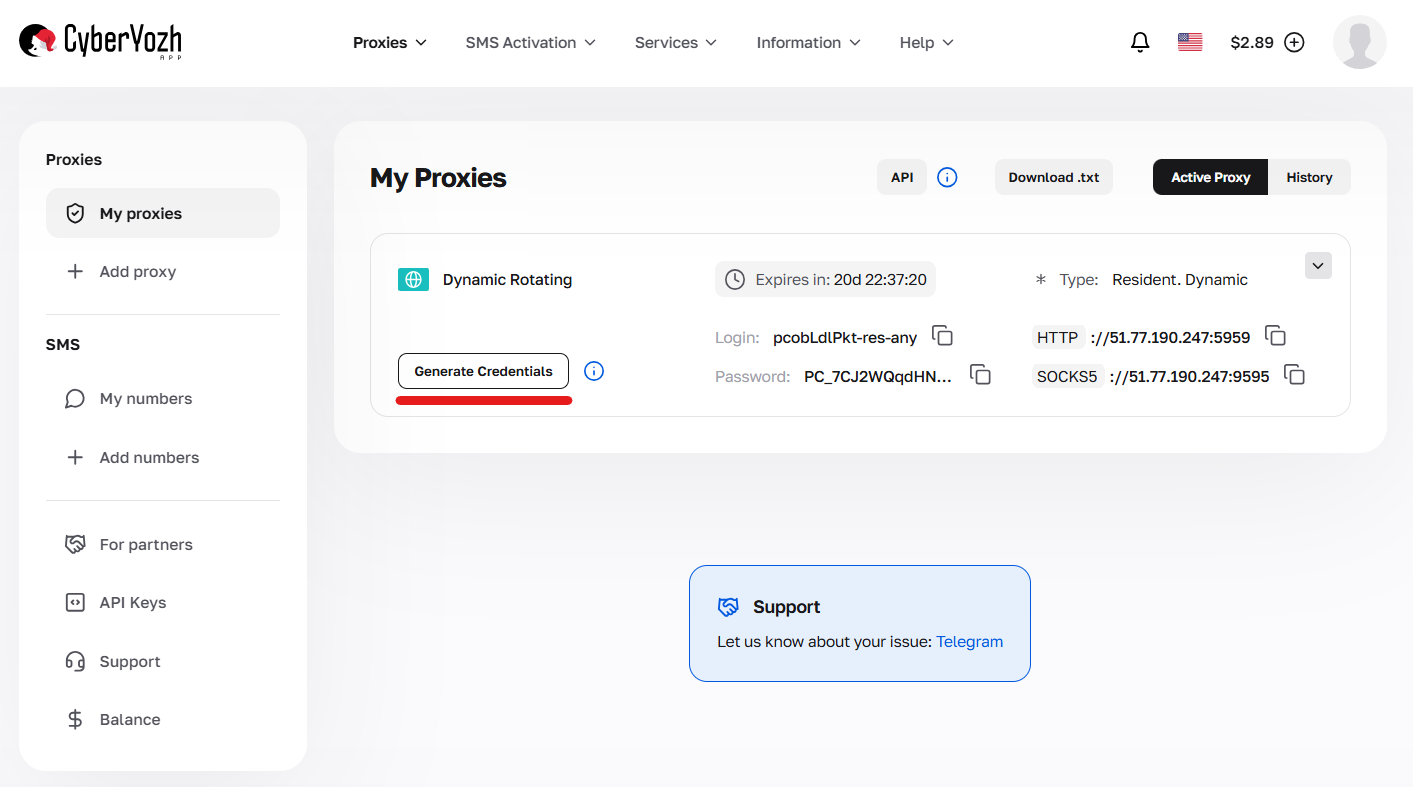
Fig. 1. The "Generate Credentials" button (creds) in the dashboard.
Here you manage the proxy behavior logic. We have 3 modes that change how the proxy behaves in your code:
Random IP (Random /
-res-any): Every new request = New IP. Ideal for price scraping and data collection.Short Session (Targeting): The IP holds for up to 1 minute. Required for precise work in a specific city/state.
Long Session (Long /
-resfix): The IP is assigned to you for up to 6 hours (Sticky Session). Ideal for website authorization so you don't get logged out.
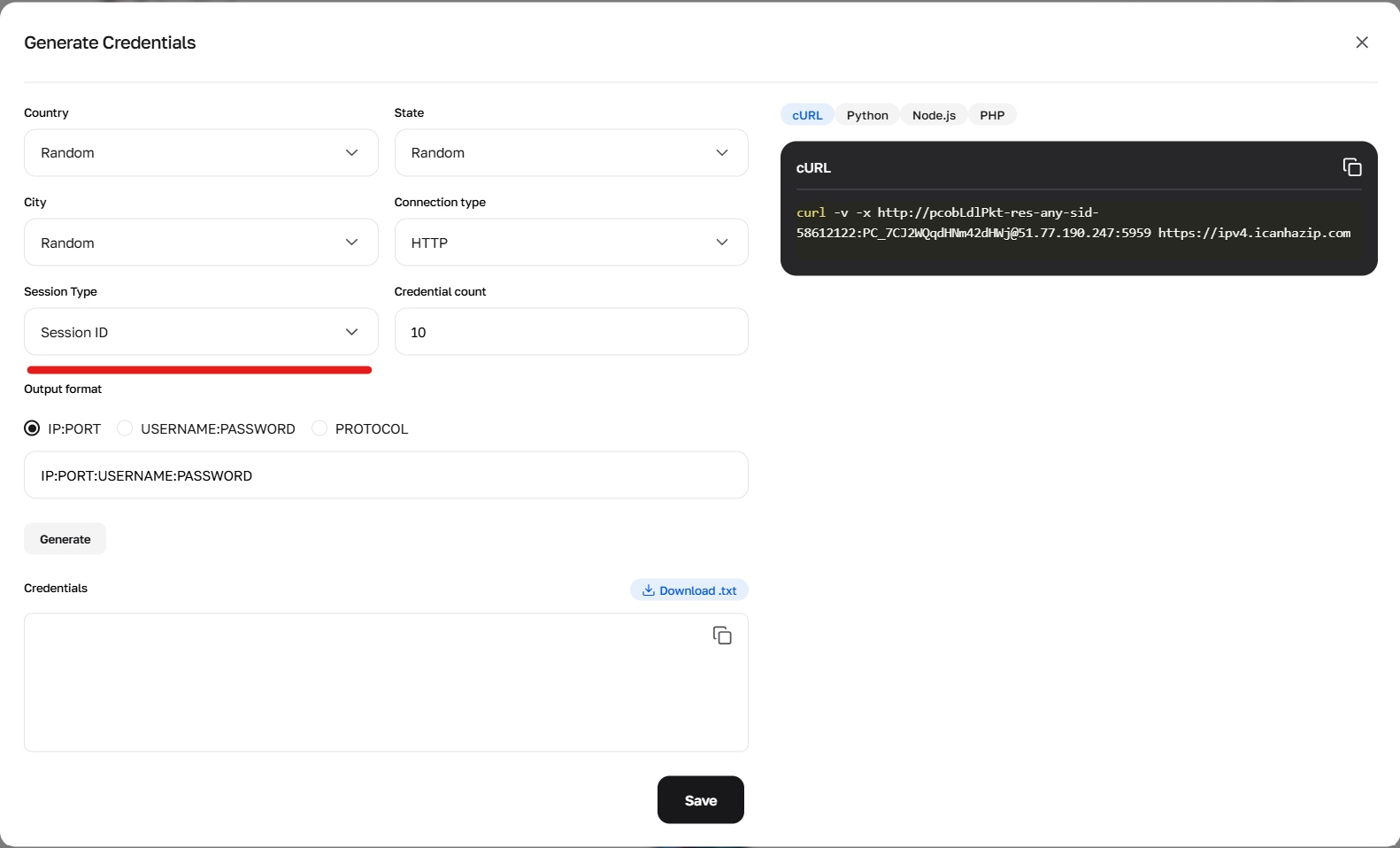
Fig. 2. Session type selection in the generator: random, short, and long.
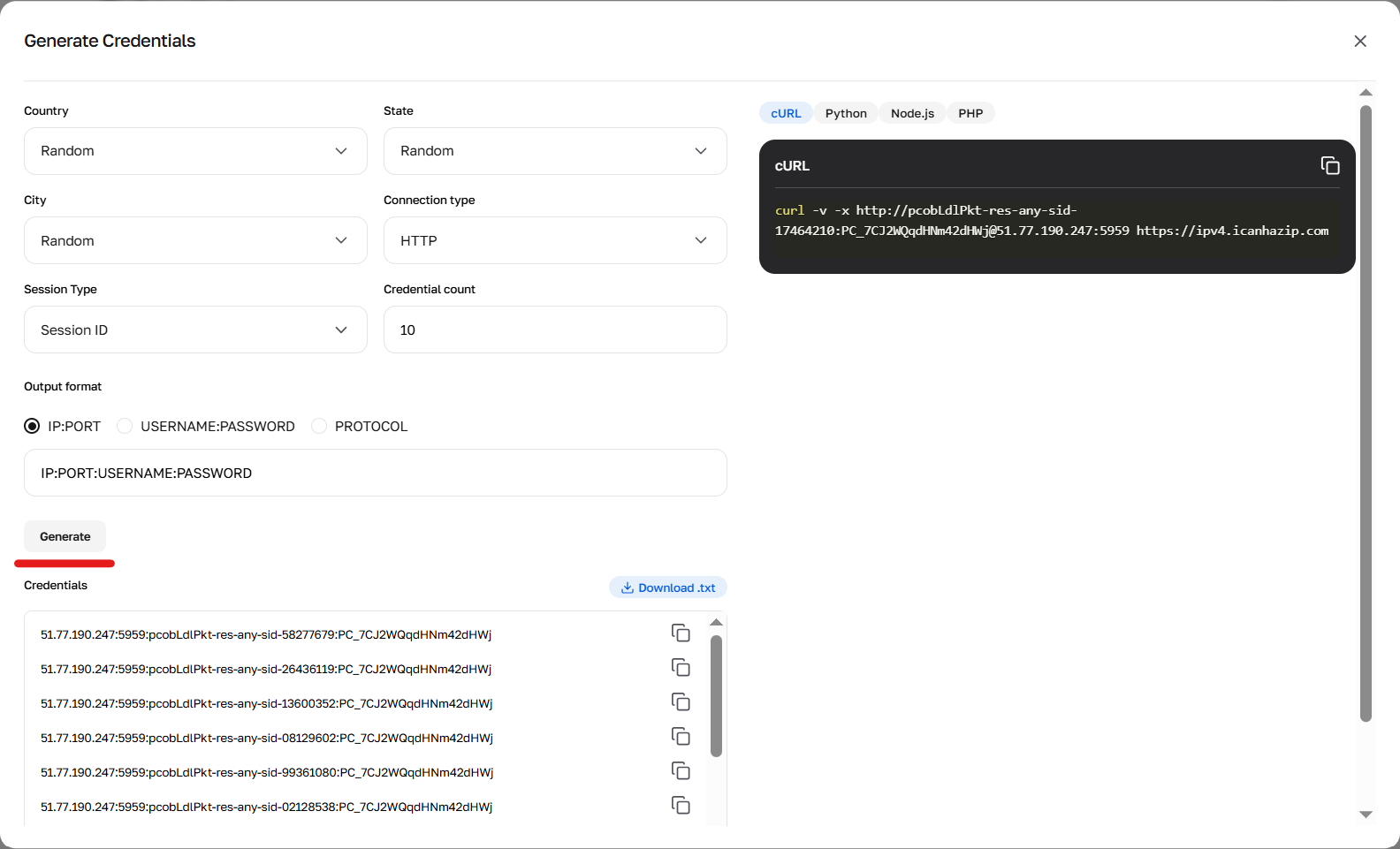
Fig. 3. Connection data generation button.
⚠️ Important nuance regarding ports: Unlike other services, we have separated ports for stability:
For requests (HTTP/HTTPS), use port 5959.
For SOCKS5 clients, use port 9595.
👉 You can read more about rotation for residential proxies here.
💻 Part 2. "Scraping" Scenario: Auto-rotation (Random IP)
Task: Make 10 requests to a website, ensuring the site sees us as a new user each time. Previously, you would need a list of 10 proxies. With CyberYozh App, you only need one line with the -res-any prefix.
import requests

# Data from Generator (Random IP Mode)
# Note the port 5959 for HTTP!
PROXY_HOST = "51.77.190.247"
PROXY_PORT = "5959"
PROXY_USER = "pcJcWhGag4-res-any" # The -res-any prefix enables rotation
PROXY_PASS = "your_password"

proxy_url = f"http://{PROXY_USER}:{PROXY_PASS}@{PROXY_HOST}:{PROXY_PORT}"

proxies = {
    "http": proxy_url,
    "https": proxy_url
}

url = "https://httpbin.org/ip" # Site that will show our IP

print("--- Starting scraping with rotation ---")

for i in range(5):
    try:
        # Every time you pull the same link, CyberYozh will provide a new IP
        response = requests.get(url, proxies=proxies, timeout=10)
        current_ip = response.json()['origin']
        print(f"Request {i+1}: Your external IP -> {current_ip}")
    except Exception as e:
        print(f"Error: {e}")
🚀 Part 3. "Accounts" Scenario: Sticky-sessions (Long Session)
Task: Log in to a website and navigate through internal pages for 30 minutes without changing the IP to avoid getting banned for suspicious activity.
In the CyberYozh App generator, select “Long Session”. The system will provide a login with a unique token (e.g., ...-resfix-us-nnid-9d016...). As long as you use this login, the IP will remain unchanged (up to 6 hours).
import requests

# Data from Generator (Long Session Mode)
# The login is long — it contains the session ID
PROXY_USER = "pcJcWhGag4-resfix-us-nnid-9d016abcd"
PROXY_PASS = "your_password"
PROXY_HOST = "51.77.190.247"
PROXY_PORT = "5959"

proxy_url = f"http://{PROXY_USER}:{PROXY_PASS}@{PROXY_HOST}:{PROXY_PORT}"

# Use requests.Session to persist cookies and headers
session = requests.Session()
session.proxies = {
    "http": proxy_url,
    "https": proxy_url
}
# Mimic a browser
session.headers.update({
    "User-Agent": "Mozilla/5.0 (Windows NT 10.0; Win64; x64)..."
})

print("--- Operating in a single session ---")

# Step 1. Access the main page (get IP)
r1 = session.get("https://httpbin.org/ip")
ip1 = r1.json()['origin']
print(f"Step 1: Our IP is {ip1}")

# Step 2. Do something useful (IP should stay the same)
r2 = session.get("https://httpbin.org/ip")
ip2 = r2.json()['origin']
print(f"Step 2: Our IP is {ip2}")

if ip1 == ip2:
    print("Success! Session is held; you can safely work with the account.")
else:
    print("Attention! IP has changed (check generator settings).")
📱 Part 4. Mobile Proxies (Private 4G/LTE): Managing the modem via code
With Residential Rotating proxies, it's simple: you pull one link, and our system automatically provides a new IP from the pool. With Mobile Private Proxies (Private), the mechanics are different. You have a real USB modem. To change the IP, this modem must be physically rebooted (reconnected to the cell tower).
In CyberYozh App, for private ports (channels), we provide a special API link. If you navigate to it, the modem will initiate a reboot.
The main nuance: Changing the IP on mobile proxies takes time (10-20 seconds). If your script cannot wait, it will fail with a ConnectionError.
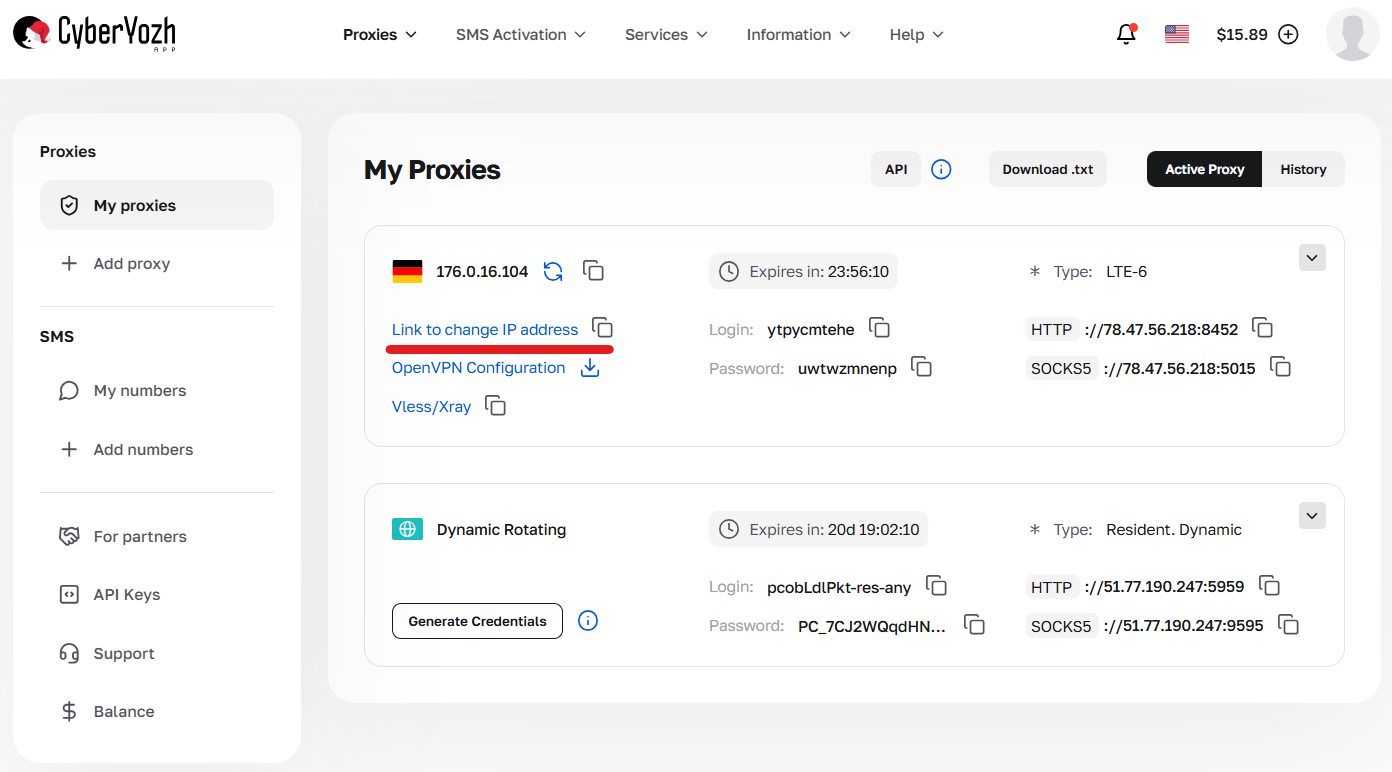
Fig. 4. IP address change link in the dedicated (Private) mobile proxy card.
Implementing the Reboot Function (IP Change)
Let's write a function that triggers the API link and pauses the script while the modem searches for a new tower.
import requests
import time

# --- SETTINGS FROM CYBERYOZH APP DASHBOARD ---
MOBILE_PROXY = "http://LOGIN:PASS@IP:PORT" # Your access data
ROTATION_LINK = "https://app.cyberyozh.com/api/v1/..." # Link from the “IP address change link” field

def change_mobile_ip(api_link):
    """
    Function to reboot the mobile modem.
    """
    print(f"♻️ Initiating IP change...")
    try:
        # 1. Send the reboot signal
        r = requests.get(api_link)

        if r.status_code == 200:
            print("✅ Command accepted by the modem.")
        else:
            print(f"⚠️ API Error: {r.status_code}")
            return False

        # 2. CRITICAL MOMENT: Wait for the reboot
        # The modem needs time to disconnect and find a new tower.
        # Usually takes 10-20 seconds.
        wait_time = 15
        print(f"⏳ Waiting {wait_time} sec for the modem to reconnect...")
        time.sleep(wait_time)
        return True

    except Exception as e:
        print(f"Error during API request: {e}")
        return False

# --- USAGE EXAMPLE ---

proxies = {"http": MOBILE_PROXY, "https": MOBILE_PROXY}

# Step 1. Work with the current IP
try:
    ip_old = requests.get("https://httpbin.org/ip", proxies=proxies, timeout=10).json()['origin']
    print(f"Old IP: {ip_old}")
except:
    print("Proxy currently unavailable or network error.")

# Step 2. Change IP (if banned or loop completed)
change_mobile_ip(ROTATION_LINK)

# Step 3. Verify the new IP
try:
    # Note: an error may occur here if 15 seconds was not enough.
    # Ideally, add a retries loop (as in Part 3).
    ip_new = requests.get("https://httpbin.org/ip", proxies=proxies, timeout=10).json()['origin']
    print(f"New IP: {ip_new}")
except Exception as e:
    print("Modem has not yet re-established connection; try increasing time.sleep()")
💡 Lifehack: Passive OS Fingerprint (Spoofing)
Owners of Private plans in CyberYozh App have access to a cool feature — Passive OS Fingerprint. If you are scraping the mobile version of a site (e.g., Instagram or TikTok), the site checks TCP/IP headers. It will look suspicious if your User-Agent says "I'm an iPhone" while the network packets say "I'm a Windows Server."
To increase trust, synchronize the headers in Python:
headers = {
    # This User-Agent must match the Fingerprint setting in your CyberYozh dashboard!
    "User-Agent": "Mozilla/5.0 (iPhone; CPU iPhone OS 16_0 like Mac OS X)..."
}

# If the "iOS" profile is enabled in the dashboard and you send this header —
# you will appear to the site as a 100% real iPhone user with LTE internet.
⚠️ Important Warning for Shared Proxies
If you purchased a MobileShared plan, the code above with the API link will not work.
Why: Other people are using the same shared modem. If you reboot it, they will lose their internet connection.
How to work: Simply make requests in a
while Trueloop. The system will automatically change the IP on a timer (every 5-10 minutes). You only need to handle connection errors during the changeover.
👉 You can read more about mobile proxies here.
🛡 Part 5. Common Integration Errors
Even with such a convenient tool, hiccups can occur. Here are the top 3 issues reported to our support and how to solve them in the code:
ProxyErroror Connection Reset:Cause: You mixed up the ports.
Solution: Ensure that in Python
requestsyou are using port 5959 (HTTP). Port 9595 is intended only for SOCKS clients (like Telegram or Proxifier); therequestslibrary is unstable with SOCKS5 without additional modules.
IP changes too frequently (in Sticky mode):
Cause: You are using the
-res-anylogin instead of the generated token.Solution: Return to the Generator, select “Long Session,” and copy the full login string containing the
nnidtoken.
Authentication Failed:
Cause: Extra space.
Solution: When copying from the dashboard, an invisible space is often captured at the end of the login or password. The
strip()function in Python will save your nerves:PROXY_USER = "pcJcWhGag4-res-any ".strip() # Removes spaces
Conclusion
Using Rotating Residential and Mobile Private proxies from CyberYozh App eliminates the need to write complex rotation code.
Need scraping? Use the
anyprefix and get millions of IPs.Need account management? Use the
fixprefix and get stability.
👉 Try it right now: Go to the “My Proxies” section, generate credentials for Residential Rotating Proxies or use the IP change link for Mobile Private Proxies and run the code above.
