
Screaming Frog SEO Spider — is, without exaggeration, the primary working tool for technical SEO auditing. This powerful program is capable of crawling thousands of URLs, collecting critical data on site structure, meta tags, response codes, and much more. However, when working with large-scale projects or analyzing competitors, every specialist encounters fundamental limitations:
- Rate Limiting: Large websites and CDNs (Content Delivery Networks) use WAFs (Web Application Firewalls) to protect against high loads. Intensive scanning from a single IP address often exceeds server limits, which can lead to connection drops or access restrictions.
- Geo-dependent Content: A website may serve different content, prices, or even language versions depending on the user's geolocation. By crawling a site from your own country, you risk not seeing what your target audience sees in, for example, the USA or Germany.
- Cloaking Verification: Some unscrupulous sites show one version of content to search engine bots (e.g., Googlebot) and another to real users. To detect this, it is necessary to route the analysis through an IP address associated with search engine regions to verify the exact displayed content.
The solution to all these problems is the proper configuration of proxy servers directly within Screaming Frog. This transforms a standard crawler into a powerful tool for comprehensive and location-independent SEO analysis.
Part 1. Strategy: Which Proxy Do You Need for Screaming Frog?
The choice of proxy depends on the crawling goal. The wrong choice will lead to either unnecessary expenses or an instant connection break due to server limits.
1. Datacenter Proxies — For personal projects and technical audits
- What they are: High-speed IPs from data centers.
- What they are for: Auditing your own sites (where you can whitelist the IP), checking client sites, and working with resources without protection.
- Pros: Maximum crawling speed, low price.
- Cons: Often subject to restrictions on external websites.
2. Residential Proxies (ISP/Residential) — For competitor analysis
- What they are: IP addresses of real home internet service providers.
- What they are for: Crawling competitor sites, marketplaces, and aggregators.
- Why: These IPs provide standard residential routing. This allows for the seamless processing of large volumes of pages without triggering automatic restrictions.
3. Mobile Proxies (4G/5G) — For checking mobile SERPs
- What they are: IPs from mobile carriers.
- What they are for: Checking how a site appears to mobile users and accessing strictly localized content.
- Why: If a site uses "cloaking" (showing different content to desktop and mobile), a mobile proxy paired with a smartphone User-Agent will help you verify the actual user experience on mobile devices.
- 👉 You can read more about mobile proxies here
Part 2: Step-by-Step Proxy Setup in Screaming Frog
The setup process is intuitive and takes only a few minutes. You will need your proxy data: IP address, port, and authorization details (username/password).
Step 1: Collect Proxy Credentials
The first and most important step is to ensure you have a complete set of authorization data. These "keys" will allow your application or browser to connect to the proxy server and route traffic through it.
Be sure to prepare the following data:
- IP Address (host server)
- Port for connection
- Username and Password for authorization
- Protocol type (HTTP/HTTPS or SOCKS5)
 Fig. 1. This screenshot shows where all the necessary fields for connecting to a proxy server are located in theCyberYozh Appdashboard.
Step 2: Go to Proxy Settings
- Launch Screaming Frog SEO Spider.
- In the top menu, go to "File" -> "Settings..." -> "Proxy".
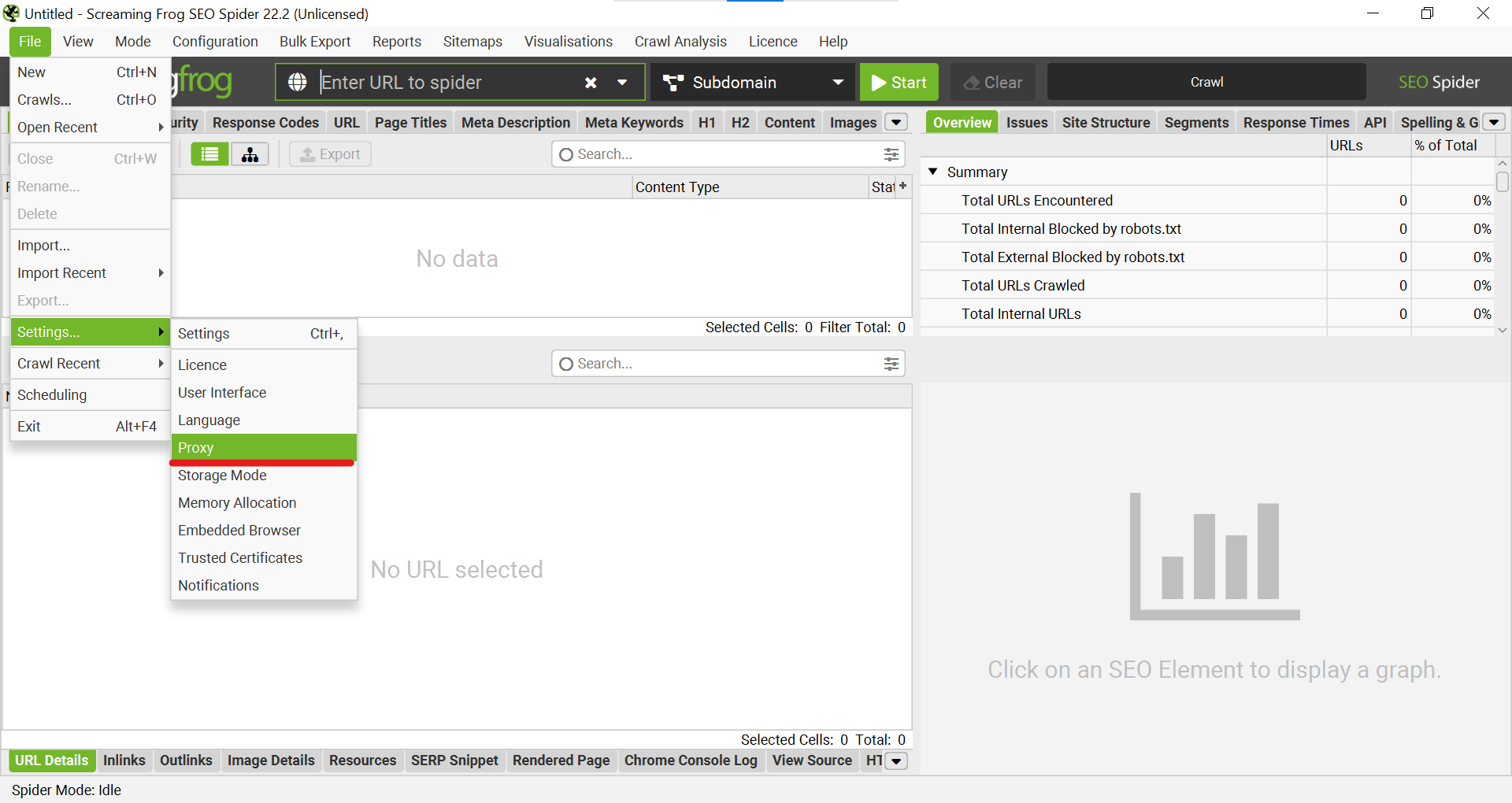 Fig. 2. This screenshot shows the "File" -> "Settings..." dropdown menu, where you must select "Proxy" to go to the settings.
Step 3: Activation and Data Entry
- In the "Settings" window that opens, go to the "Proxy" tab.
- Check the box next to "Use Proxy Server" to activate the function.
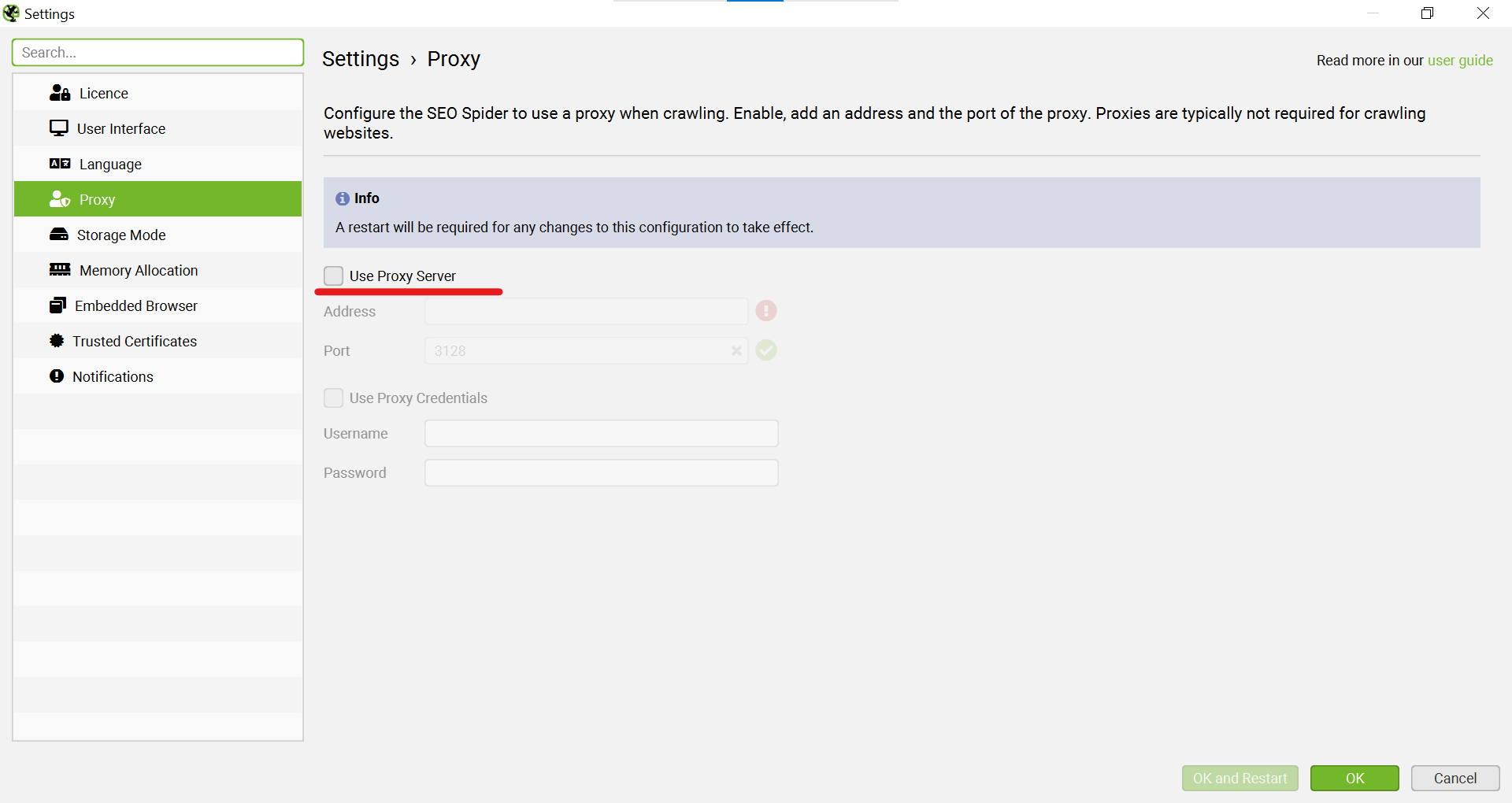 Fig. 3. This screenshot shows the "Settings" window, where you must check "Use Proxy Server" to activate the function.
- In the "Address" field, enter your proxy's IP address, and in the "Port" field, enter its port.
- If your proxy requires authorization (which is standard for high-quality proxies), activate the "Use Proxy Credentials" option.
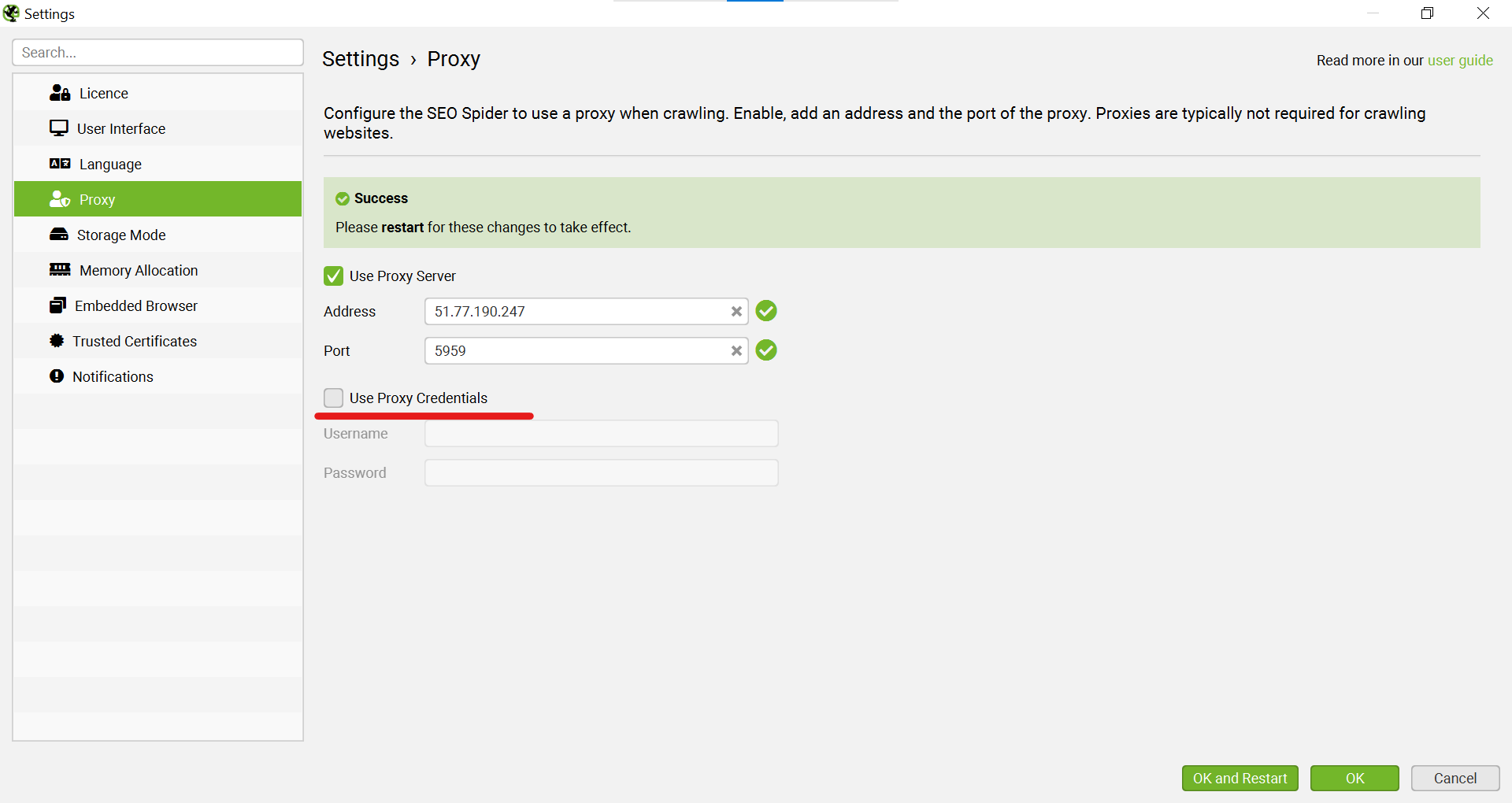 Fig. 4. This screenshot shows the process of activating the "Use Proxy Credentials" option.
- Fill in the "Username" and "Password" fields.
- After entering all the data, click the "OK and Restart" button. The program will automatically restart to apply the new network settings.
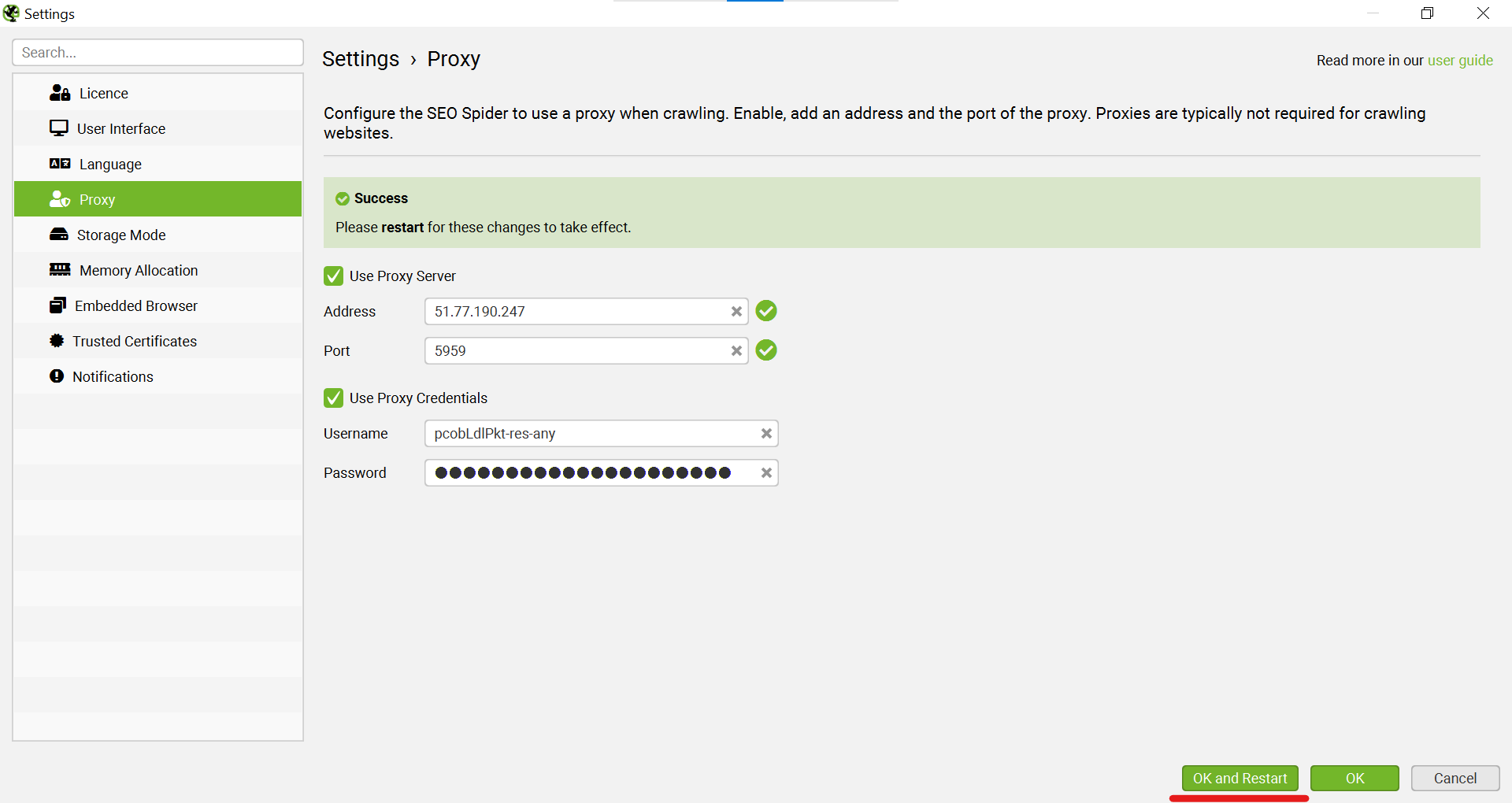 Fig. 5. This screenshot shows the final stage of saving settings: after entering all data, including username and password, you must click "OK and Restart".
Part 3: Checking and Verifying Proxy Operation
The setup is complete, but how do you make sure the crawler is actually working through the proxy? Let's perform a simple test crawl.
Step 4: Test Crawl
- As the target URL, we will use a specialized IP checking service —
https://browserleaks.com/ip. This will allow us to see exactly which IP address the request from Screaming Frog is coming from. - Paste this URL into the main field and click "Start".
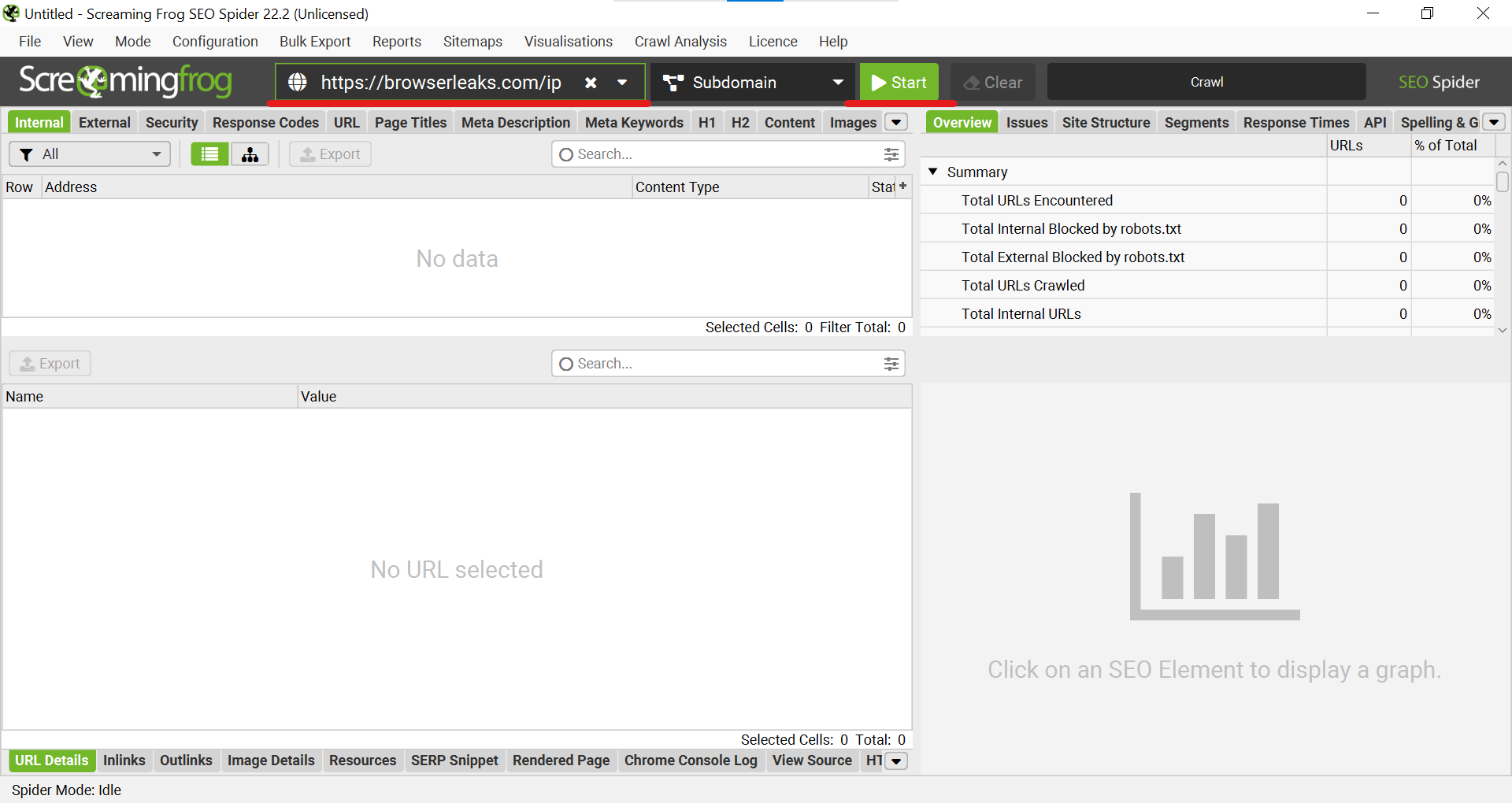 Fig. 6. This screenshot shows the preparation for the test crawl: the URL https://browserleaks.com/ip is pasted into the main field of the program for verification.
Step 5: Result Analysis
- Wait for the crawl to finish. In the main window, you will see a list of crawled URLs.
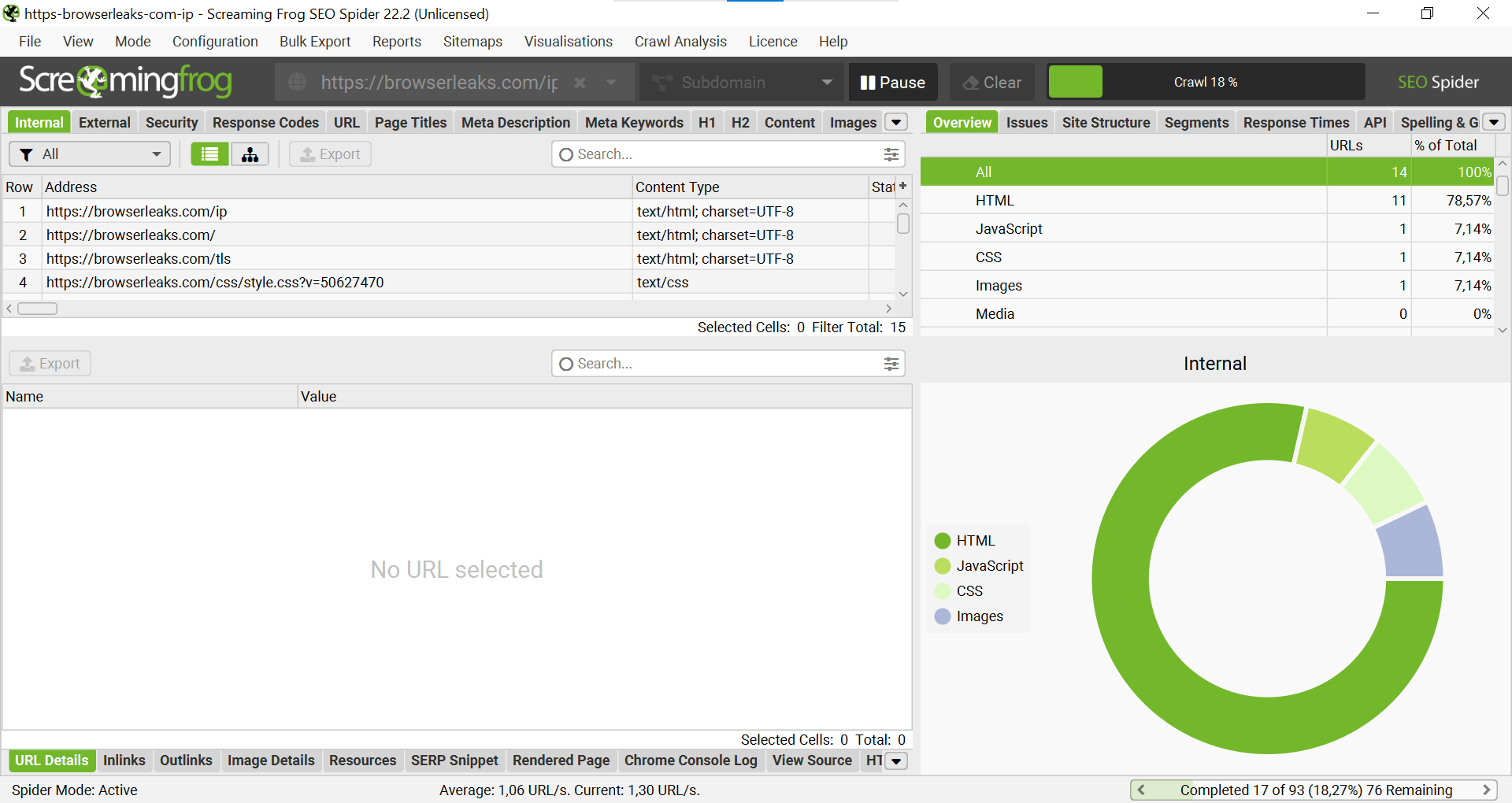 Fig. 7. This screenshot shows the crawl result. The main window displays the list of crawled URLs, and the diagram on the right shows the content type distribution.
- To clearly see which resources the crawler requested, you can use visualization. Right-click on the main URL (
https://browserleaks.com/ip), select "Visualisations" -> "Crawl Tree Graph".
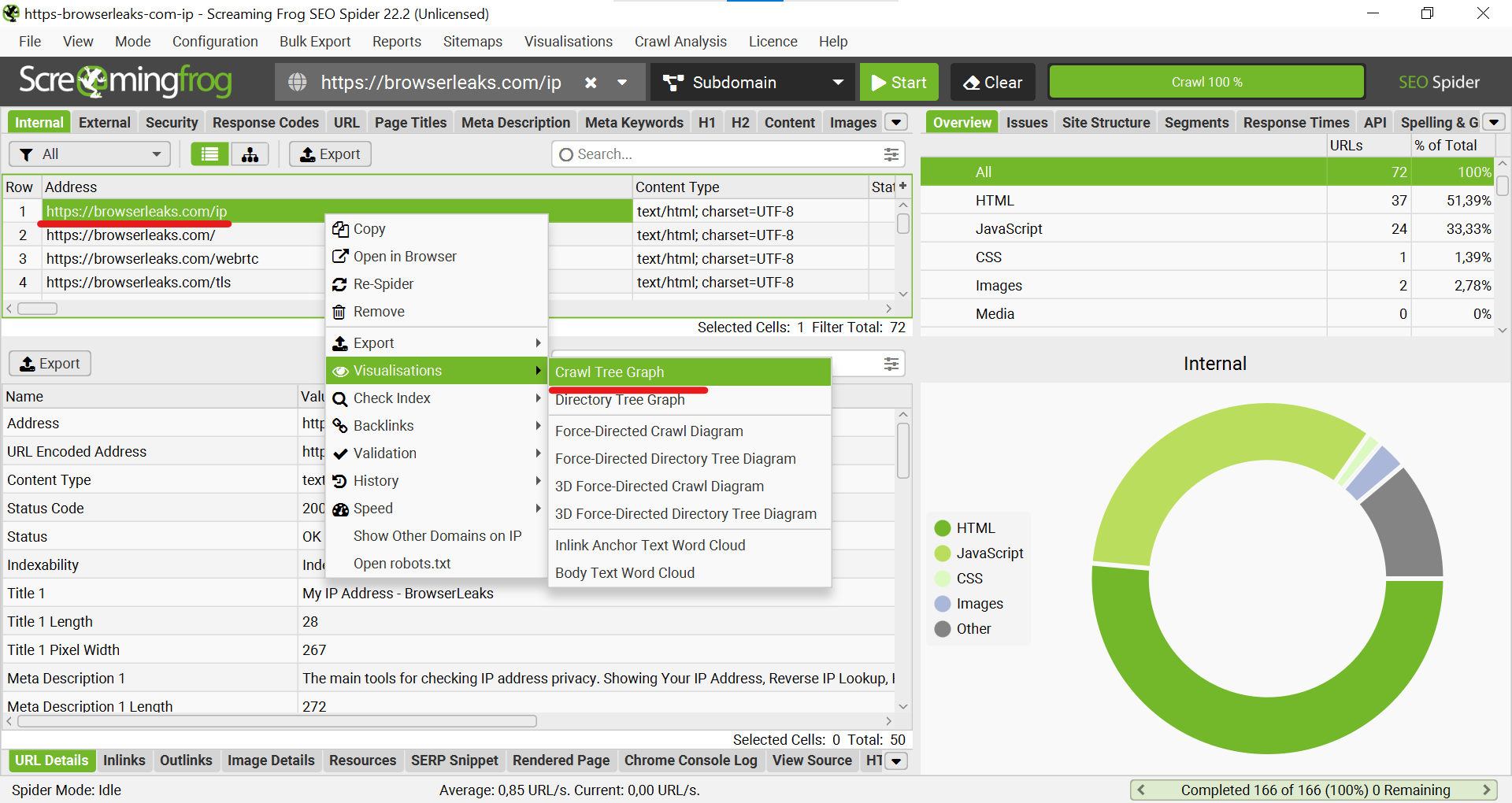 Fig. 8. This screenshot shows a method for visualizing results: "Visualisations" -> "Crawl Tree Graph" is selected via the context menu for the main URL.
Step 6: Visual Verification
- A connection graph will open. On it, you will see that
browserleaks.comrequested data from an external IP address (in our example,87.192.224.71). This is the IP address that the target site "sees," which is your proxy's IP.
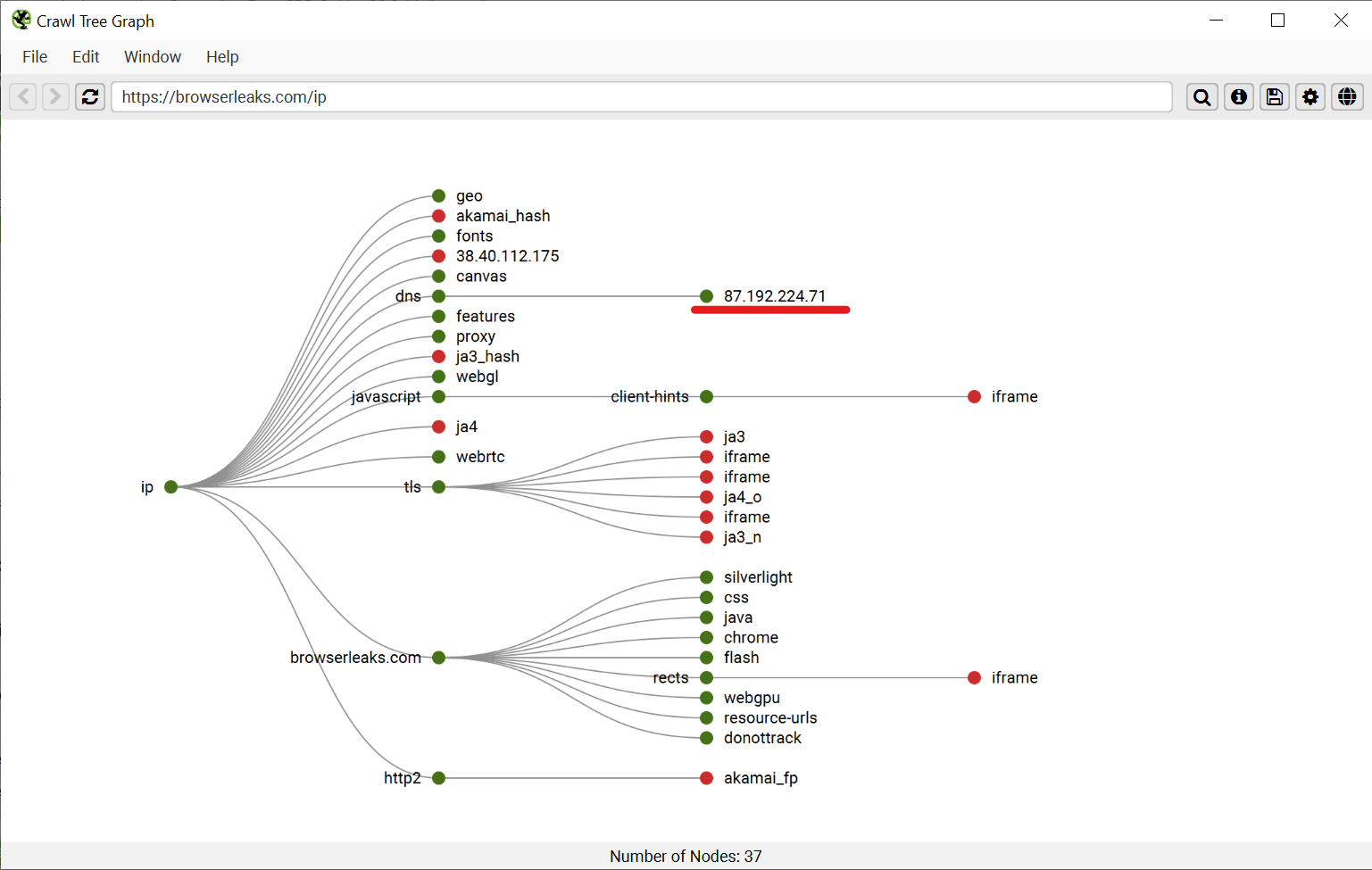 Fig. 9. This screenshot shows the "Crawl Tree Graph," which clearly demonstrates that requests from the crawler go to an external IP address belonging to the proxy server.
- For 100% certainty, you can open
browserleaks.com/ipin a regular browser configured with the same proxy. You will see the same information, confirming that Screaming Frog is successfully working through the proxy server you specified.
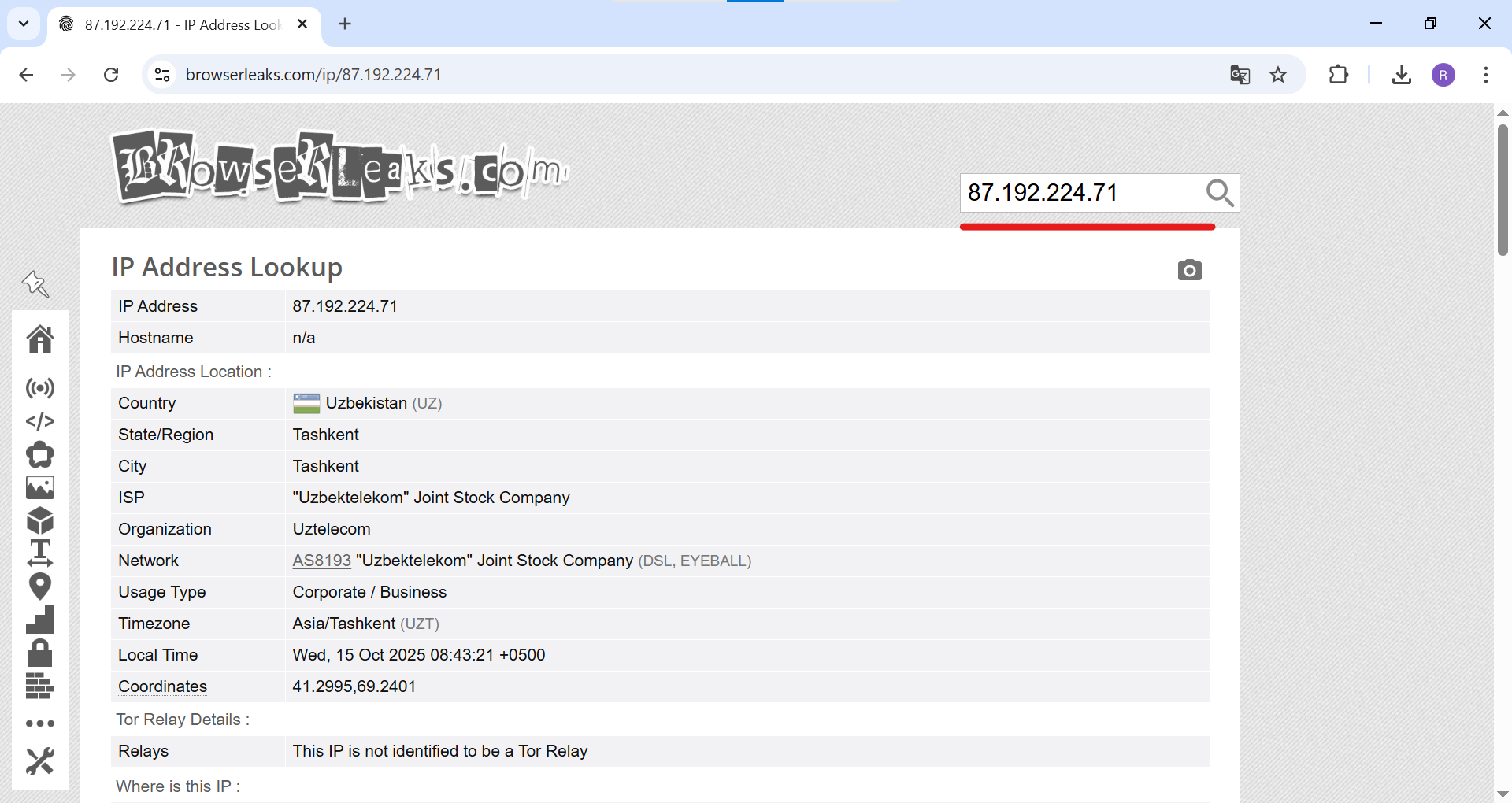 Fig. 10. This screenshot shows an example of checking the external IP address
 87.192.224.71 via the browserleaks.com service, allowing you to verify which IP the end server sees.
Conclusion
Excellent! You have successfully configured Screaming Frog to work through a proxy. Now you can conduct deep and unhindered SEO audits of any scale, without connection interruptions and accessing data exactly as users see it from anywhere in the world. This skill is an essential part of a modern professional SEO specialist's arsenal.
👉 Looking for reliable proxies for Screaming Frog? For crawling tasks, high-speed datacenter or residential proxies are ideal. In the CyberYozh App catalog, you will find stable proxies that will ensure the uninterrupted operation of your SEO spider.
