
Spotify is, without exaggeration, synonymous with music streaming. However, while using the platform, you might encounter a problem that can instantly ruin the entire experience: an unstable connection or routing restrictions imposed by your Internet Service Provider (ISP).
Perhaps you've faced a situation where music takes a long time to load, playback interrupts at the most interesting part, or the app malfunctions on public networks. The cause often lies in poor traffic routing or shaping (artificial speed throttling) by the local provider. This issue is especially relevant for users listening to high-quality audio content, including not only music but also large podcasts or audiobooks that require a stable channel.
Here are the main issues:
- Privacy threats on public networks: When using free Wi-Fi in cafes, hotels, or transport, your traffic may be vulnerable. Without additional protection, data about your network activity can be intercepted.
- ISP speed throttling (shaping): This is a common problem with streaming. Many ISPs artificially lower speeds when streaming audio or video is detected, causing sound quality to drop automatically and tracks to buffer for a long time.
- Unstable routing and high ping: If the traffic path is suboptimal, the app simply won't be able to exchange data stably with the platform's servers and may display network errors, depriving you of the ability to listen to music without delays.
Fortunately, this can be solved. A Proxy server is your key to ensuring a stable, secure connection and listening to music in the highest quality without network restrictions. This guide will show you how to do it correctly.
⚠️ Warning: The use of proxy servers is recommended exclusively for protecting your internet connection, ensuring privacy, and preventing speed throttling by ISPs. This guide is for informational purposes to help set up a secure route for your traffic. Always ensure that using third-party network tools complies with the music platform's Terms of Service (TOS).
🎧 Technical Choice: Why Spotify Needs SOCKS5, Not HTTP
Before we move on to the setup, it's important to understand what type of proxy you need. In Spotify settings (as seen in Screenshot 5), there are several options: HTTP, SOCKS4, SOCKS5.
- HTTP Proxy: This is a poor choice. This protocol was created for web browsing (HTTP/S traffic). Spotify is a complex application that uses many different protocols for streaming, synchronization, and P2P exchange. An HTTP proxy simply won't handle this task, leading to errors and connection drops.
- SOCKS4 Proxy: This is an outdated protocol. Its main limitation is that it does not support authentication (entering a login and password). You won't be able to use high-quality private proxies with it.
- SOCKS5 Proxy: This is the gold standard and your only right choice. SOCKS5 is a versatile, low-level protocol. It doesn't care what traffic you run through it—web, streaming, P2P, or anything else. It will reliably "wrap" all Spotify app traffic and send it through a remote server. Additionally, SOCKS5 supports UDP traffic, which is critical for streaming and P2P in Spotify.
Conclusion: For stable and full Spotify operation, you need a SOCKS5 proxy. Choose proxies from trusted providers (for example, with a speed guarantee of at least 5 Mbps for high quality, over 10 Mbps for HiFi, and low ping). Free public proxies are dangerous: they can steal your data or provide extremely low speeds. Never use public proxies without authentication—it's a data leak risk.
Alternative: If you want to protect traffic for the entire device (including mobile), consider a VPN instead of a proxy—it encrypts all traffic and is easier to set up. However, remember that a VPN might be slower for streaming due to the encryption process.
🛠️ Step-by-Step Guide: Configuring a Proxy in Spotify
This setup is only available in the desktop version of Spotify (Windows/macOS). The process is very simple and will take no more than a minute.
Step 1: Collect Proxy Credentials
The first and most important step is to ensure you have a complete set of authorization data. These "keys" will allow your application or browser to securely connect to the proxy server and direct traffic through it.
Be sure to prepare the following data:
- IP Address (host server)
- Port for connection
- Login and Password for authentication
- Protocol Type (HTTP or SOCKS5)
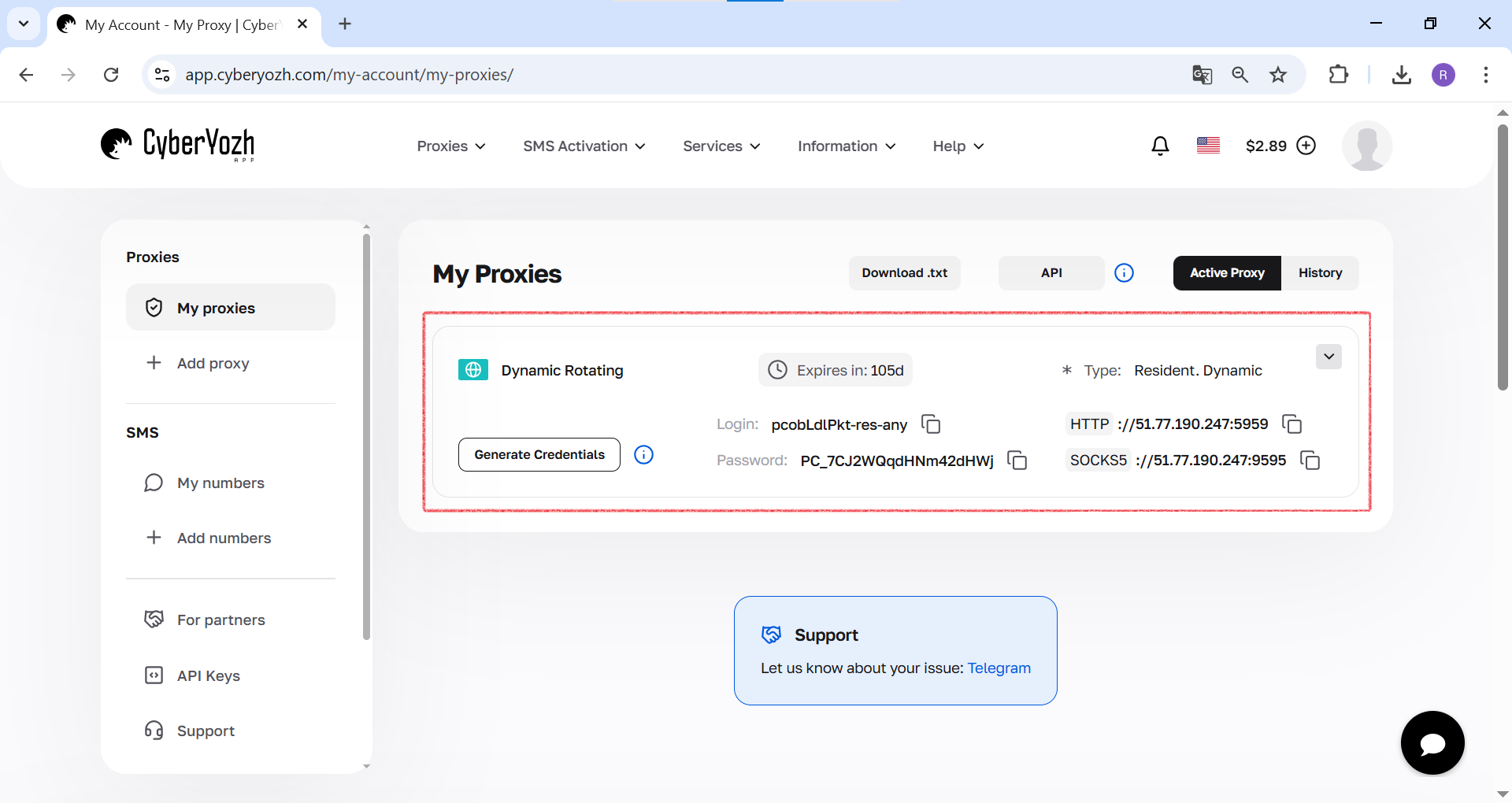
 Fig. 1. This screenshot shows where the necessary fields for connecting to a proxy server are located in the CyberYozh App personal account.
Step 2. Open the Main Menu
In the top left corner of the Spotify app, click on the three dots icon (...) to open the main menu.
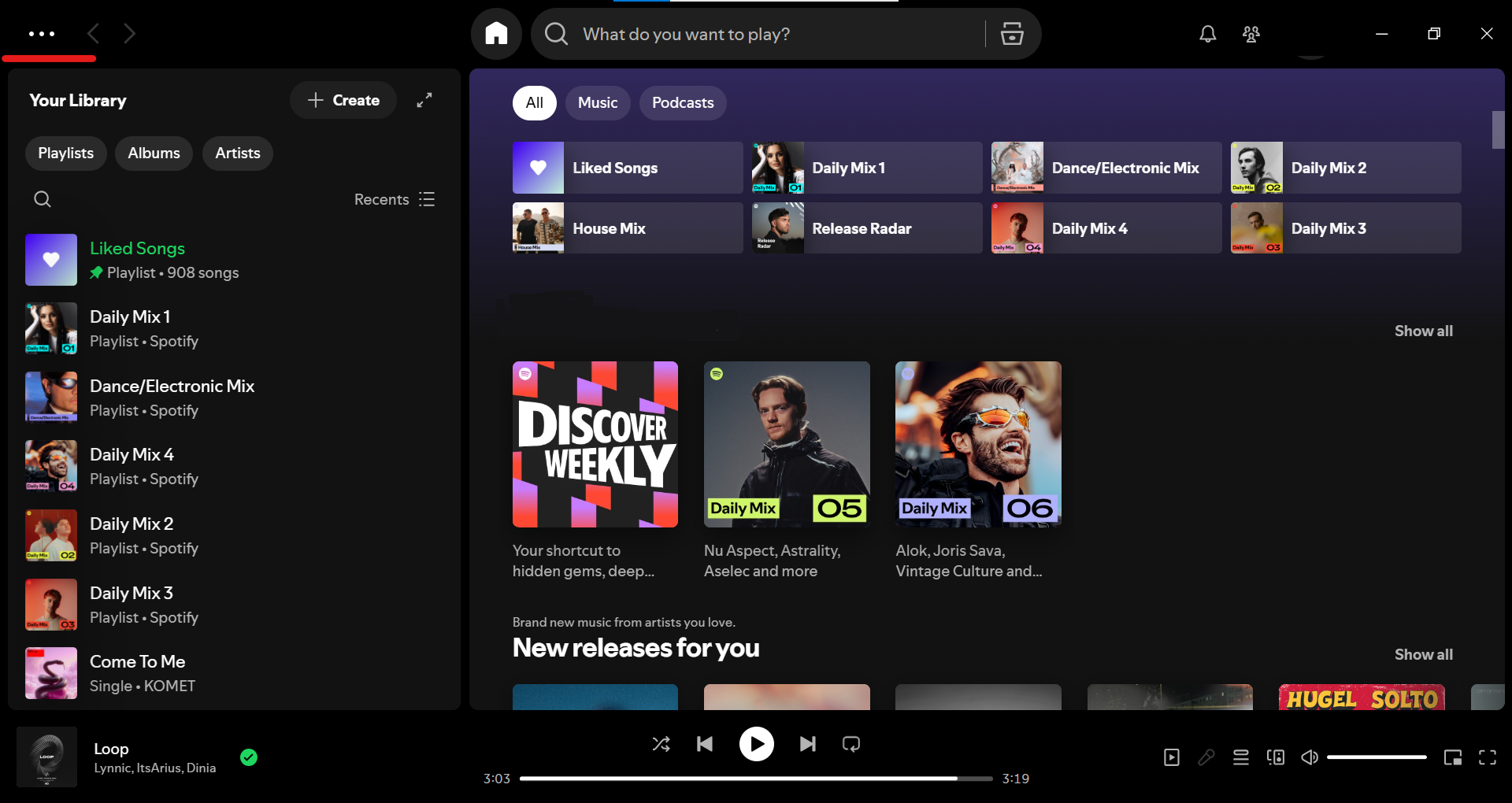 Fig. 2. Screenshot of the Spotify home page with the "Your Library" section on the left, playlist recommendations (Liked Songs, Daily Mix, etc.), and new releases in the central part of the interface.
Step 3. Go to "Settings"
In the dropdown menu, select Edit, and then in the submenu click on Preferences... (Settings).
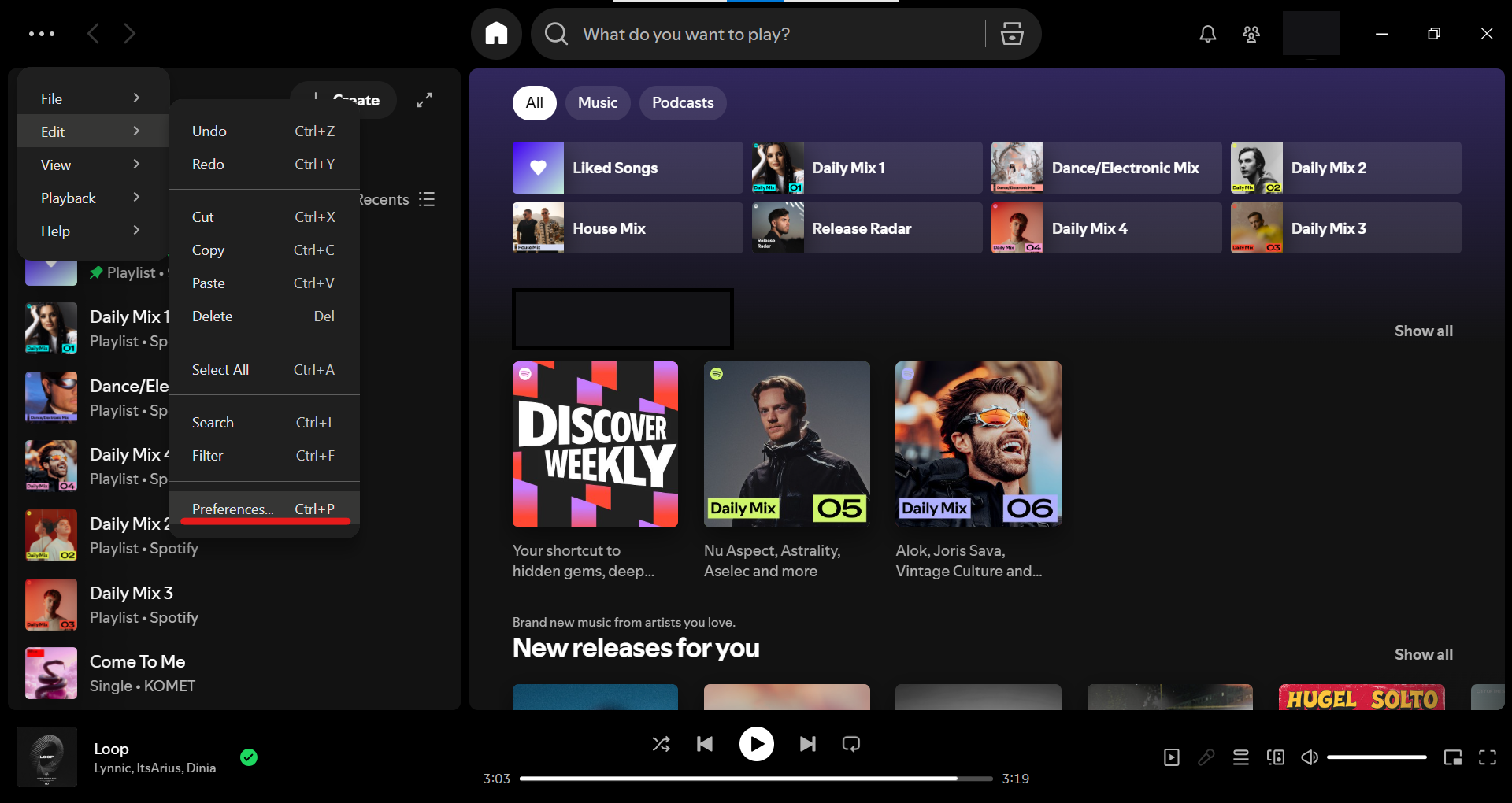 Fig. 3. Screenshot of the opened Spotify main menu (triggered by clicking the three dots in the top left), showing the "Edit" item with a submenu including "Preferences..." to access settings.
Step 4. Find the "Proxy" Section
The settings page will open. Scroll down until you find the Proxy Settings section.
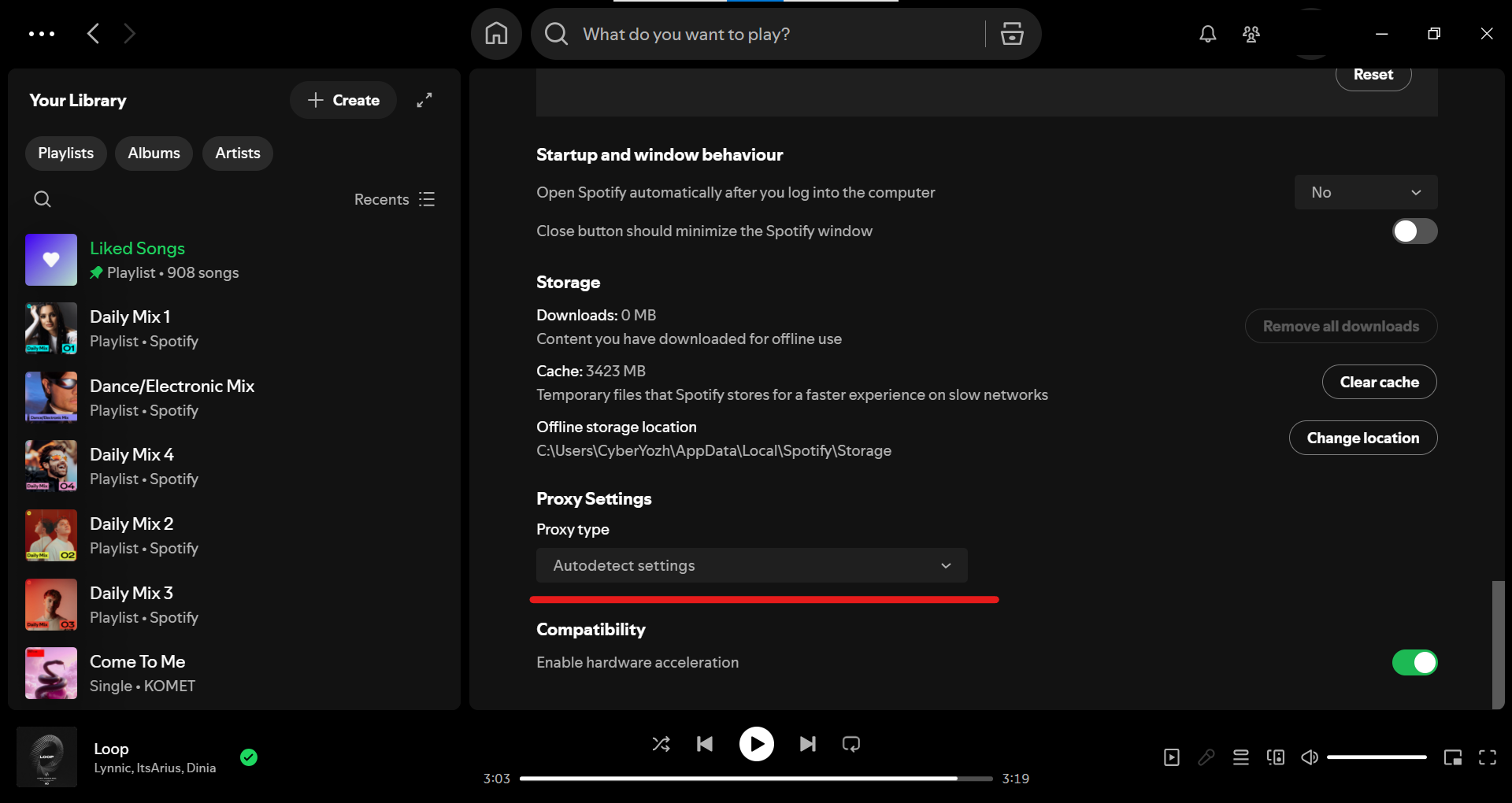 Fig. 4. Screenshot of the Spotify settings page, showing the "Storage" and "Proxy Settings" sections with the proxy type set to "Autodetect settings," along with other options like "Offline storage location" and "Compatibility."
Step 5. Select the Correct Proxy Type
Click on the Proxy type dropdown list. By default, it is set to Autodetect settings. From all the suggested options, select SOCKS5.
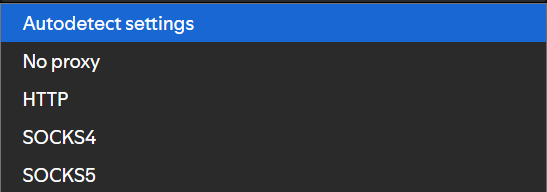 Fig. 5. Screenshot of the proxy type dropdown list in Spotify settings, where "Autodetect settings" is selected by default, and options like No proxy, HTTP, SOCKS4, and SOCKS5 are available.
Step 6. Enter Your Proxy Data
After selecting SOCKS5, fields for data entry will appear below it. Carefully copy and paste your private proxy server details into them:
- Host: Your proxy IP address (e.g.,
51.77.190.247) - Port: Your proxy port (e.g.,
9595) - Username: Your proxy login
- Password: Your proxy password
Step 7. Restart the App
This is a critically important step. Once you enter the data, Spotify will realize the network settings have changed and will show you a Restart App button. Click it.
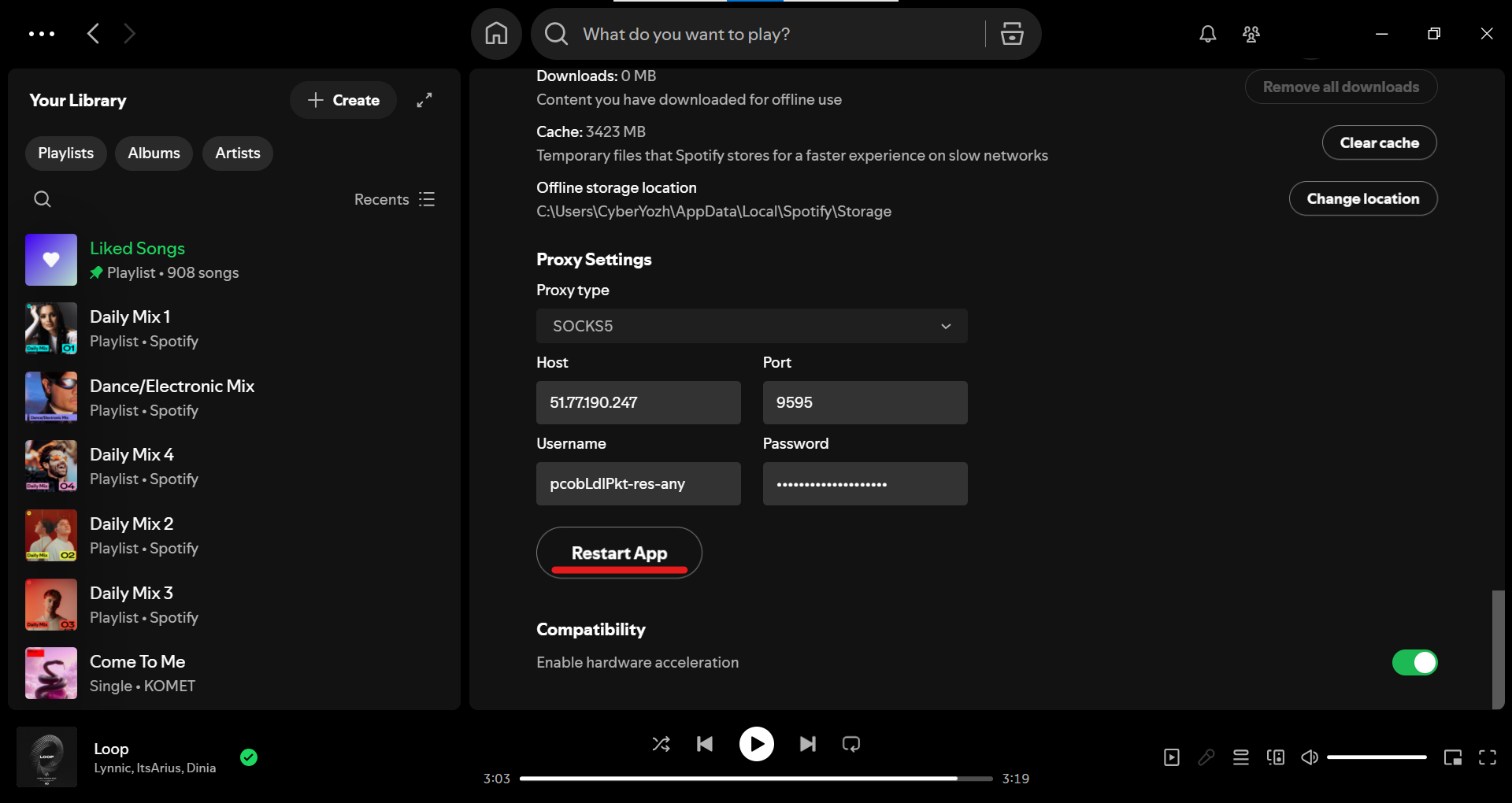 Fig. 6. Screenshot of the "Proxy Settings" section in Spotify with "SOCKS5" selected, fields for Host (IP address), Port, Username, Password filled in, and the "Restart App" button to apply changes.
The proxy will not start working until you completely restart the application.
📱 Mobile Device Setup
For Android/iOS, proxies are not configured directly within the Spotify app. Instead, use system proxy settings or a VPN:
- On Android: Install a VPN app (e.g., apps like OpenVPN Connect or official WireGuard) and connect to a secure server. Alternatively, configure the proxy in system settings: Go to Settings > Network & Internet > Proxy/VPN > Add a SOCKS5 configuration (if supported by your device). Detailed proxy setup on Android.
- On iOS: Use the built-in VPN settings on iPhone (Settings > General > VPN & Device Management). Add the configuration from your proxy/VPN provider. Detailed proxy setup on iOS.
After connecting, open Spotify—the app traffic will go through the proxy/VPN, ensuring streaming stability.
🔧 What to Do if Proxy Setup Doesn't Work
- Check proxy speed: If the ping is over 200ms or speed is less than 2 Mbps, streaming will lag. Test the channel on sites like speedtest.net.
- If there's a connection error: Ensure the data is entered correctly and the server is active (use dedicated residential or mobile IPs from a reliable proxy provider).
- Problems persist: Clear the Spotify cache (in Settings > Storage > Clear cache). Or try connecting to another server with better routing.
- Security Tip: Always check that your proxy provider guarantees stable uptime and supports high speeds for streaming audio.
✅ Conclusion: Music Without Delays
Done! After restarting, the Spotify app will access the network via the proxy server. This will provide stable listening and eliminate problems with buffering and sudden connection drops.
Main Tip: For optimal routing and minimal ping, choose a proxy server that has high bandwidth and low latency. This ensures that music streams load instantly and sound quality always remains at the highest level, even when listening to Lossless or podcasts.
👉 Looking for a stable proxy for Spotify? For high-quality streaming, you need a fast and reliable channel. Check out our high-speed SOCKS5 proxies to ensure your music never stops.