
Dolphin Anty is one of the most popular tools for managing internet profiles, allowing users to work with multiple accounts while controlling their digital fingerprint. Its flexible configuration options support stable operation, browser fingerprint customization, and session separation, which are essential for professional multi-account workflows.
However, no specialized browser can guarantee security without high-quality proxies. In this guide, we’ll walk through connecting proxies using CyberYozh App to ensure stability, security, and long-term account performance.
How to add CyberYozh proxies in Dolphin Anty
1. Getting proxy credentials from Cyberyozh
Step 1.Go to Profile – My Proxy to see the list of proxies available. If you don’t have proxies yet, go to the catalog and choose the type of proxy you need (residential, mobile, or datacenter).
Once you click on Buy, the proxy will appear in your profile.
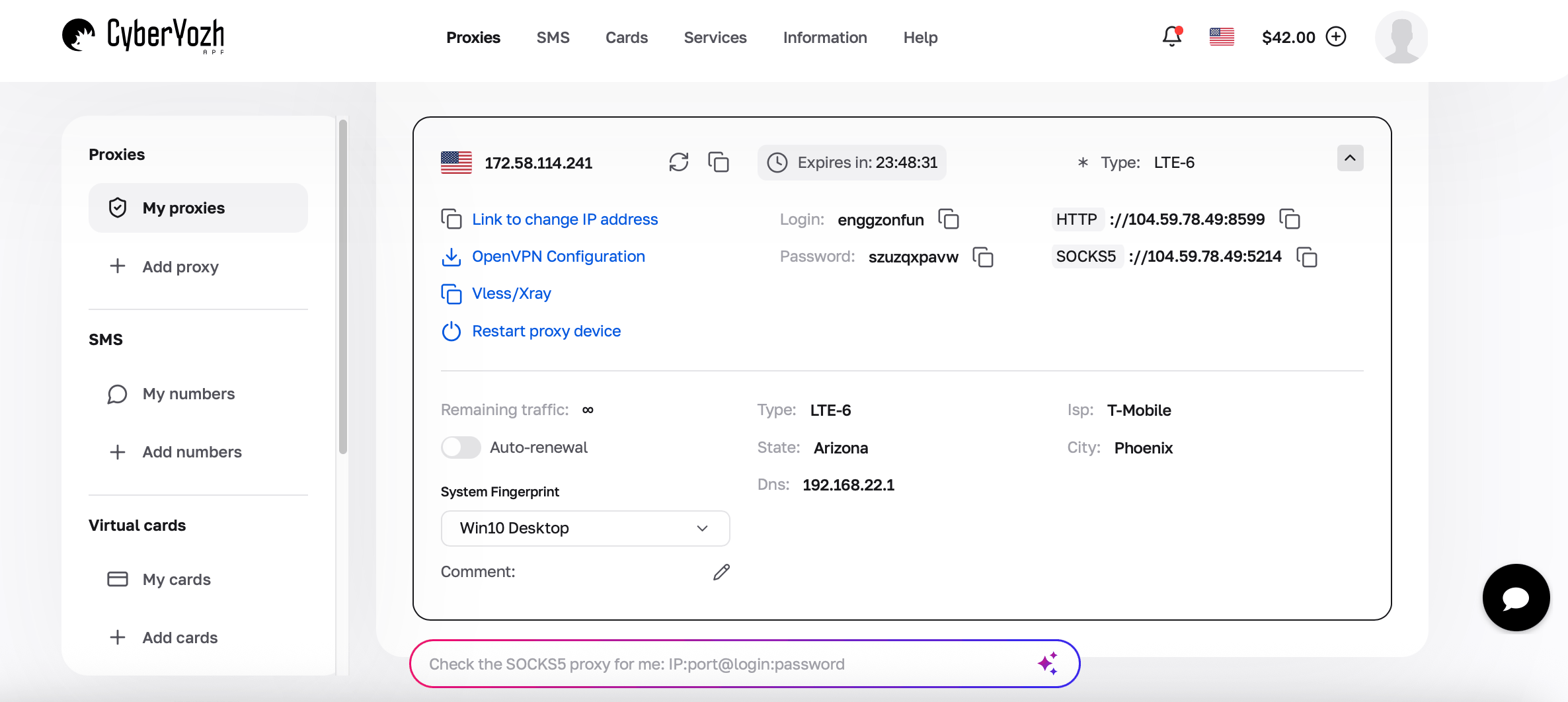
If you need more guidance, we have instructions explaining how to choose and buy proxies on CyberYozh.
2. Adding proxies in Dolphin Anty
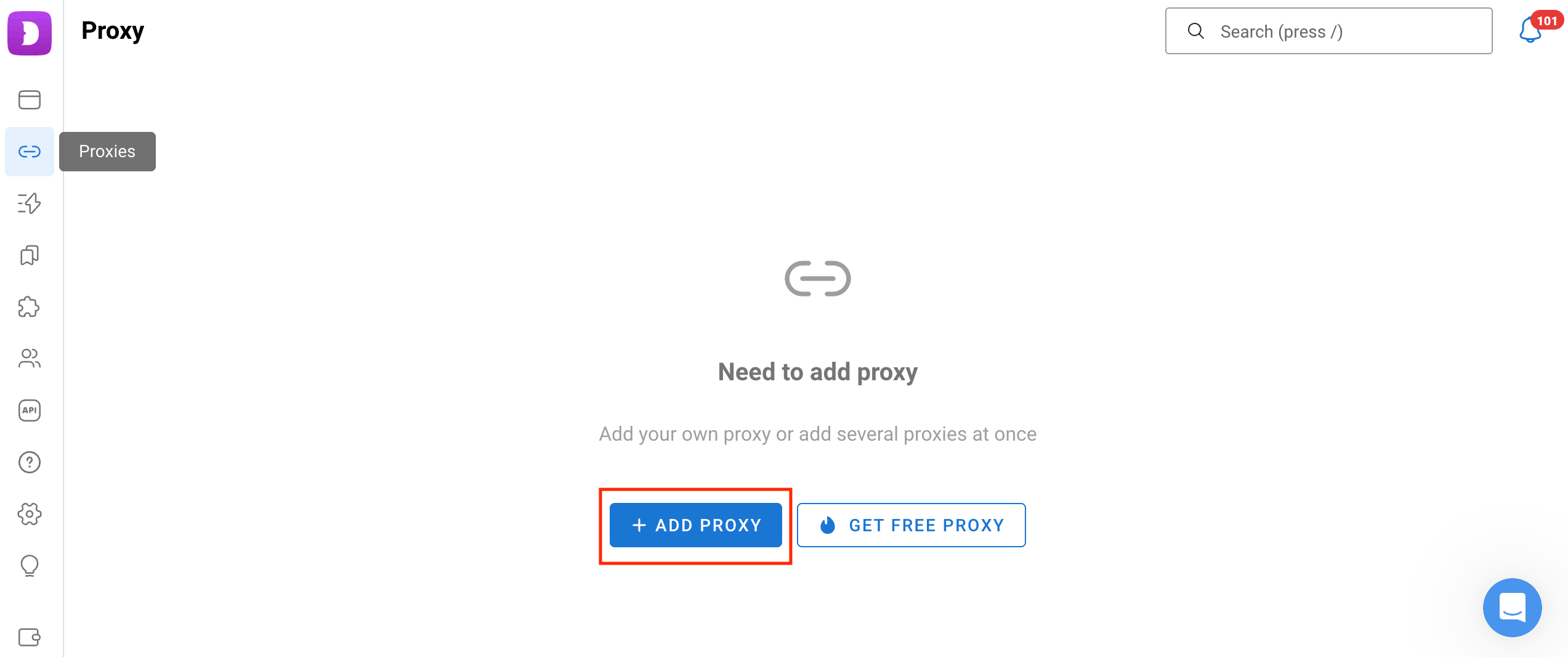
Step 1. Launch the Dolphin{anty} browser and click Proxies on the left, then the Add Proxy button.
Step 2. Enter the profile name and status, and generate a new fingerprint.
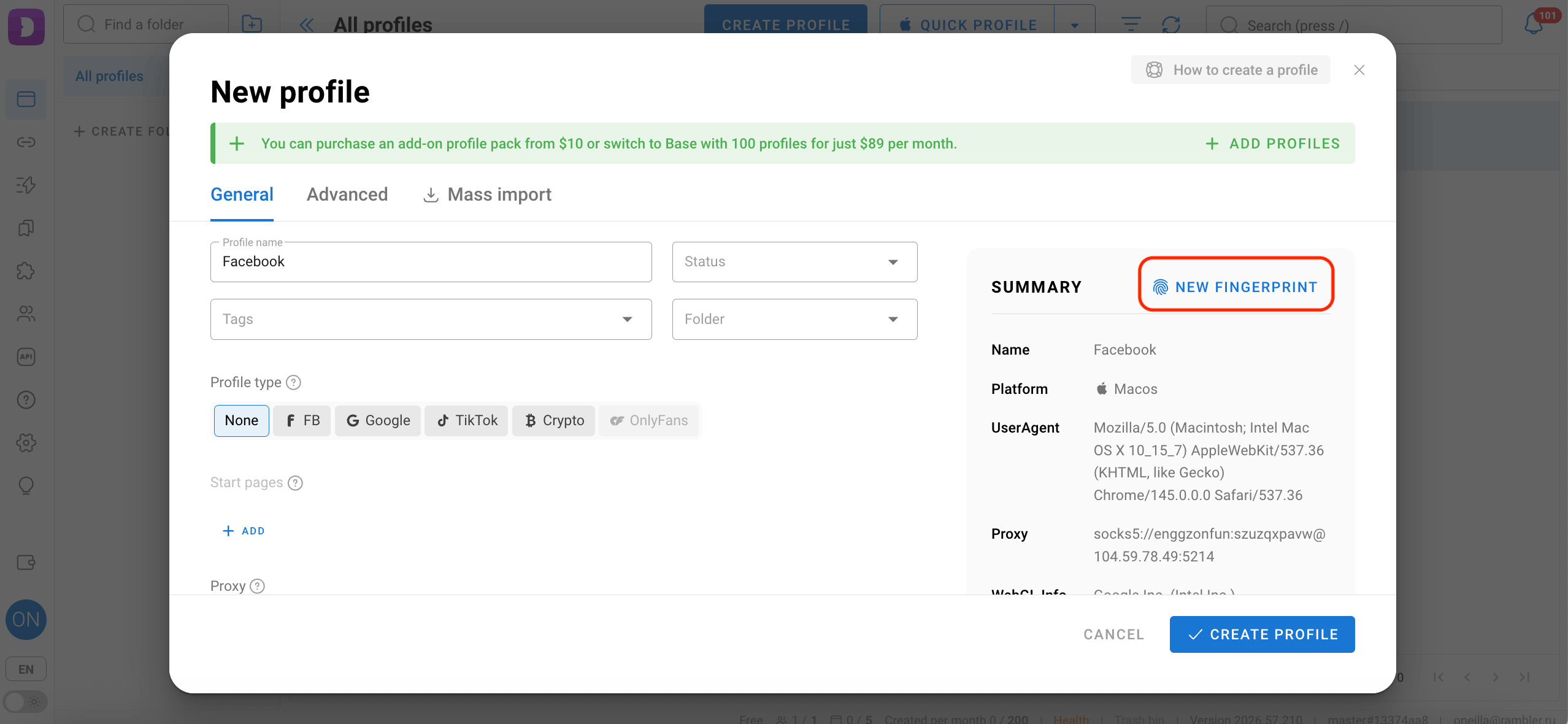
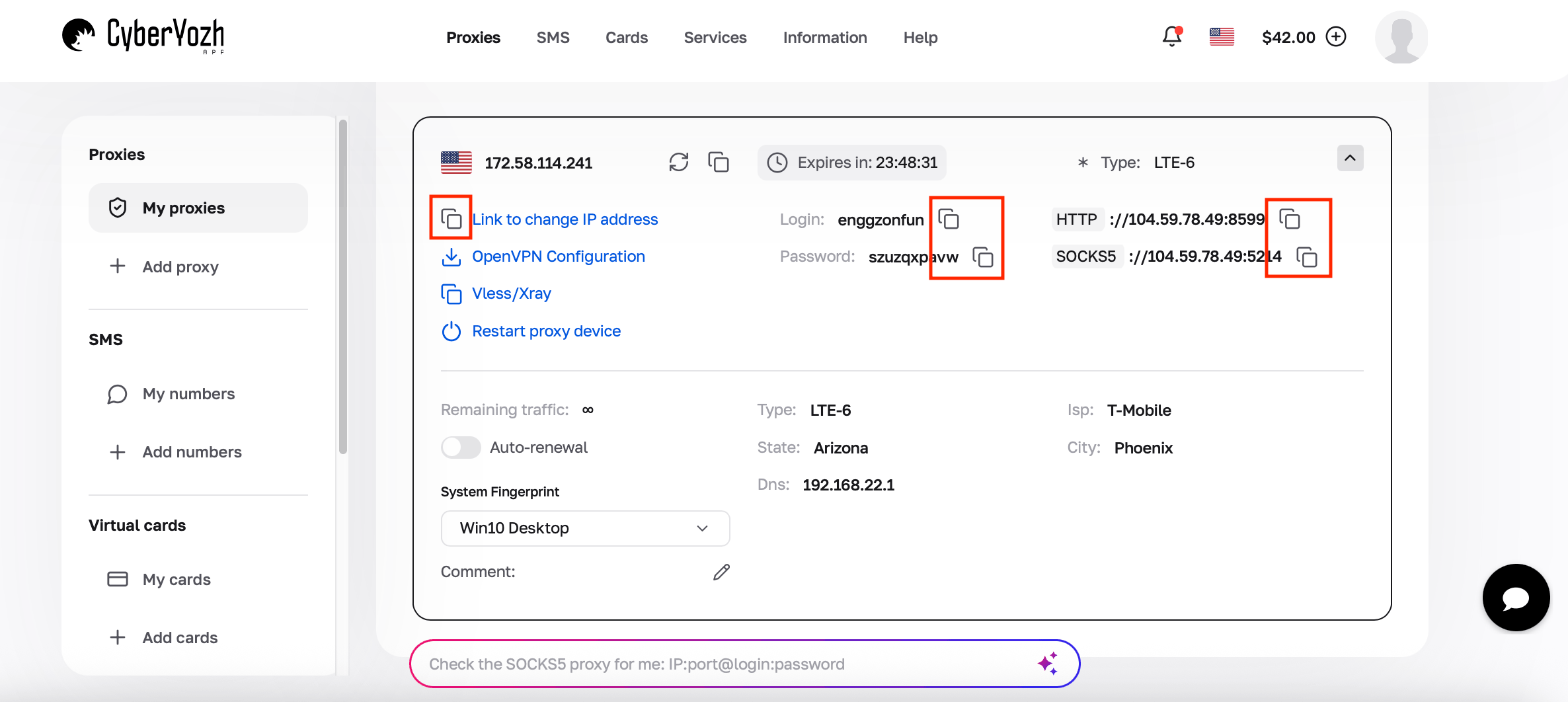
Step 3. Choose the proxy protocol (SOCKS5 in the example), then copy and paste the link from your proxy in CyberYozh in the format. Use the following format: protocol://login:password@host:port. Click on the arrows to check connection.
Step 4. IP Rotation Link. Don't forget to specify the link for changing the IP if your proxy supports such a function. Otherwise, leave blank.
You can copy the link to change IP by clicking on the squares in your proxy page.
Step 5. Click Create Profile.
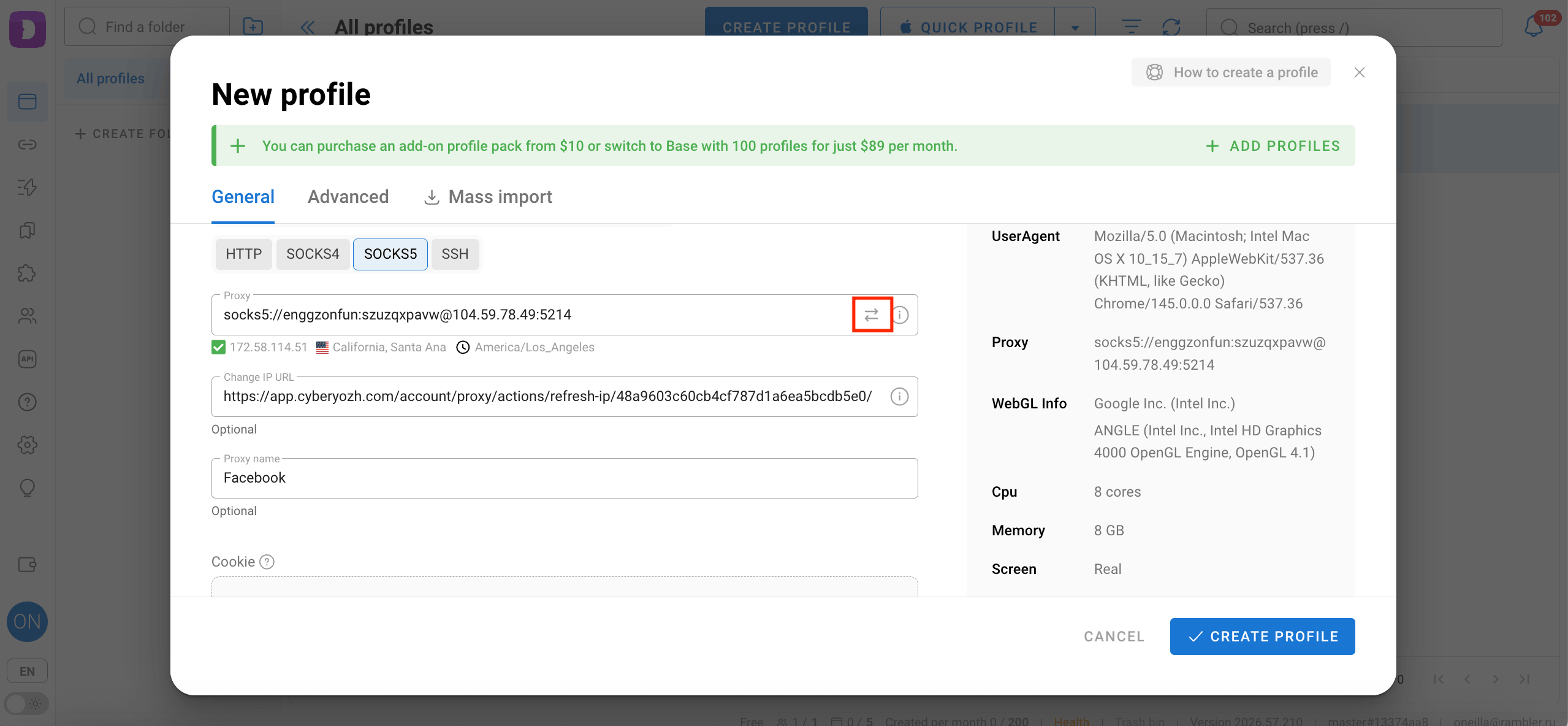
Step 6. After entering all the data, check the proxy connection status by clicking on the arrows. Ensure that all data is entered correctly and your connection is stable.
How to configure the browser profile
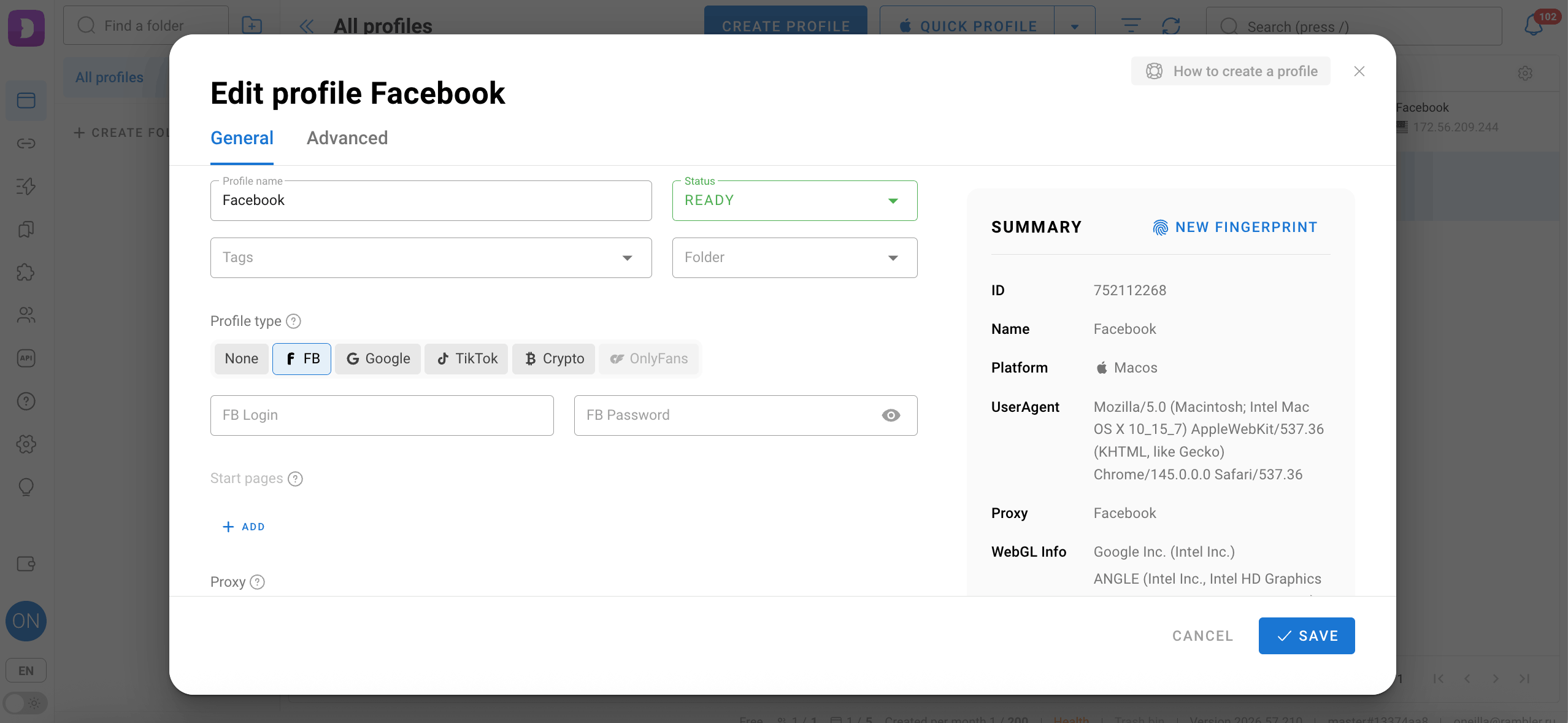
Step 1. Create a new profile. If necessary, create a new browser profile or add the proxy to an existing one.
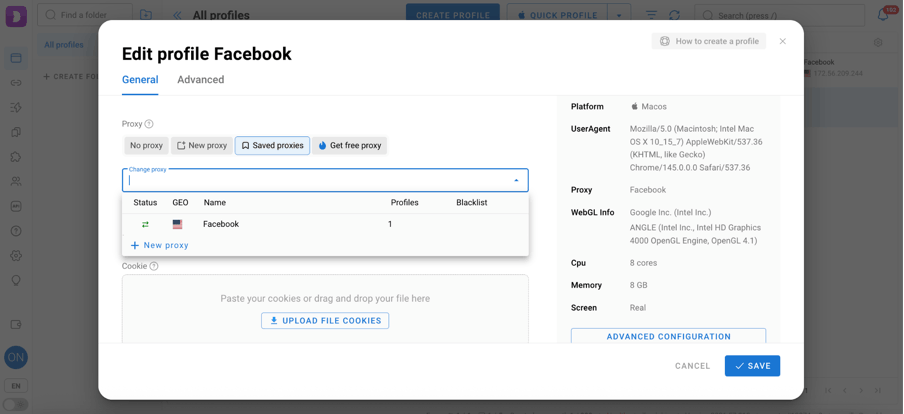
Step 2. Adjust profile settings. Don't forget to configure other profile parameters according to your tasks and requirements. Set the status and profile type if applicable. For example, you can set up custom user agents, geolocation, and other parameters to ensure maximum privacy for your connection.
Step 3. Launch the profile and check your IP address to ensure the proxy connection is working.
Step 4.Test the proxy quality. It is recommended to check the proxy quality with a CyberYozh’s IP checking tool. CyberYozh offers unlimited IP checks to its clients. Thus, you will get the most up-to-date and accurate information about your IP address.
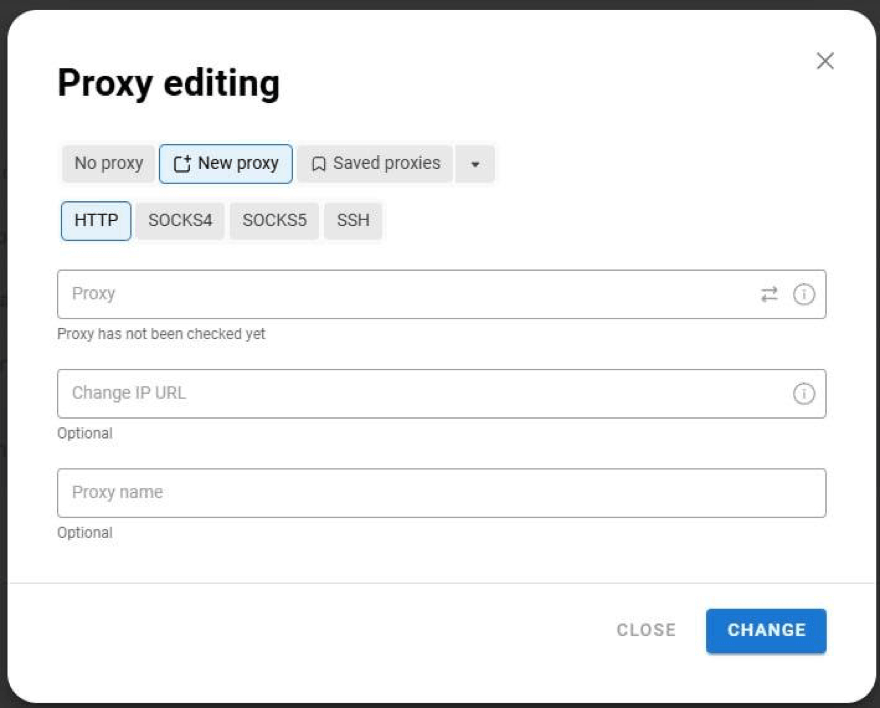
Step 5. To edit the link to change IP in the existing profile, click on the pencil next to the profile name.
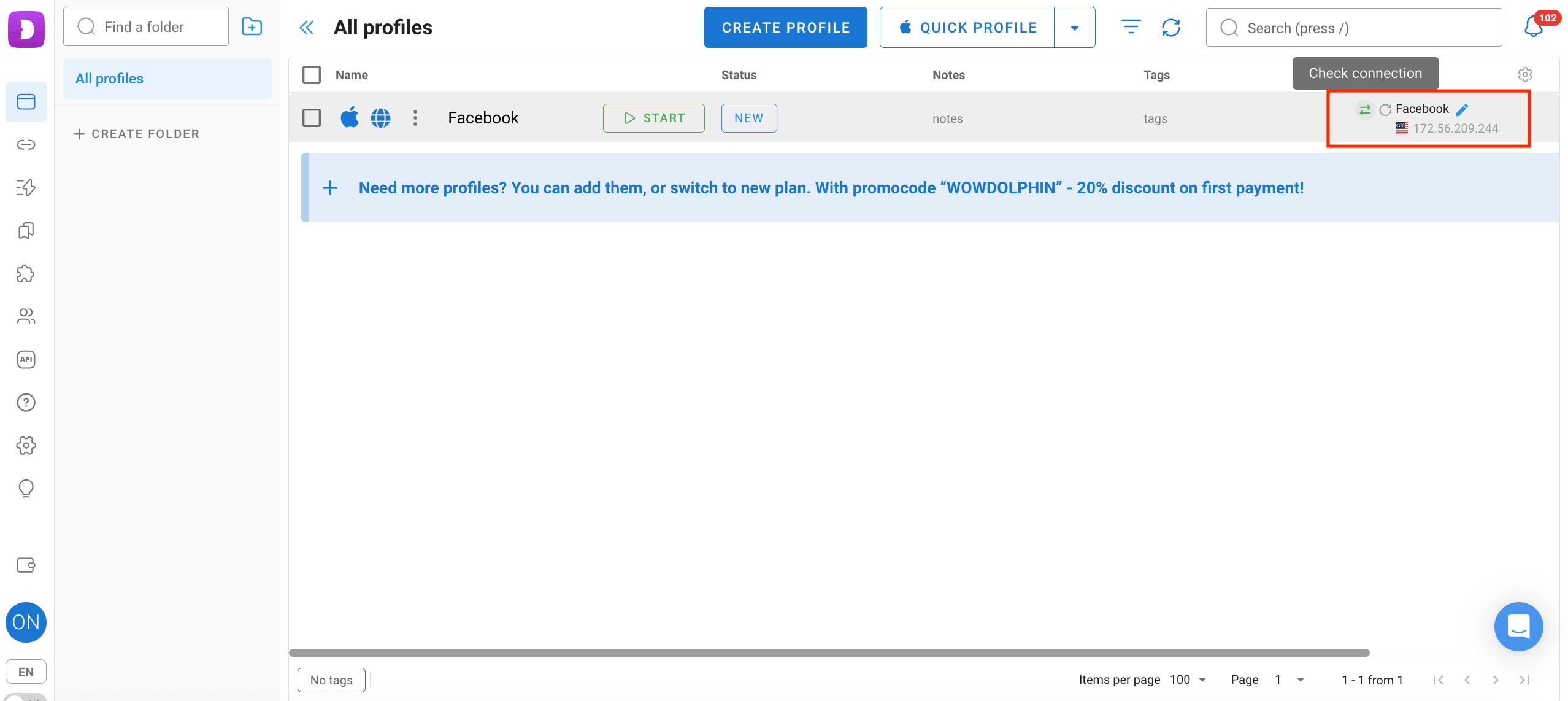
Copy the link in the form.
What types of proxies work best with Dolphin Anty?
When working in Dolphin Anty, both protocol type and using static/rotating IP matter for reliability, stealth, and session integrity. Choosing the right proxy is less about technical complexity and more about matching the proxy to your task.
Proxy Protocols
HTTP/HTTPS: Best for general browsing, scraping, and simple web automation. Use HTTP when encryption isn’t necessary, HTTPS when you need encrypted tunnels.
SOCKS5: More versatile and efficient than HTTP/S, great for long sessions, and logged-in accounts.
IP Rotation
Static (Sticky): The same IP remains assigned for long sessions. Ideal for multi-account management, login flows, e-commerce dashboards, and security testing where session continuity matters.
Rotating: IP changes frequently or per request. Excellent for web scraping, data collection, ad verification, and avoiding per-IP rate limits.
Use-Case Mapping
Advertising & SMM: Use mobile or residential static with SOCKS5 to mimic real users and maintain logged-in sessions.
Web Scraping & Data Collection: Opt for rotating residential or datacenter IPs with HTTP/S for high volume and diversity.
Multi-Account Management: Use static residential/SOCKS5 minimizes suspicious behavior and reduces re-auth prompts.
Security Testing: SOCKS5 with static or controlled rotation depending on test scope (consistency vs scale).
Recommendation: Start by matching your task to the proxy type — static + SOCKS5 for stable accounts, rotating + HTTP/S for scale and anonymity — then fine-tune based on test results.
Troubleshooting Common Errors
1. Proxy authentication failed
Usually caused by incorrect username/password or IP whitelist settings. Double-check credentials in your proxy dashboard and confirm whether authentication is login-based or IP-based.
2. Proxy connected but real IP is visible
This may happen if the proxy is not properly attached to the profile or WebRTC is leaking. Re-check profile proxy assignment and disable IP leaks inside browser settings.
3. Connection timeout or slow loading
Often related to overloaded IPs, incorrect protocol selection (HTTP vs SOCKS5), or geo-distance latency. Try switching protocol or testing another IP.
4. Frequent re-logins or security checks
Common when using rotating IPs for accounts that require stable sessions. Switch to sticky residential or mobile proxies to maintain trust continuity.
Conclusion
Working with Dolphin Anty is about building a stable and safe digital environment. And that environment starts with the right proxy. High-quality residential or mobile proxies offered by CyberYozh will help you reduce verification loops, prevent account linking, and scale safely.
To further strengthen your workflow, consider using CyberYozh App’s virtual SMS service for secure account registrations and verifications. Virtual numbers allow you to separate identities properly and avoid linking accounts through reused phone numbers.
EXCLUSIVE OFFER FOR CYBERYOZH CLIENTS! Get a 20% discount on your first anti-detect browser payment with promo code CYBERYOZH20. Register now!
